|
<< Click to Display Table of Contents >> Setting proper permissions to the cadett_ELSA_license folder |
  
|
|
<< Click to Display Table of Contents >> Setting proper permissions to the cadett_ELSA_license folder |
|
To ensure a proper operation of the license server, the license server itself must have full access privileges to the cadett_ELSA_license folder, including its sub-folders.
Typically, you accomplish that as described here.
Right-click the cadett_ELSA_license folder using the File Explorer.
Select Properties.
Activate the Security tab.
Make sure that any account used by the license manager software has full access privileges to the folder. The preferred way of ensuring that, is to give Full control of the folder to Everyone. (That is not as risky as it might seem, since the folder will not be shared with anyone).
Click the Edit button. (Please refer to the figure below).
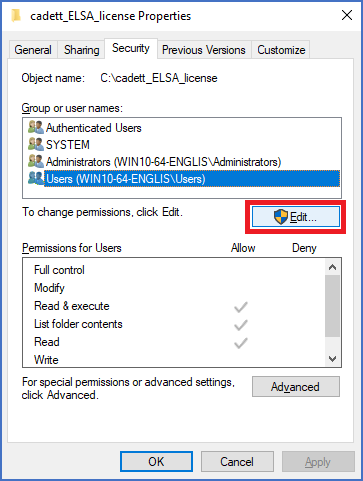
Figure 2473: Edit folder permissions using the “Edit” button.
If Everyone is not already part of the Group or user names list, please click the Add… button, as shown in the figure below.
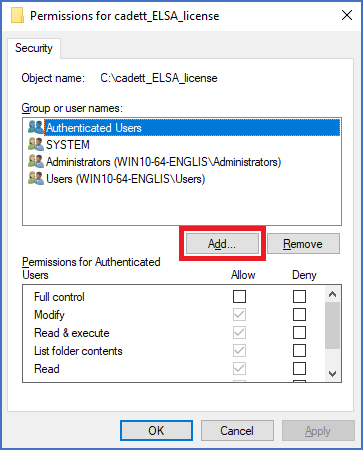
Figure 2474: Click the "Add..." button.
Manually, type ”everyone” in the object names field, like shown in the figure below.
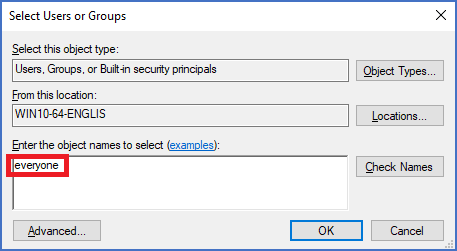
Figure 2475: Type "everyone" in the object names field.
Click the Check Names button, as shown in the figure below.
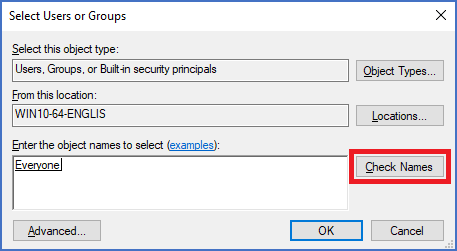
Figure 2476: Click the "Check names" button, and then click “OK”.
Select Everyone in the Group or user names list and then check all boxes in the Permissions field, to give all possible permissions to Everyone, as shown in the figure below.
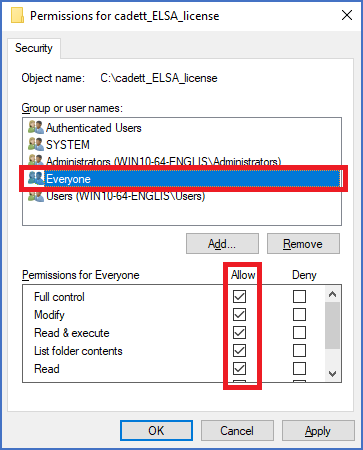
Figure 2477: Give "Everyone" all possible permissions.
Click Apply and then OK.
Please refer to the sub-topics that are listed below for a continued description of the remaining steps.
•Configuring the firewall on the server
•Collect data needed to request a license file