|
<< Click to Display Table of Contents >> License server configuration |
  
|
|
<< Click to Display Table of Contents >> License server configuration |
|
When you receive the license file (a file with extension “.lic”), please copy it to the License folder located here (provided that you have used the default directory):
C:\cadett_ELSA_license\LMTOOLS\License
If the License sub-folder of the LMTOOLS folder does not exist, please create it.
Then start the License Manager TOOLS software (LMTOOLS) using the shortcut in the Start menu (All Programs / cadett ELSA License / cadett ELSA License Manager), or by double-clicking the LMTOOLS.EXE file found in the following directory:
C:\cadett_ELSA_license\LMTOOLS
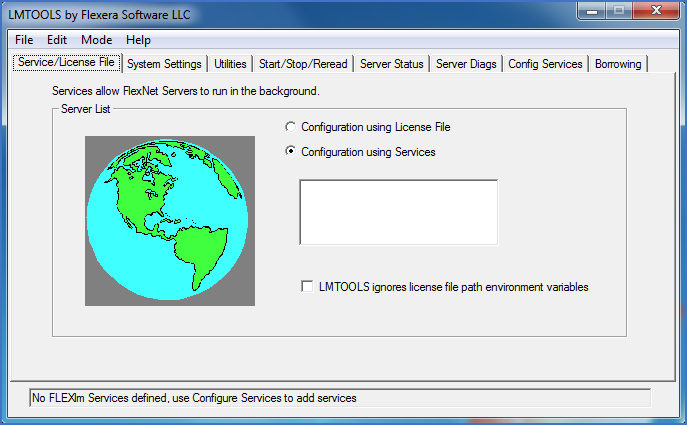
Figure 2494: The License Server main dialogue
A dialogue box with multiple tabs is then displayed, as shown in the figure above. It might look a bit complicated, but it is easier to handle than it seems. Please simply follow the steps described below.
First, activate the Config Services tab as shown in the figure below.
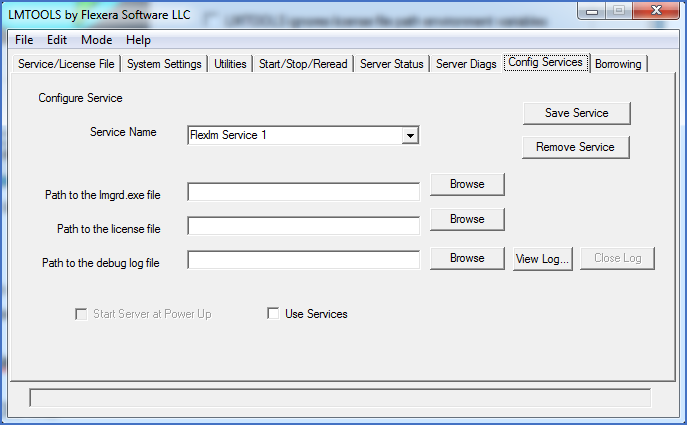
Figure 2495: The "Config Services" tab where you perform the first configurations. Please note that the default "Service Name" shown above should not be used!
The first thing to decide then is what the Service Name should be.
The name of this service can be chosen freely. The default is however not a good option. A name like “cadett_ELSA_License” or similar is instead recommended. In that way you can separate these licenses from possible other licenses, for example standard AutoCAD or other products from other suppliers. Simply type a suitable name in the Service Name field.
An example is shown in the figure below.
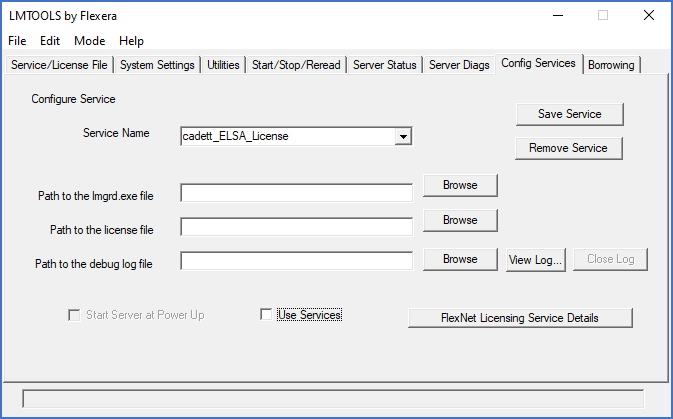
Figure 2496: A proper “Service Name” has been entered.
The second thing to do, is to specify the location of the lmgrd.exe file. That is done using the Browse button to the right of the second field counted from the top.
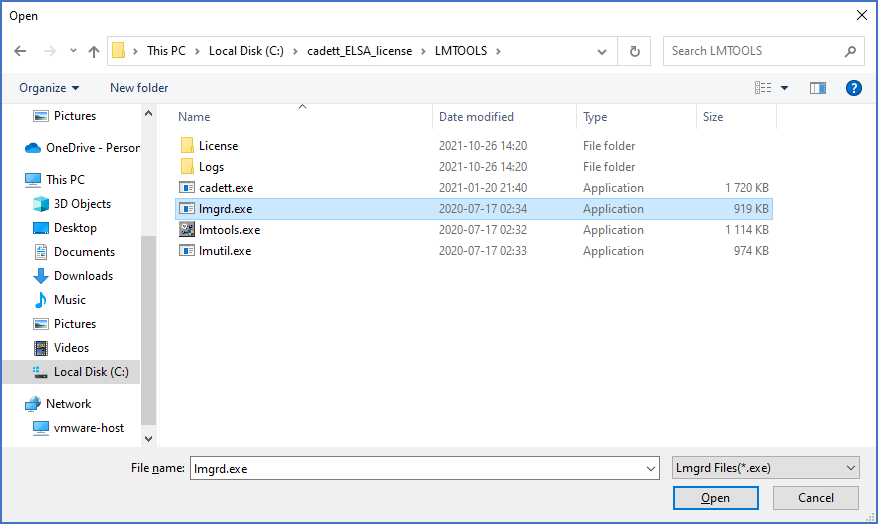
Figure 2497: Browsing for lmgrd.exe
Navigate to the LMTOOLS folder, which is located directly below the cadett_ELSA_license folder. There, you select lmgrd.exe and click the Open button. Please refer to the figure above.
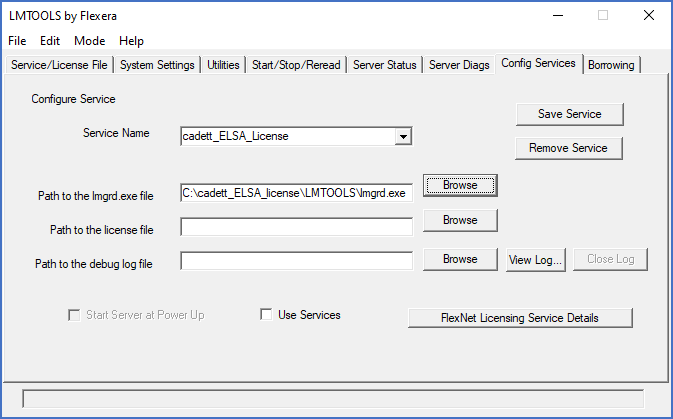
Figure 2498: The path to the "lmgrd.exe" has been specified. The next step is to specify the path to the license file.
The next step is to select the license file, which by then should be placed in the License folder. Please click the Path to the license file Browse button and navigate to the License folder and there to the license file itself.
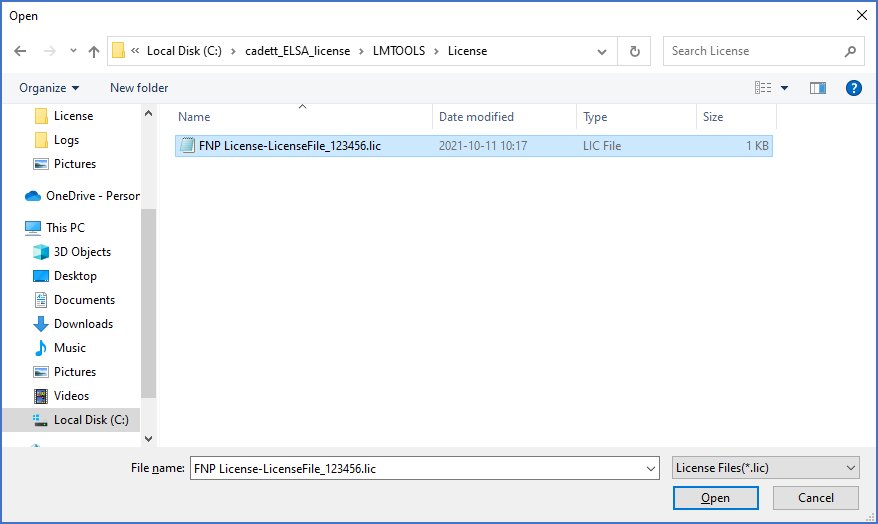
Figure 2499: Browsing for the license file
After selecting the license file and clicking the Open button, as shown in the figure above, the full path is displayed in the main dialogue box, like shown in the figure below.
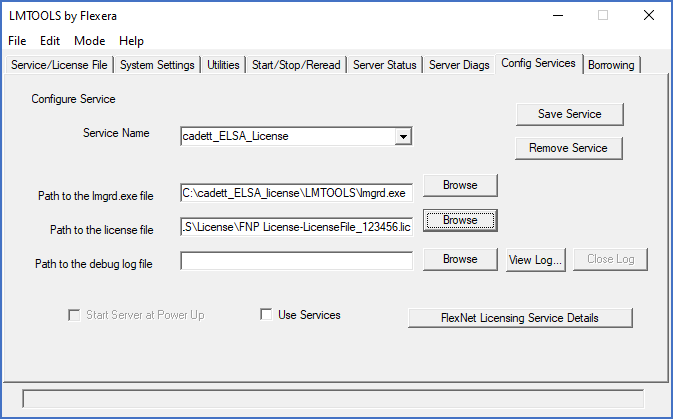
Figure 2500: The license file path has been specified. The next step is to specify the debug log file name and path.
Continue with the third and final path specification, the name and location of a debug log file, which is a file with file extension “.log”. An empty log file is already in place in a suitable folder named Logs, so you can simply navigate to that folder and that file using the Browse button.
C:\cadett_ELSA_License\LMTOOLS\Logs\LOGFILE.log
If, for some reason, that empty log file does not exist, or maybe even the folder for it does not exist, please create both the folder and the empty file manually, before selecting the file as described.
Please select the LOGFILE.log and then click Open.
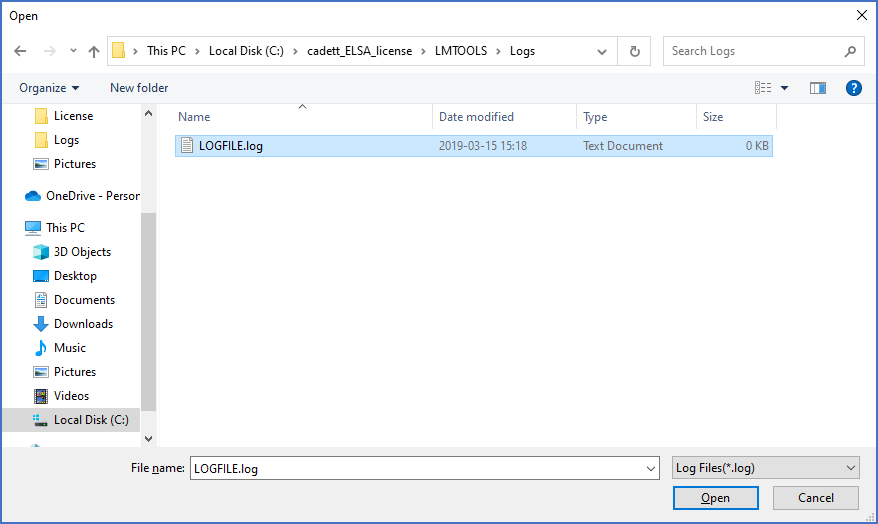
Figure 2501: The “LOGFILE.log” in the “Logs” folder is selected. If the file does not exist, please create it manually.
Activate Use Services and Start Server at Power Up using the two check boxes that are available in the lower part of the dialogue as shown in the figure below.
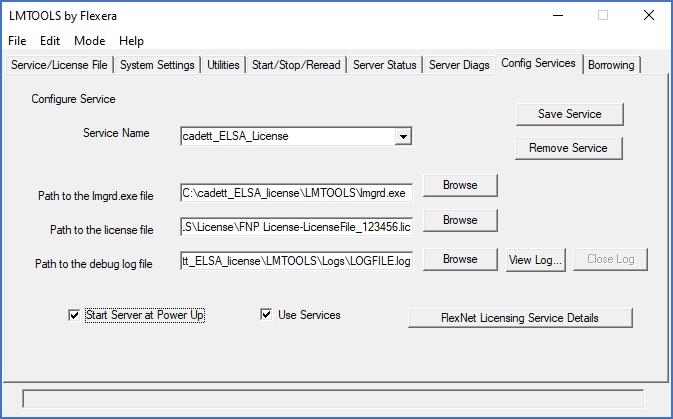
Figure 2502: Activation of “Use Services” and “Start Server at Power Up”
Finally, click the Save Service button in the upper right corner of the dialogue box.
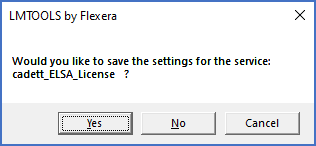
Figure 2503: Confirmation of saving the settings
You will be presented with a dialogue where you are supposed to confirm that the settings you have made are saved, as shown in the figure above. Click Yes.
The configuration of the service has then been saved and another dialogue as shown in the figure below will be displayed.
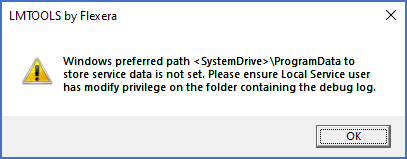
Figure 2504: The reason for this message is described below.
Click OK.
The message shown in the figure above, is due to the log file being placed in a more suitable folder than the default one, which is a hidden system folder. It is therefore very important to ensure full privileges to the selected folder. If you have followed the instructions above, that has indeed been taken care of.
The next step is to restart the newly configured service. For that purpose, please activate the Start/Stop/Reread tab as shown in the figure below.
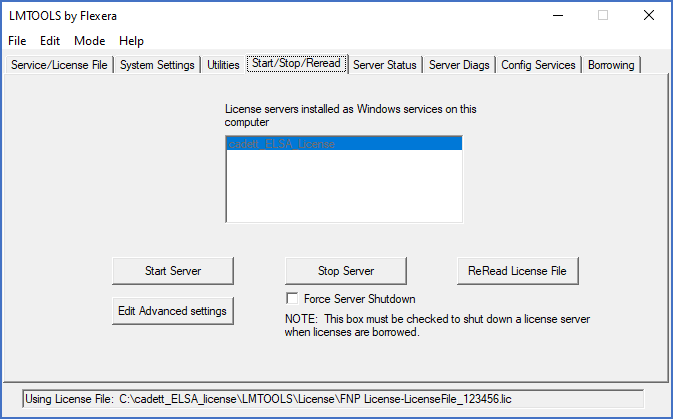
Figure 2505: The "Start/Stop/Reread" tab
To be sure, even if you believe that the service is not running, stop the service by first activating Force Server Shutdown and then click the Stop Server button.
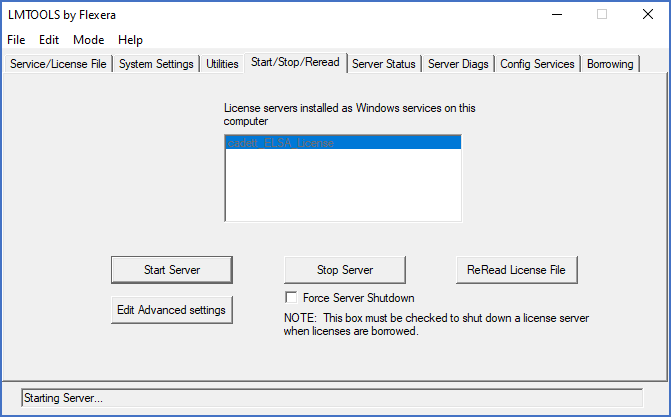
Figure 2506: Starting the License Server
Wait a few seconds and then restart the service by clicking the Start Server button as shown in the figure above.
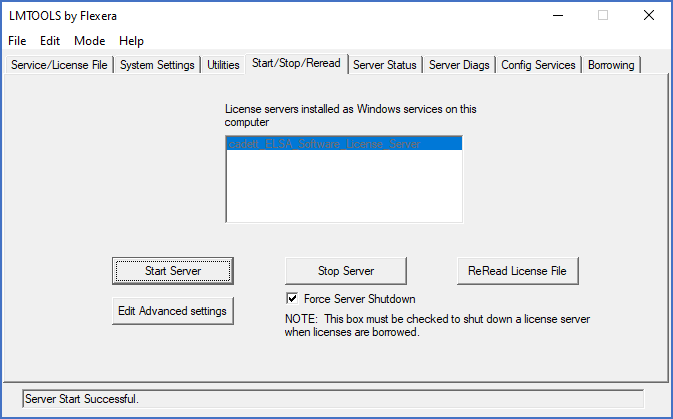
Figure 2507: After a little while, the "Server Start Successful" message is hopefully displayed.
After a few seconds, the status message Starting Server… is normally replaced with Server Start Successful, as shown in the figure above.
To verify that the service is running properly without errors, please activate the Server Status tab, and click the Perform Status Enquiry button.
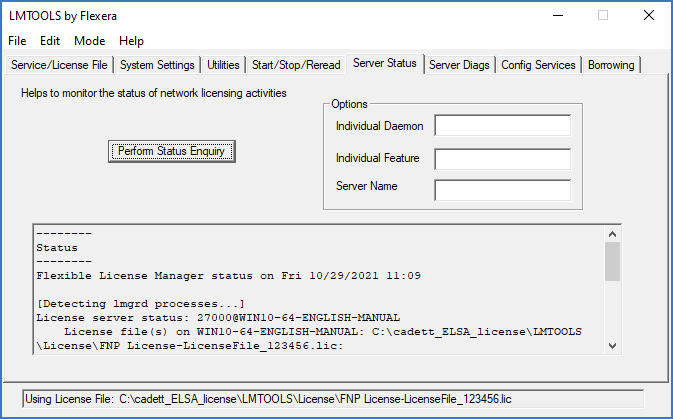
Figure 2508: Result of a Status Enquiry
If the status is displayed in the way shown in the picture above, the service is running correctly.
You can then continue with the workstation configurations, which are described in the sub-topic listed below.