|
<< Click to Display Table of Contents >> Configuring the firewall on the server |
  
|
|
<< Click to Display Table of Contents >> Configuring the firewall on the server |
|
To be able to access the license server from the workstations within the LAN, two ports must be opened on the server. How you do that, varies slightly depending on which version of Windows Server you are using and if you are using the standard Windows Firewall or not.
In any case, you need to enable access with two “Inbound Rules” for TCP Ports 1280 and 27000–27009. (If port 1280 is occupied by something else, you can use another port, but that requires additional configurations and should therefore be avoided, if possible).
On a Windows Server 2019, you typically access the firewall configurations here:
Windows Settings /
Update & Security /
Windows Security /
Firewall & network protection /
Advanced settings
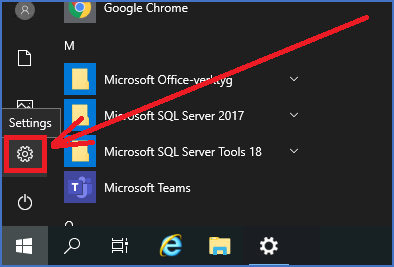
Figure 2508: Click on the gear to access “Windows Settings”.
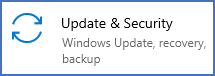
Figure 2509: Click "Update & Security".
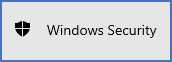
Figure 2510: Click "Windows Security".
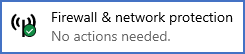
Figure 2511: Click "Firewall & network protection".

Figure 2512: Click "Advances settings".
You will then enter the main window of the Windows Firewall, as shown in the figure below.
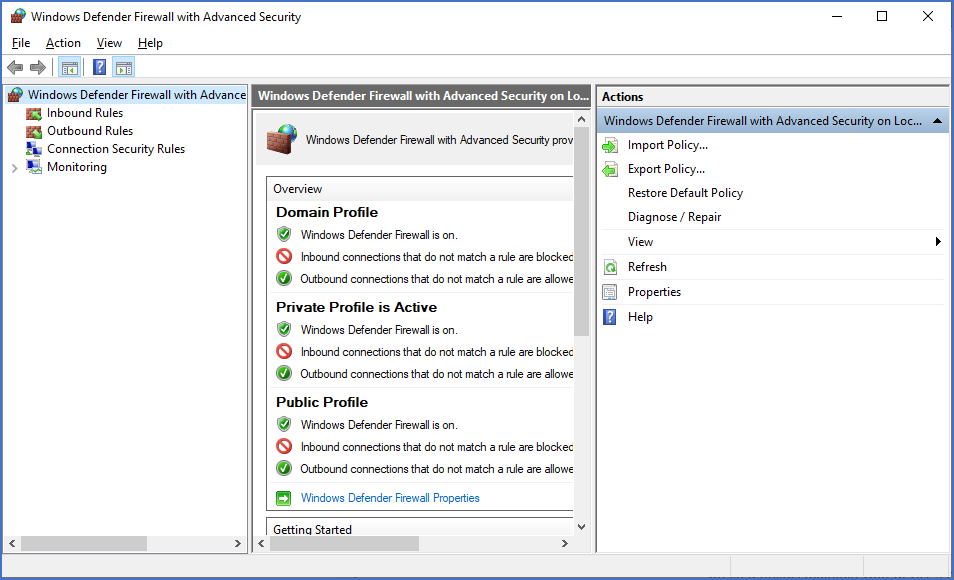
Figure 2513: The "Windows Defender Firewall with Advanced Security" main window
Select Inbound Rules in the left window, and then New Rule… in the window to the left, as shown in the figure below.
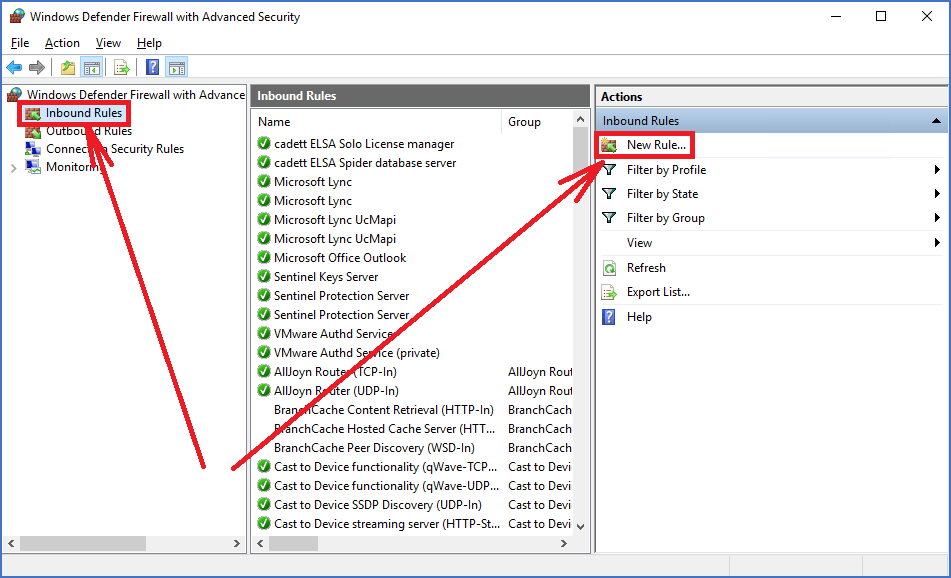
Figure 2514: Create a "New Rule" as shown here.
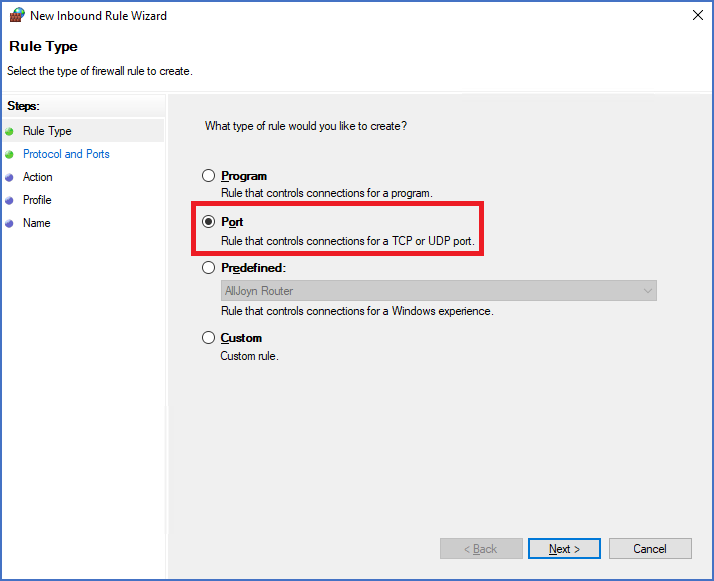
Figure 2515: Select "Port".
Select Port as shown in the figure above, and then click Next >.
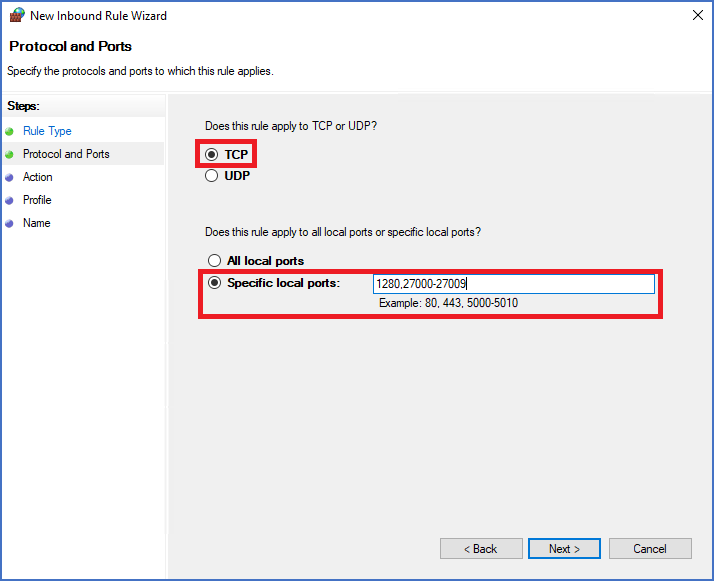
Figure 2516: Specify exactly which TCP ports to open in this way.
Specify TCP and Specific local ports. Then specify the local ports to 1280,27000-27009, as shown in the figure above.
Click Next >.
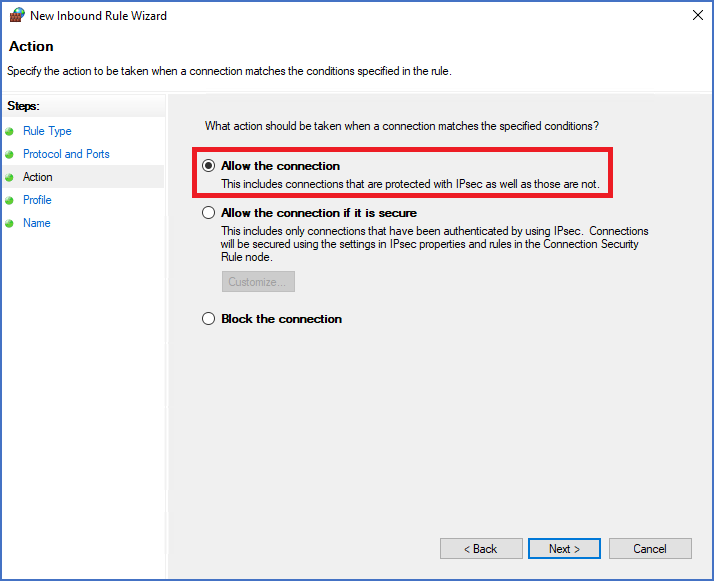
Figure 2517: Select "Allow the connection".
Select Allow the connection, as shown in the figure above, and then click Next >.
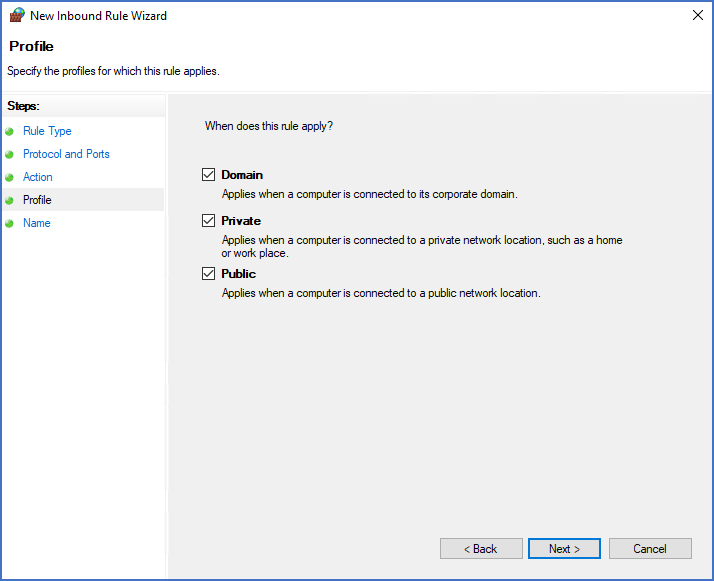
Figure 2518: Here you specify when the new rule applies. You can use the default settings.
Next, you need to specify when the new rule applies. In some cases, it might not be necessary to have Public activated, but to be sure you can leave the default settings shown above as they are, and then click Next >.
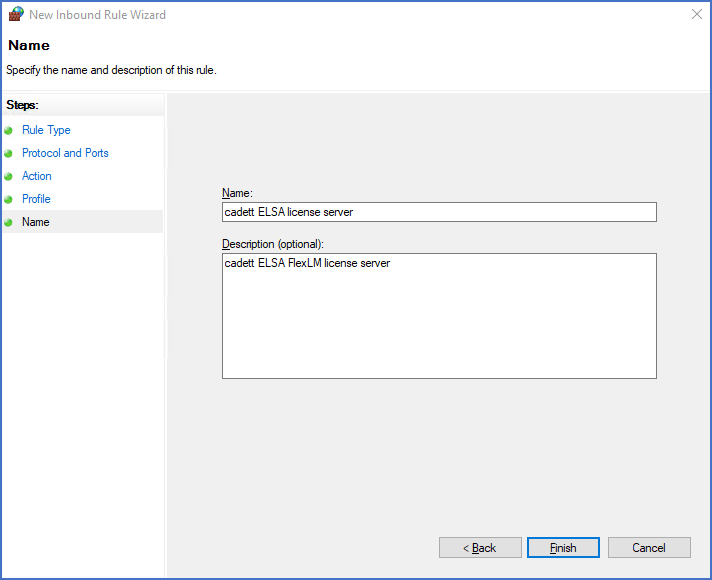
Figure 2519: Naming the new rule
Add a proper name and description for the rule, like “cadett ELSA license server” as shown in the figure above.
Finally, click Finish.
The firewall is then configured, and you can proceed with the next step, as described below.
If you are using another kind of firewall, the procedure might be somewhat different.
Please note that if you only have one cadett ELSA license and you therefore have placed the license server on the workstation, you do not need to make any firewall configurations.
The remaining steps to get the license server running are described in the sub-topics that are listed below.
•Collect data needed to request a license file