|
<< Click to Display Table of Contents >> Convert to DXF and collect in Drawing Manager |
  
|
|
<< Click to Display Table of Contents >> Convert to DXF and collect in Drawing Manager |
|
The first step of the actual conversion is to go from DWG to DXF format. Then you can access the files with the tools of cadett ELSA, like the Drawing Manager. Please follow the procedure described below.
1.Convert the drawings from DWG to DXF file format using the Script Generator by running the script sequence 0DWG-R15DXF_Q on them.
If there are references in the DWG files to external files, like fonts or shapes in SHX files, and those SHX files are not available, the converted DXF files will be corrupted. It will not be possible to open them. If so, please make sure that you get hold of those SHX files from the original Elprocad installation, and copy them to the symbol library of cadett ELSA.
2.Go to the Drawing Manager and click COLLECT. The drawing sheets should then turn up in the Drawing Manager.
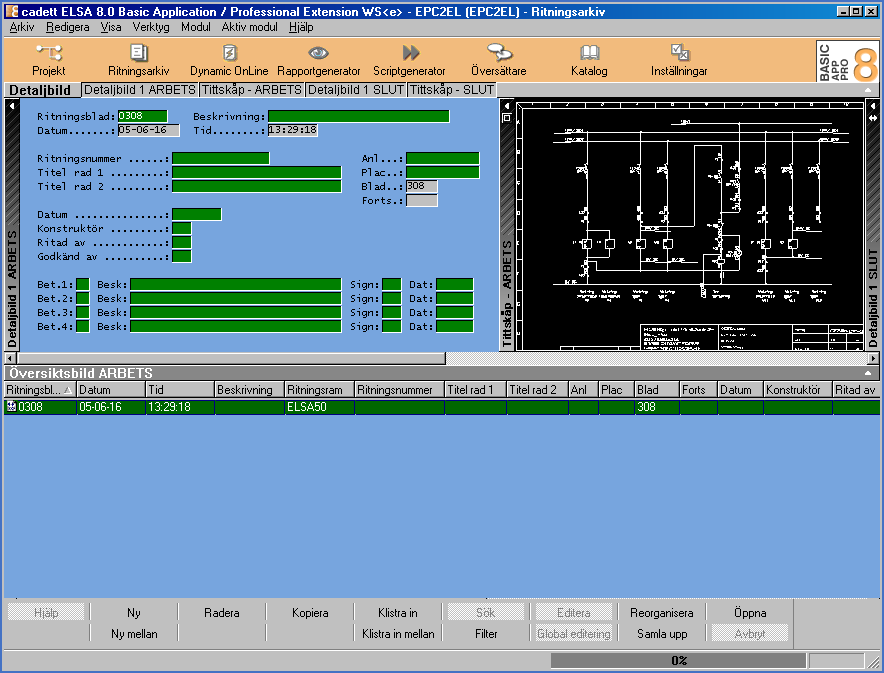
Figure 2332: When the original DWG files have been converted to DXF, they can be collected in the Drawing Manager.
3.Continue by clicking the REORGANISE button.
If the original DWG files contain multiple sheets in each file - so-called "multi-sheet drawings", you must split them in separate files. In that case, please continue with the topic named Split Elprocad multi-sheet drawing.
If the original DWG files are single sheet drawings, with only one sheet for each file, you can skip that step and continue directly to the conversion procedure.
There are three ways possible to convert the drawings:
•Symbol by symbol (Convert single Elprocad symbols)
•Sheet by sheet (Convert Elprocad drawing sheets)
•Multiple sheets at once (0ELPROCAD-CADETT_ELSA)
Please refer to the features, commands and associated topics that are listed below.
•Split Elprocad multi-sheet drawing
•Convert single Elprocad symbols
•Convert Elprocad drawing sheets
•0ELPROCAD-CADETT_ELSA Script sequence