|
<< Click to Display Table of Contents >> Split Elprocad multi-sheet drawing |
  
|
|
<< Click to Display Table of Contents >> Split Elprocad multi-sheet drawing |
|
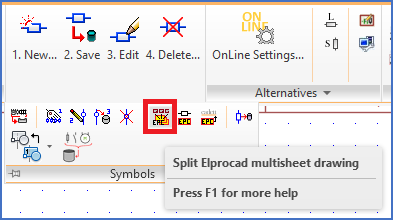
Figure 2303: The "Split Elprocad multi-sheet drawing" command is found in the "Symbols" slide-out panel.
So-called "multi-sheet drawings" are used in Elprocad to save multiple sheets in a single DWG file by using separate layers for individual sheets. That is a legacy technology that is not supported by other software vendors like Autodesk and cadett. To manage that kind of drawings in other software systems like cadett ELSA, the multi-sheet drawing must therefore first be separated into individual files for each sheet. When that has been done, further conversion can be made, like converting symbols and more.
The work-flow for converting an Elprocad multi-sheet drawing is described below.
1.Create a new cadett ELSA project and set the project parameters to match the item designation composition used in the Elprocad project.
2.Copy the Elprocad DWG file to the project's SOURCE directory and, if necessary, rename the file so that the file name matches the project parameters.
3.Convert the drawing from the DWG to the DXF file format by running the script sequence 0DWG-R15DXF_Q on the drawing sheet.
4.Go to the Drawing Manager and click COLLECT. The drawing should then be visible in the Drawing Manager.
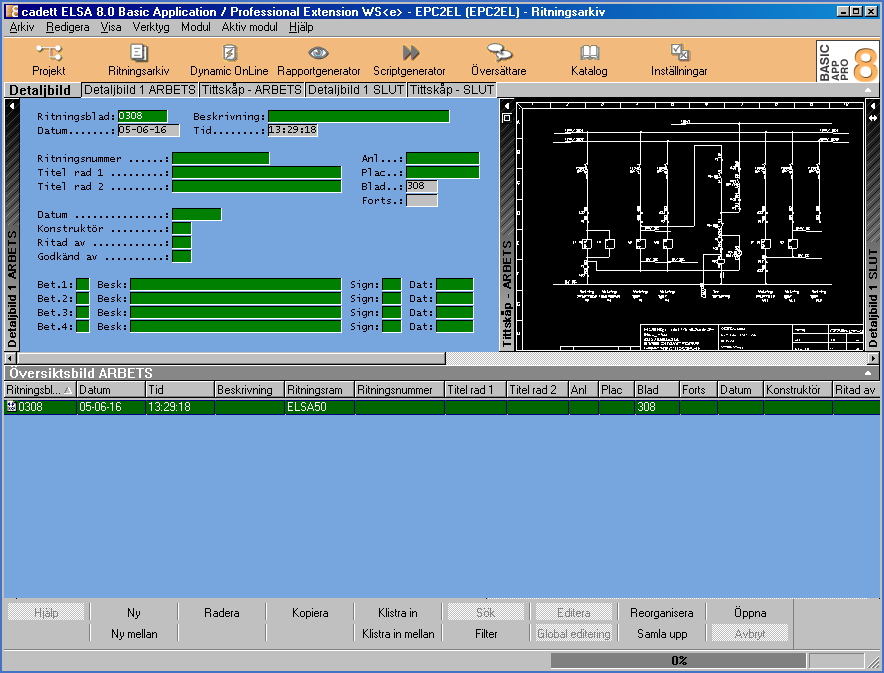
Figure 2304: A multi-sheet drawing has been collected in the Drawing Manager.
5.Open the drawing. You will receive a number of error messages, for example that the BLATT block is missing in the title field. Ignore it and press OK.
Please note! If parts of the symbol graphics are missing, or some texts are unreadable, invisible, or has the wrong font, that is most likely because one or more Elprocad shape files are missing. In such cases, download these from the Elprocad installation, copy them into the current symbol library, close the drawing and then reopen it.
6.Turn the OnLine Engine off. You do that by selecting the OnLine Settings command in the Alternatives panel of the Tools tab in the ribbons menu. In the dialogue box that appears, you set OnLine Off.
7.Select the Split Elprocad multi-sheet drawing command from the Tools tab of the ribbon menu, as shown in the figure above. You find it in the Symbols slide-out panel. The dialogue that appears presents the sheets in the drawing. It may look like this:
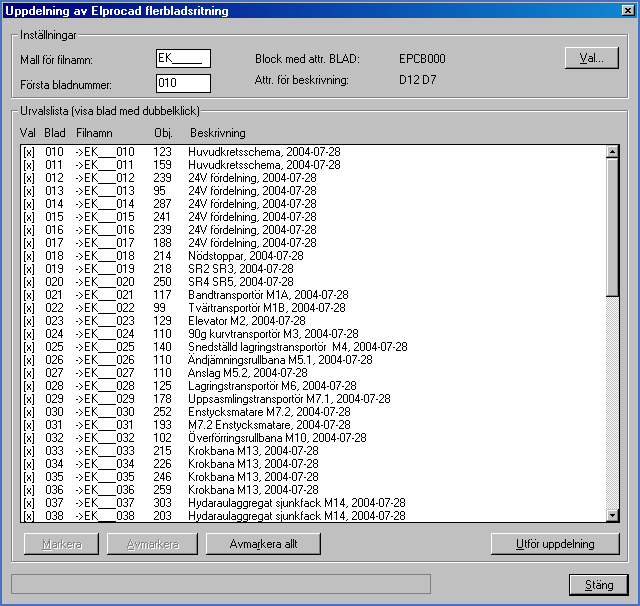
Figure 2305: The dialogue that is used when splitting multi-sheet drawings
The list shows in turn whether the sheet has been selected for separation, the sheet number, the DXF file name of the separated sheet (according to the template settings above the list), how many AutoCAD objects (entities) are on the current sheet, and information retrieved from the title field for the current sheet.
If you double-click on a sheet in the list, it will be displayed in the AutoCAD window below the dialogue.
With Select, Delete, and Delete sll, you can modify the selection of sheets to be separated. Selected sheets are marked with an x at the far left in the list.
Please note! If a sheet is marked with a - (minus) at the far left, it means that it does not contain any AutoCAD objects and therefore cannot be separated.
Since block names and attributes in the drawing frame are configurable in Elprocad, the list may initially be empty. In that case, please click the Options… button and select the drawing frame and the fields that you want to be displayed in the list (please refer to the figure below).
The drawing frame/block you select must contain the attribute SHEET, as it defines the sheet number and layer for the objects belonging to the sheet in question.
Adjust the settings as desired, select the sheets you want to separate in the list and then press Separate. DXF files with the selected sheets are generated. Then close the dialogue.
8.Go to the Drawing Manager and collect the drawing sheets. Delete the DXF file that contains the original multi-sheet drawing. It may look like this:
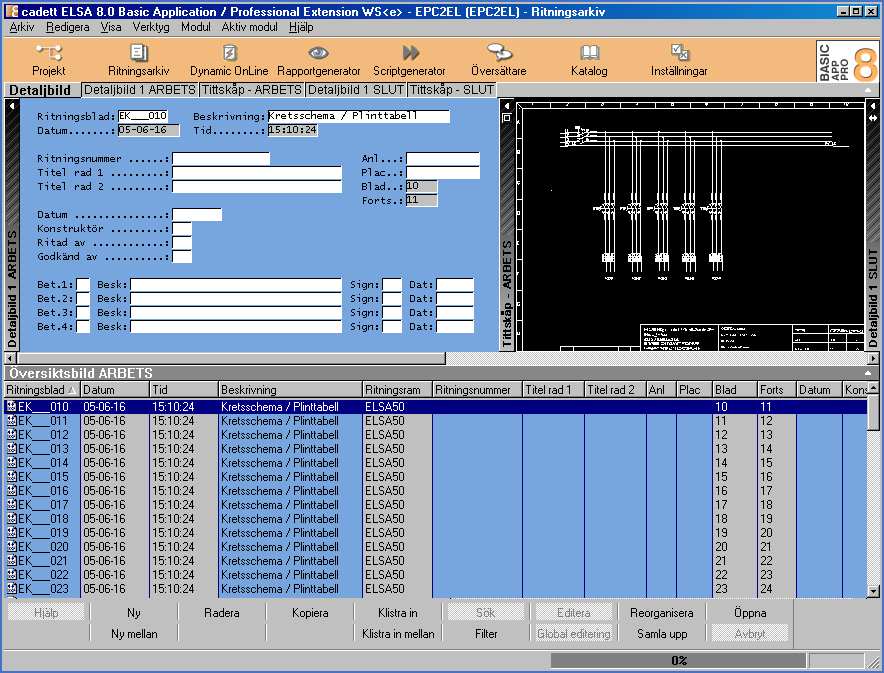
Figure 2306: Splitting has taken place and a number of new DXF files have thus been created and collected.
The multi-sheet drawing is then converted to single sheets and you can continue with the conversion of them. That can be done symbol by symbol, sheet by sheet, or all sheets at once using the Script Generator.
Please refer to the topics listed below, which describes all three methods.