|
<< Click to Display Table of Contents >> Create sub-circuits |
  
|
|
<< Click to Display Table of Contents >> Create sub-circuits |
|
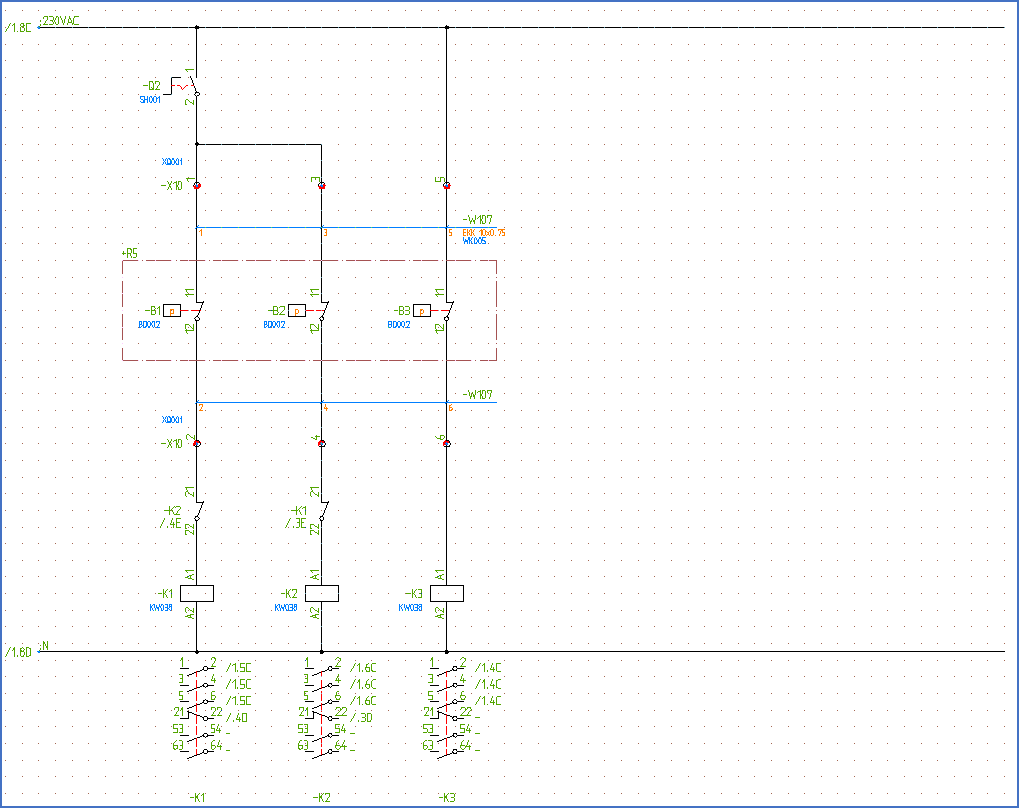
Figure 1241: This control circuit will be defined as a sub-circuit in the example below.
The picture above shows an example. Symbols for three contactors and a number of other components will belong to a sub-circuit together with the associated lines. The two horizontal lines representing 230VAC and N will not be a part of the created sub-circuit.
Here the entire procedure is described:
1.Start by finding or creating the part of a circuit diagram that you want to define as a sub-circuit. Make sure that all objects are visible on the screen.
2.Start the 1 – New option of the Symbol Generator.
3.The standard Symbol data dialogue of the Symbol Generator is displayed.
4.Specify a suitable name for the sub-circuit in the Symbol name field in the top of the dialogue. Please use similar conventions for the naming as for user defined symbols so that conflicts with standard symbols are avoided. In the IEC1082 symbol library any names beginning with “L” or “S” should for example be avoided. In the DIN5 symbol library any names beginning with “0” (zero) should be avoided in a corresponding way.
In this example the name of the sub-circuit will be UCTRL1.
5.Specify an equally suitable description of the sub-circuit in the Description field in the bottom of the dialogue.
In this example the description will be Control circuit no 1.
6.Specify the Symbol type as Sub-circuit (symbol type number 14 in the drop-down list).
7.This example deals with a part of a circuit diagram, so the Document type should be set to 0 (Circuit Diagram).
8.Sub-circuits in most cases do not come in different versions, like vertical or horizontal, even if that in principle would be possible. The Version will in this case be set to General (ABCDEFH).
9.Since there will only be one Version, the Group field may be left empty.
10.The last specification that you need to make in the dialogue box is to select a Resource category for the sub-circuit. This is where in the tree-structure of the Symbol Insert Tool the sub-circuit will be displayed.
You can either type the code of the desired Resource category in the field to the left or you can make a selection using a special dialogue box accessed by clicking the Select button to the right.
If you would like to add additional Resource categories to select from, you can do that in the Catalogue. Please refer specifically to the Edit resource categories sub-topic.
11.The specifications in the dialogue box are now ready.
12.Be very careful not to miss the final steps of the sub-circuit creation process. After you have clicked the OK button in the lower left corner of the dialogue you will have to make a couple of additional specifications.
13.First specify the insertion point of the sub-circuit at the request of the Symbol Generator. Place it in a suitable way.
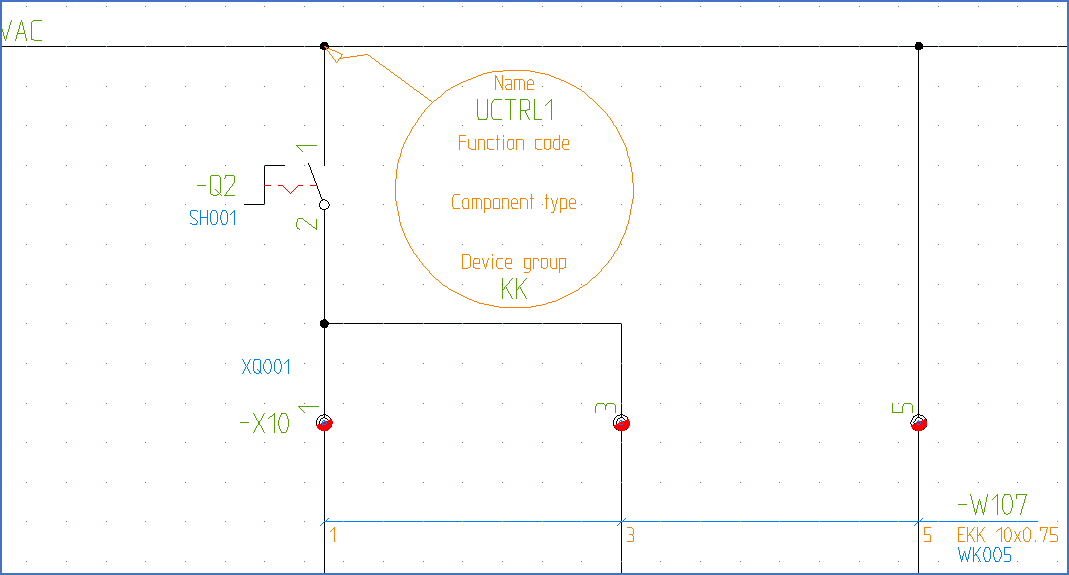
Figure 1242: Left-click to place the insertion point. A Symbol Object will show the placement that you have made.
An ordinary Symbol Generator Symbol Object will show the placement of the insertion point. You can rotate the Symbol Object using the ROTATE command if you like. If you want to move the insertion point you can do that by moving the Symbol Object using the MOVE command.
14.Please check that you are satisfied with all your specifications before you move on to the final step. If you would like to access the main dialogue box again to make any alterations, you can do that by simply double-clicking the Symbol Object.
15.To save the sub-circuit, please select the 2 – Save command from the Symbols panel in the Tools tab of the ribbon menu.
16.You are finally asked to select the objects that the sub-circuit should consist of. Please note that the Symbol Object must be included in the object selection. Confirm the selection with the <RETURN> key.
17.All objects belonging to the sub-circuit are removed from the current drawing sheet.
18.Update the view in the Symbol Insert Tool by clicking the Refresh symbol view button in the upper left corner of it.
19.You can then admire the sub-circuit that you have created and you can insert it whenever and wherever you like.
Please refer to the Insert sub-circuits topic for a description of how to insert sub-circuits.