|
<< Click to Display Table of Contents >> Version |
  
|
|
<< Click to Display Table of Contents >> Version |
|
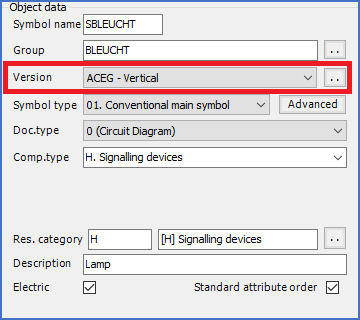
Figure 1080: Symbol version
Please refer to the Symbol versions subtopic for a complete explanation of what a symbol version is.
You can specify the Version in two different ways:
oWith a drop-down list
oWith a selection dialogue
The drop-down list is shown in the figure below. With that, you select the version from a list of all available options. However, that may not always be the most user-friendly way of doing the selection.
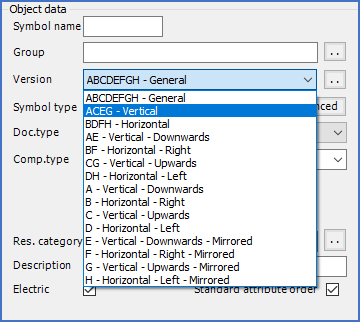
Figure 1081: Version can be selected using a drop-down list.
As an alternative, you can click the Select button to the right of the Version field, as shown in the figure below.
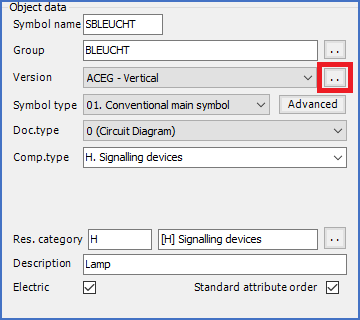
Figure 1082: The Select button to the right of the Version field displays a dialogue box, as shown in the next figure.
When you click that Select button, a special dialogue will be displayed, as shown in the figure below. This dialogue presents all options in a more comprehensive and clear way.
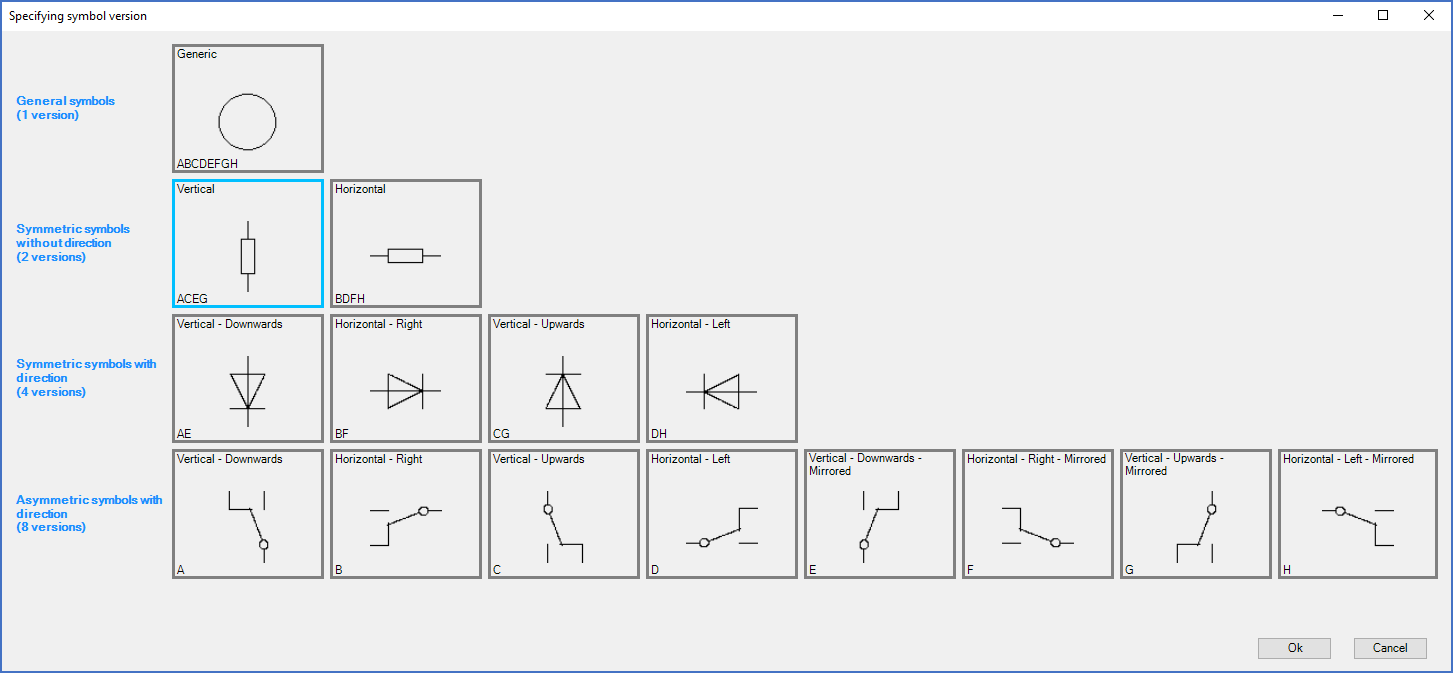
Figure 1083: All version options presented in a clear and comprehensive way
You click on the correct version and confirm your choice with the OK button.
The Cancel button exits the dialogue without making a choice.