|
<< Click to Display Table of Contents >> Group |
  
|
|
<< Click to Display Table of Contents >> Group |
|
The Group is used to collect all versions of the same basic symbol in a common group. By doing so, a number of useful features will be enabled. That includes the ability to toggle between the versions within the group when inserting the symbol.
The name of the group can be chosen arbitrary, but must fulfil the following two obvious requirements:
•The group name must not be used by any other symbols that should not belong to the same group.
•The group name must be identical for all symbols within the symbol group.
A typical way of naming the group is to use a part of the symbol name. In the IEC1082 standard symbol library, the name of the symbol for a vertical resistor is SRES1. The name of the symbol for the corresponding horizontal resistor is LRES1. The group name has therefore been defined as RES1. Finding a similar system for your own symbols may be a good idea.
When you create the first symbol in a group, you must enter the group name manually by typing it.

Figure 1076: The group name of the first symbol in a group is specified manually, by typing it.
When you create the other symbols in the same group, you can choose to type the group name again, thereby taking a risk of misspelling it, or select an existing symbol in the group, thereby retrieving the group name from that symbol. The latter method may be safer and more convenient. To make such a selection, you use the Select button to the right of the Group field, as shown in the figure below.

Figure 1077: The Select button shown here can be used to select a symbol to automatically get the group name from that symbol, instead of typing the group name.
A dialogue box, like shown in the figure below, is then displayed.
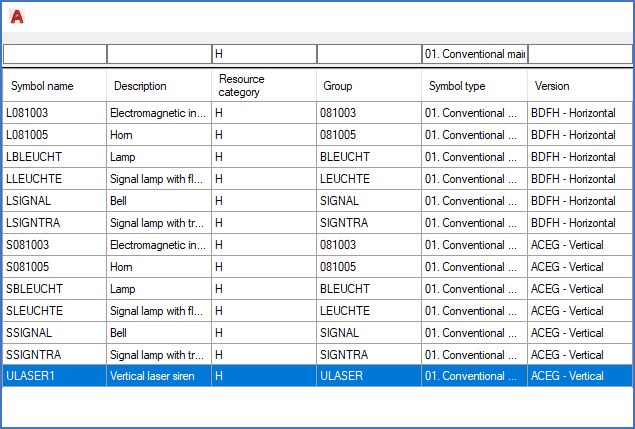
Figure 1078: A dialogue like this one enables you to select a symbol belonging to the same group, instead of typing the group name.
Please refer to the subtopic listed below for a detailed explanation of the Group select dialogue.