|
<< Click to Display Table of Contents >> 2. Insert graphical symbols... (or create your own) |
  
|
|
<< Click to Display Table of Contents >> 2. Insert graphical symbols... (or create your own) |
|
The second step of the multi-terminal definition creation process, is to create a suitable graphical symbol. Either you select a predefined one, or you create one of your own.
Both ways are described below.
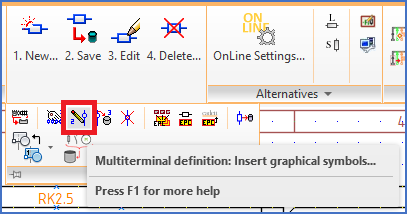
Figure 1671: The "2. Insert graphical symbols..." command
The 2. Insert graphical symbols... command is shown in the figure above. You will find it in the Symbols slide-out panel of the Tools tab in the ribbon menu. When you click that command, a legacy image menu (formerly known as an icon menu) will be displayed, as shown in the figure below.
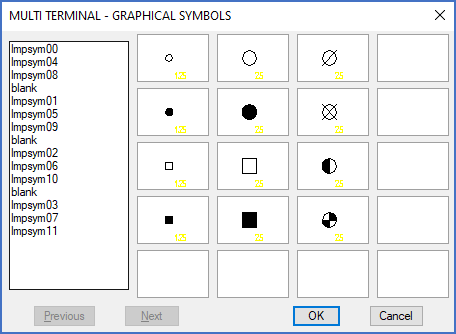
Figure 1672: The "Mutli-terminal Graphical Symbols" image menu
12 standard symbols are available to insert from the image menu. The ones in the first column have a diameter of 1.25 mm, while all the others have a 2.5 mm diameter. If you want a third diameter, you need to create a symbol of your own. Please note however, that diameters larger than 2.5 mm will require a change in the project parameters.
If you find a symbol in the menu that is satisfactory for you, you insert it on top of the already inserted attribute package. Please refer to the figure below, which shows an example.
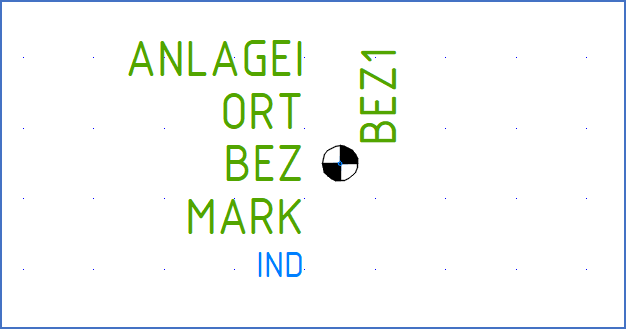
Figure 1673: One of the standard symbols - LMPSYM11 - has been inserted.
If one of the 12 standard symbols is close but not perfect, you can insert it anyway and use it is a start point for a user-defined symbol. In that case, you explode the standard symbol after inserting it. You do that with the EXPLODE command, which you find in the Modify slide-out panel of the Home tab in the ribbon menu.
If you have exploded a standard symbol, you can then start modifying the graphics using ordinary AutoCAD commands.
If you did not find any useful standard symbol, you simply draw the graphics that you want to have. Preferably, you should place most of the graphics in layer 0. Please also make sure that the distance from the edge of the graphics to the insertion point is equal for all directions that you plan to use. Otherwise, your terminal may be difficult for cadett ELSA to interpret connection-wise. A circle-based design is of course a simple way of fulfilling that requirement.
The figure below shows an example where one of the standard symbols has been exploded and then graphically modified.
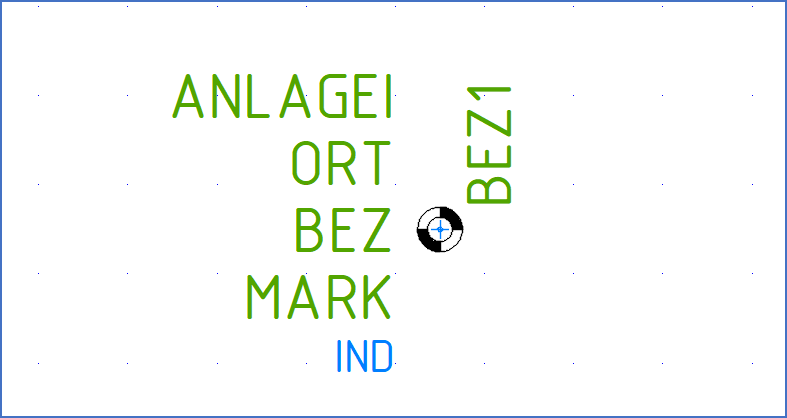
Figure 1674: The graphics has been modified.
When you are satisfied with your own customised graphics, you must save them as a WBLOCK. For that purpose, you should use the WBLOCK command, which you find in the Block Handling panel of the Insert tab in the ribbon menu.
•The command will first prompt you for where the WBLOCK should be stored. Your answer should be Globally, which refers to the current symbol library.
•Next, you are asked whether to insert the block after it has been created. Answer Yes to that.
•After that, you have to define the File name, which is the name of the WBLOCK. Please only include capital letters A-Z, digits 0-9, underscore ("_") and minus ("-"). Do not use any spaces or national characters and do not use lower case letters (a-z).
•The question of Block name is answered by simply pressing the <RETURN> key.
•The Insertion point should be in the centre of the terminal.
•Finally, when the Select objects: prompt is shown, you must select exactly which objects that should belong to the WBLOCK. Here, it is very important to be precise. The only objects that should be included are the graphics. The attributes must for example not be included. The light-blue cross that was inserted together with the attributes is not supposed to be included either. The little blue circle in the centre that came with the graphical standard symbol should however be selected and thereby be included in the graphical WBLOCK. As always, please make sure not to include anything in the surroundings, like for instance the drawing frame.
•When you confirm the object selection with the <RETURN> key, the WBLOCK is created, saved in the symbol library, and immediately and automatically inserted.
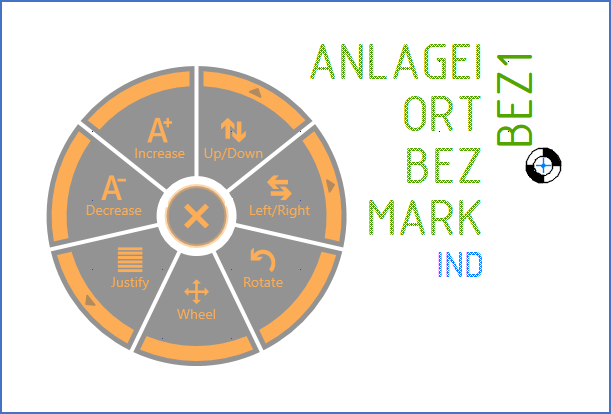
Figure 1675: The "Attribute Tool" is a recommended tool for the attibute adjustments.
The best time to adjust the attributes has then come. You can use any available commands to do that. One of the best and most convenient tools for this purpose is the Attribute Tool, which you will find in the Text and Attributes panel of the Home tab in the ribbon menu. The figure above shows that tool in full action.
When you are satisfied not only with the appearance of the graphics, but also with the sizes and positions of all the attributes, you are ready for the final step, namely to save the Multi-terminal definition. Please refer to the next sub-topic, which is listed below.