|
<< Click to Display Table of Contents >> 1. Insert attributes |
  
|
|
<< Click to Display Table of Contents >> 1. Insert attributes |
|
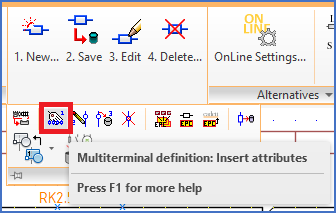
Figure 1617: The "1. Insert attributes" command
The process of creating a multi-terminal definition begins with inserting the attributes. That is done with the 1. Insert attributes command.
Make sure that you insert them in a area of the current drawing sheet where you have plenty of space, and no irrelevant objects nearby.
Place the attribute package in the middle of the free area that you work in, as shown in the figure below.
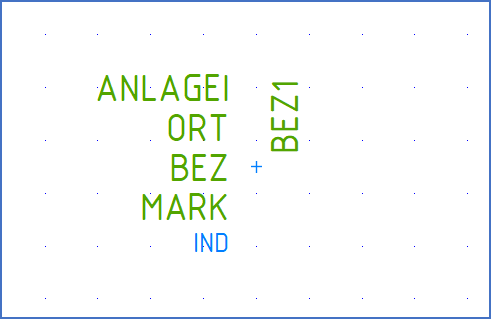
Figure 1618: The attribute package has been inserted. Please note the tiny cross placed in the INDEX layer that marks the insertion point.
It is possible to adjust the attributes directly after you have inserted them, but in most cases it is better to wait until you are finished with the graphics. In that way you can make sure that the attributes are correctly positioned relative to the graphics.
Therefore, it is time for the next step, namely to define the graphics. This is described in the next sub-topic, which is listed below.
•2. Insert graphical symbols... (or create your own)