|
<< Click to Display Table of Contents >> 3. Save multi-terminal definition |
  
|
|
<< Click to Display Table of Contents >> 3. Save multi-terminal definition |
|
The third and final step of the Multi-terminal creation process, is to save the Multi-terminal definition. To do that, you select the 3. Save multi-terminal definition command, which you find in the Tools tab of the ribbon menu, in the Symbols slide-out panel as shown in the figure below.
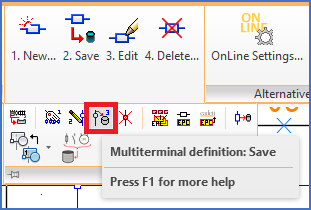
Figure 1624: The "3. Save multi-terminal definition" command
Select function View/Save/<eXit>:
Initially, to find out which Multi-terminal definition names that already exist to avoid possible conflicts and achieve a consistent naming pattern, you can view a list of current definitions with the View option.
You can then use the Save option to save the Multi-terminal definition.
Frame symbol and attributes (for WBLOCK).
Lower left corner (point):
Upper right corner (point):
You are asked to frame the symbol and the attributes by picking two points defining a window around the multi-terminal, first the lower left corner, then the upper right. When you have done that, a zoom will be performed where the area that you have specified will be enlarged as much as possible.
The following prompt is then issued in the command line:
All essential and nothing irrelevant in view (<Y>/N):
Please note that the ratio between width and height of the window that you have specified in relation to the corresponding ratio for the current drawing area in AutoCAD, might result in some objects that were outside of the specified area still being visible. Therefore, it is of great importance that you check carefully, if any objects that do not belong to the Multi-terminal is in whole or in part visible. If so, please answer the question with No, after which you can specify the window again.
Hopefully, you can then answer the question with Yes.
Description:
The next prompt asks for a Description, which will then be used to identify the new multi-terminal definition. The description is not limited in the same way as the name of the WBLOCK. Lower case letters, spaces, and national characters may be used.
Length for line break (enter/point):
After that, you will be asked for the Length for line break (enter/point):. In other words, you are asked for the diameter of the terminal. You can either type the desired value, or specify it by selecting two points in the drawing area. preferably by using a suitable object snap.
After that, you can exit the 3. Save command with the eXit option, which is also default, meaning that you can select it by simply pressing the <RETURN> key.
There will be some remains from your work left in the drawing sheet, even after you have saved the definition. Before you proceed with other tasks, like testing the new multi-terminal definition, it is therefore a good idea to clean up the current drawing sheet by deleting the attributes and graphics that are still left there. You can use the ordinary ERASE command for that.
The Multi-terminal definition is then ready and you can start using it with the Multi-terminal macro, which is described in one of the topics that are listed below. If you are dissatisfied with the definition, you might want to delete it. How you do that is described in a sub-topic that is also listed below.
•4. Delete multi-terminal definition