|
<< Click to Display Table of Contents >> Starting cadett ELSA |
  
|
|
<< Click to Display Table of Contents >> Starting cadett ELSA |
|
You start cadett ELSA either by double-clicking the shortcut on your desktop or from the start menu:
cadett ELSA / cadett ELSA (C) WS[0]
The desktop shortcut will look something like shown in the figure below.
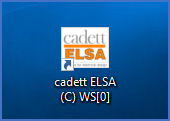
Figure 2338: Shortcut
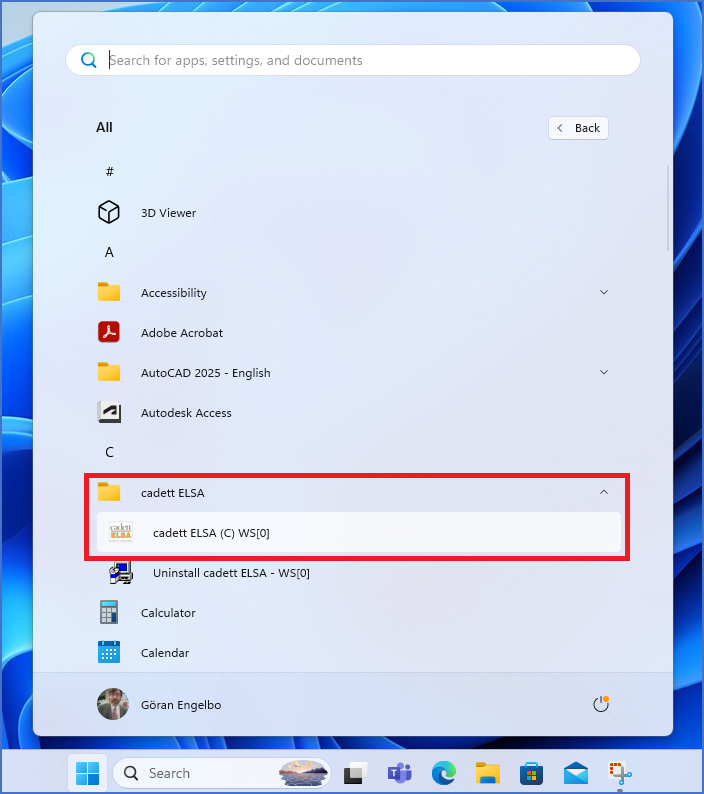
Figure 2339: This figure shows an example of cadett ELSA in the Start Menu of an English Windows 11. The appearance differs depending on operating system settings.
When you start cadett ELSA directly after installation, you will in most cases get a licensing error, like the one shown in the figure below.

Figure 2340: The "License problem" dialogue typically shows up the first time you start cadett ELSA after installation.
The reason for this error is in most cases a missing configuration that needs to be added. The software simply does not yet know where to look for the license, and the default is not correct.
Another possibility is of course that you have forgotten something, like connecting a hardware lock, installing a software license manager, or adding a license file. In such a case, you must do whatever needs to be done, and then use the Retry button to try again.
If you get an error message like the one shown in the figure above, despite that you think the license is in place, you should click the Settings button to add the necessary license configuration.
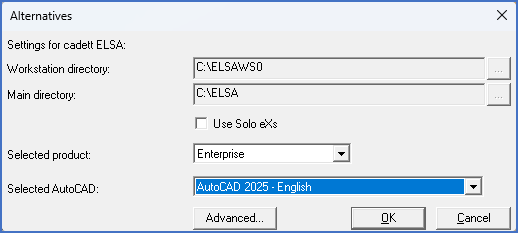
Figure 2341: The "Alternatives" dialogue
When you click the Settings button, you enter the Alternatives dialogue, as shown in the figure above. There, you click the Advanced... button to reach the Advanced settings... dialogue where you can make the license configuration.
The configurations that you can make in the two dialogues references above are described in the Configurations topic.
When those configurations are properly made, and the license is found, the main dialogue of cadett ELSA will displayed, as shown in the figure below.
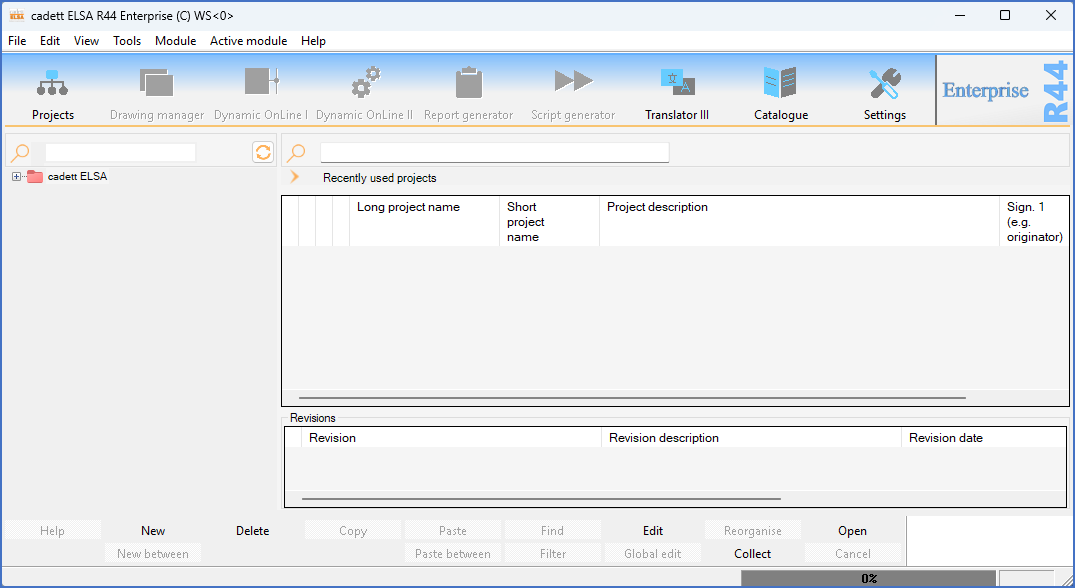
Figure 2342: cadett ELSA started after a completed installation
Even though most of the installation is now ready, you still have a few steps left. The remaining sub-topics, which are listed below, describe the configurations that were briefly mentioned above, and those remaining steps.
•Verify that the installation is working properly