|
<< Click to Display Table of Contents >> Advanced settings dialogue: License detection |
  
|
|
<< Click to Display Table of Contents >> Advanced settings dialogue: License detection |
|
When you click the Advanced button in the Alternatives dialogue, the Advanced settings dialogue will be presented, as shown in the figure below.
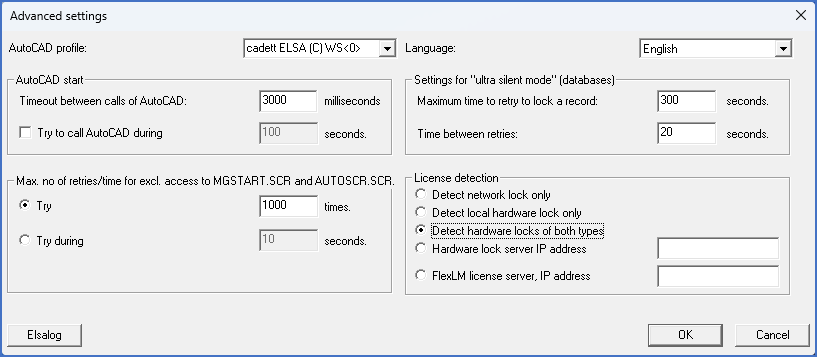
Figure 2345: The "Advanced settings" dialogue
Please focus on the License detection section in the lower right corner of the dialogue.
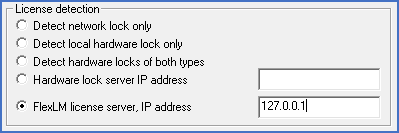
Figure 2346: The "License detection" section
•If you are using a local hardware lock, check Detect local hardware lock only.
•If you are using a locally installed software based license, check FlexLM license server, as shown in the figure above. Then set the IP address to 127.0.0.1, also as shown in the figure.
•If you are using a software based license where the license manager is installed on a server, check FlexLM license server, as shown in the figure above. Then set the IP address in the lower IP address field to the IP address of that server.
•If you are using a server based hardware lock, check Hardware lock server, and set the IP address in the upper IP address field to the IP address of the server where the license manager is installed.
When the License detection hence is configured, click the OK button. You then return to the previous dialogue box, where you can specify which AutoCAD to use, before you click OK and continue with the next steps.
If the license detection fails despite your configuration efforts, the License problem dialogue will reappear. In that case, you need to find out what is wrong, correct the error, and continue from there.
If you have not yet configured which AutoCAD to use, it is now time to do that. Please then refer to the Alternatives dialogue: Selected AutoCAD topic.
When the licensing works as intended, you can continue with the remaining steps, which are described in the topic that is listed below.
•Verify that the installation is working properly