|
<< Click to Display Table of Contents >> Alternatives dialogue: Selected AutoCAD |
  
|
|
<< Click to Display Table of Contents >> Alternatives dialogue: Selected AutoCAD |
|
You can enter the Alternatives dialogue in two separate ways.
•If cadett ELSA starts without errors, you enter the Alternatives dialogue from the Tools pull-down menu, where you select Alternatives (settings)…
•If you get a License problem, like shown in the figure below, you enter the Alternatives dialogue with the Settings button.

Figure 2343: The "License problem" dialogue typically shows up the first time you start cadett ELSA after installation.
Either way, the dialogue shown in the figure below will be displayed.
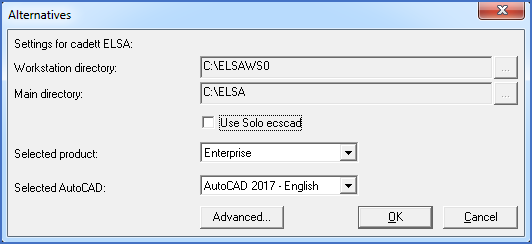
Figure 2344: The “Alternatives” dialogue box
Here, you can specify which AutoCAD to use.
There are two main options when it comes to which kind of AutoCAD to use with cadett ELSA. Either you have a separate license for AutoCAD, AutoCAD Electrical or a similar variant of AutoCAD, or you buy cadett ELSA in a Solo version, where an embedded CAD Engine is included. One example of such an embedded CAD Engine is the Solo eXs 2022, which is part of cadett ELSA R42, R43, and R44 LT.
•If you are going to use the embedded Solo eXs, please check Use Solo eXs.
•If you are going to use a separate AutoCAD or similar, please uncheck Use Solo eXs.
In the Selected AutoCAD field, you can then select which AutoCAD to use. Only AutoCAD versions that are installed and ready to use on your computer and which are supported by your version of cadett ELSA are shown in the drop-down list used for selection. It is also possible to select None, which means that no CAD Engine at all is used. For cadett ELSA View, that is for example a logical choice, since that product does not support AutoCAD.
A manual alternative is available but it should not be used under normal circumstances.
If the AutoCAD that you want to use, is not available in the drop-down list, please shut down cadett ELSA, start the desired AutoCAD separately, shut it down, start cadett ELSA again and re-open this dialogue box. If it is supported, the desired AutoCAD will then be available in the drop-down list.
Technical note
cadett ELSA examines available AutoCAD information in the registry to find out which AutoCAD versions are available. An AutoCAD that has never been started lacks complete registry information and may therefore not be available for selection. That is the background for the described procedure above.
Finally, there might be reasons to take an extra look at the settings that are made under the Advanced… button. Please refer to the topic that is listed below.
•Advanced settings dialogue: License detection