|
<< Click to Display Table of Contents >> Configuration of the workstation |
  
|
|
<< Click to Display Table of Contents >> Configuration of the workstation |
|
For a newly installed workstation, in most cases, a license is not found with the default settings.
When the software is started the first time, an error message will therefore turn up, stating that a license could not be found. The reason for this error is that the workstation has not yet been configured to find the license. The default setting is sometimes sufficient, but in most cases not.
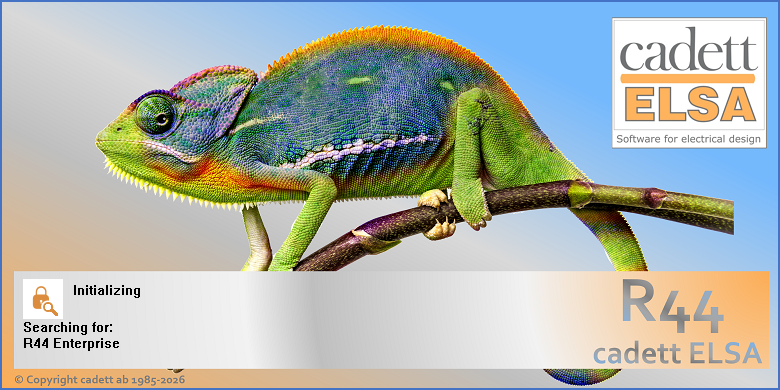
Figure 2389: The cadett ELSA splash screen informs that a search for a license is currently being made.
When cadett ELSA is started, a splash screen like shown in the figure above, is displayed. There, you are informed about the search for a valid license. That search is often not instant. If the license is not immediately found, which of course is the case if the search fails, it may take a while.
If a license is not found, an error message turns up, like in the figure below.
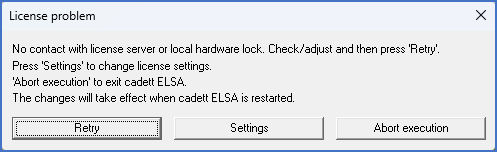
Figure 2390: A license has not been found.
That dialogue gives you access to the settings.
If your patience does not cover the entire delay, a shortcut is at your disposal, since it is possible to interrupt the license search and continue directly to the settings by simply clicking the splash screen (a left mouse button click).
Using the Settings button, you will be given direct access to the Alternatives dialogue that is described below.
If cadett ELSA succeeds to connect to the hardware lock, you can manually access the Alternatives dialogue by selecting Alternatives (Settings)… in the Tools pull-down menu.
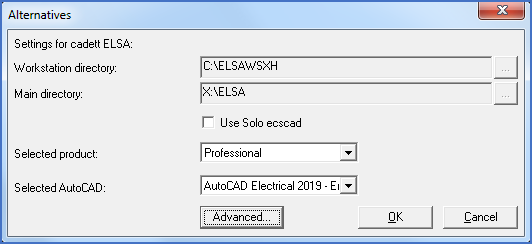
Figure 2391: The "Alternatives" dialogue box
There are two main options when it comes to which kind of AutoCAD to use with cadett ELSA. Either you have a separate license for AutoCAD, AutoCAD Electrical or a similar variant of AutoCAD, or you buy cadett ELSA in a Solo version, where an embedded CAD Engine is included. One example of such an embedded CAD Engine is the Solo ecscad 2019, which is part of cadett ELSA R38 Solo.
•If you are going to use the embedded Solo eXs, please check Use Solo eXs.
•If you are going to use a separate AutoCAD or similar, please uncheck Use Solo eXs.
In the Selected AutoCAD field, you can then select which AutoCAD to use. Only AutoCAD versions that are installed and ready to use on your computer and which are supported by your version of cadett ELSA are shown in the drop-down list used for selection. It is also possible to select None, which means that no CAD Engine at all is used. For cadett ELSA View, that is for example a logical choice, since that product does not support AutoCAD.
A manual alternative is available but it should not be used under normal circumstances.
If the AutoCAD that you want to use, is not available in the drop-down list, please shut down cadett ELSA, start the desired AutoCAD separately, shut it down, start cadett ELSA again and re-open this dialogue box. If it is supported, the desired AutoCAD will then be available in the drop-down list.
Technical note
cadett ELSA examines available AutoCAD profiles in the registry to find out which AutoCAD versions are available. An AutoCAD program that has never been started lacks a default profile and is therefore not available for selection. This is the background for the described procedure above.
In the Alternatives dialogue box, you can also specify which cadett ELSA product to use. You can select between View, Start, Basic, Professional and Enterprise. You cannot use a more powerful license than you have purchased and updated your license for, but you can select a less powerful one. The latter may come in handy if you have a mix of different products and does not want to occupy one of your most powerful licenses, when you in fact only need a simpler one.
Finally, there might be reasons to take an extra look at the settings that are made using the Advanced… button. One of the most important settings that is found in the dialogue that is displayed when clicking that button, deals with the licensing. You can read more about these settings in section 9.1.1, page 139, below.