|
<< Click to Display Table of Contents >> Configuring the hardware lock search |
  
|
|
<< Click to Display Table of Contents >> Configuring the hardware lock search |
|
By default, a cadett ELSA workstation or a local installation is configured to search for both local and network locks. Searching for locks that do not exist may in some cases cause problems such as unnecessary delays or other issues.
Obstacles or other circumstances in the network may also in some cases make it necessary to specify the IP address of the license server manually, in order for the communication to work.
The configuration is made using a dialogue box that can be accessed in two different ways:
1.If a hardware-lock does not provide a valid license when cadett ELSA is started – for whatever reason – a dialogue box will tell you this. In that dialogue, you click the Settings button. Another dialogue is then displayed where you can click a button designated Advanced…. The appropriate dialogue box for the configuration in question is then displayed.
2.If you have succeeded to start cadett ELSA properly, you can access the same dialogue box from the Tools pull-down menu where you select Alternatives (settings)… and then click the Advanced… button.
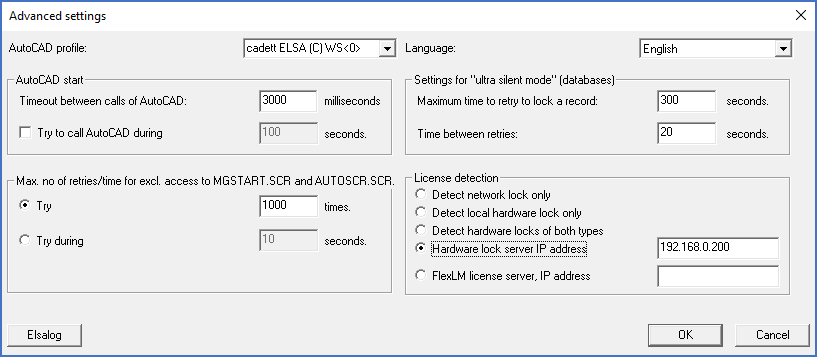
Figure 2458: The Advanced settings dialogue box
The Advanced settings dialogue box is shown in the figure above.
The relevant section of that dialogue box is found in the lower right corner and is designated License detection. That section is specifically shown in the figure below.
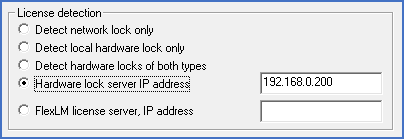
Figure 2459: The "License detection" section of the "Advanced settings" dialogue box
You can select five different alternatives using radio buttons. These alternatives are described in the sub-topics that are listed below.
•Detect local hardware lock only
•Hardware lock server IP address
•FlexLM license server IP address