|
<< Click to Display Table of Contents >> Administer Serial Numbers |
  
|
|
<< Click to Display Table of Contents >> Administer Serial Numbers |
|
First start the MuM Licence Server Administration, either using the shortcut on the desktop, or with the start menu.
Figure 2530: Desktop shortcut
When the MuM License Server Administration is started, you must login to it. The first time you start it, you login with the default username and password.
Default username: Administrator
Default password: admin
The login dialogue box is shown in the figure below.
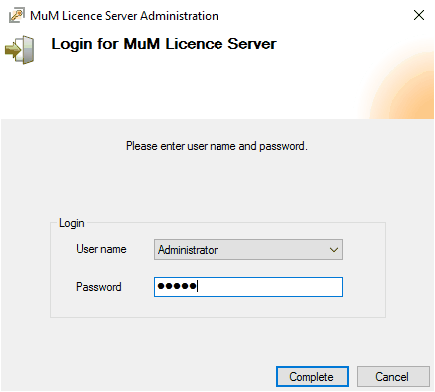
Figure 2531: Enter username and password. Then click "Complete".
In the dialogue box that appears after you have logged in, you select the Administer serial numbers command in the Extras pull-down menu, as showed in the figure below.
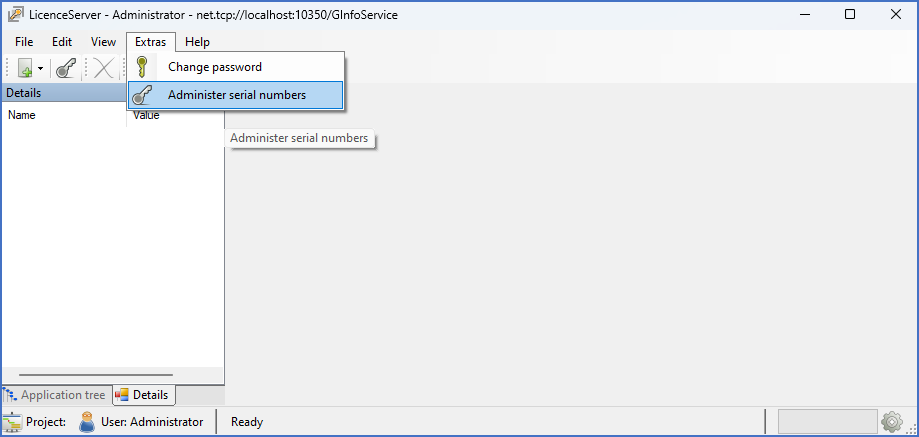
Figure 2532: To add licenses, please select the “Administer serial numbers” command in the “Extras” pull-down menu.
You can then manage the serial numbers that are used by the license server. This is where you add new serial numbers.
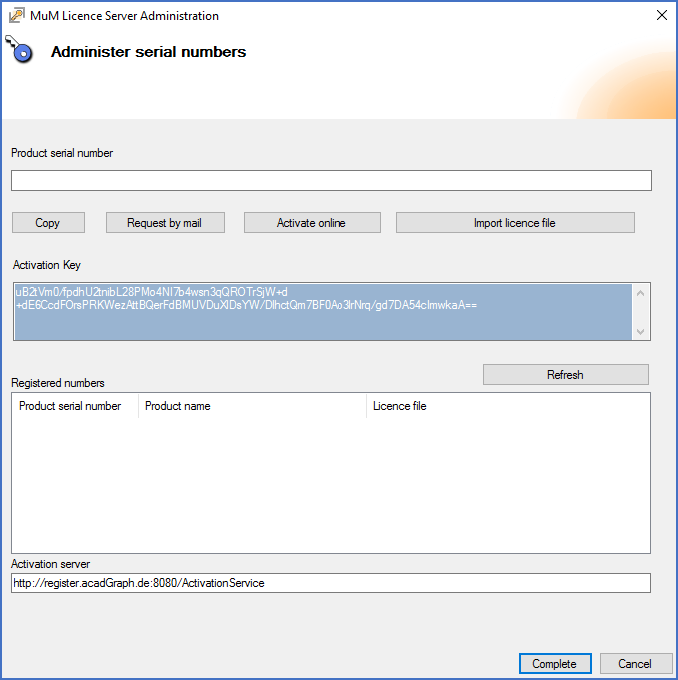
Figure 2533: The "administer serial numbers" dialogue box
Please refer to the sub-topics that are listed below for further details about how to proceed.