|
<< Click to Display Table of Contents >> Add a serial number |
  
|
|
<< Click to Display Table of Contents >> Add a serial number |
|
You will get your serial numbers directly from cadett, typically in an e-mail.
To add a serial number that you have received that way, you first type it in the Product serial number field. Thereafter you click the Activate online button. Please refer to the figure below.
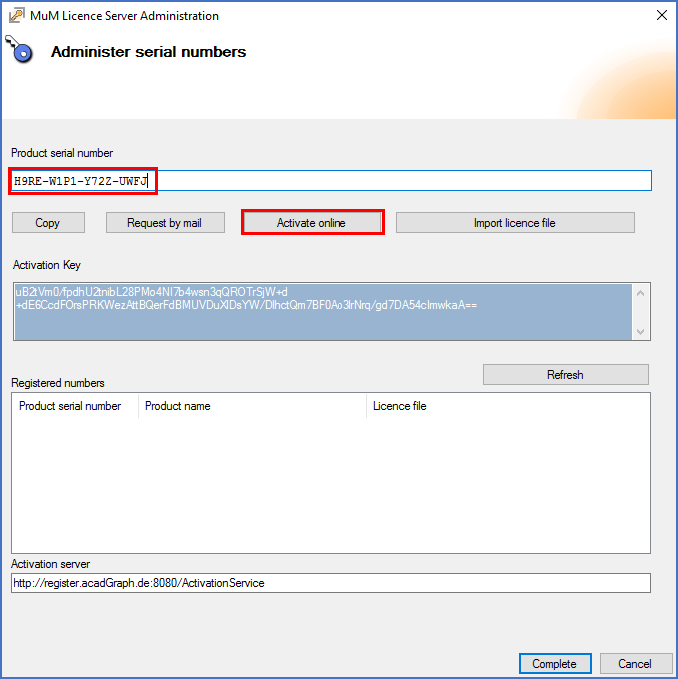
Figure 2564: A serial number is entered and then activated.
If the server does not have an internet connection, or if that connection is heavily restricted, it might be impossible to activate the serial number online. In that case, you can instead use the Request by mail option.
If that option fails as well, you can copy the serial number and activation key to the clipboard with the Copy button. From there, the information can be pasted in an e-mail that you send to license@mum.de to request the license file.
If you use one of the these two methods, you will get a license file, which must be imported. In that case, please refer to the sub-topic listed below.