|
<< Click to Display Table of Contents >> Group select dialogue |
  
|
|
<< Click to Display Table of Contents >> Group select dialogue |
|
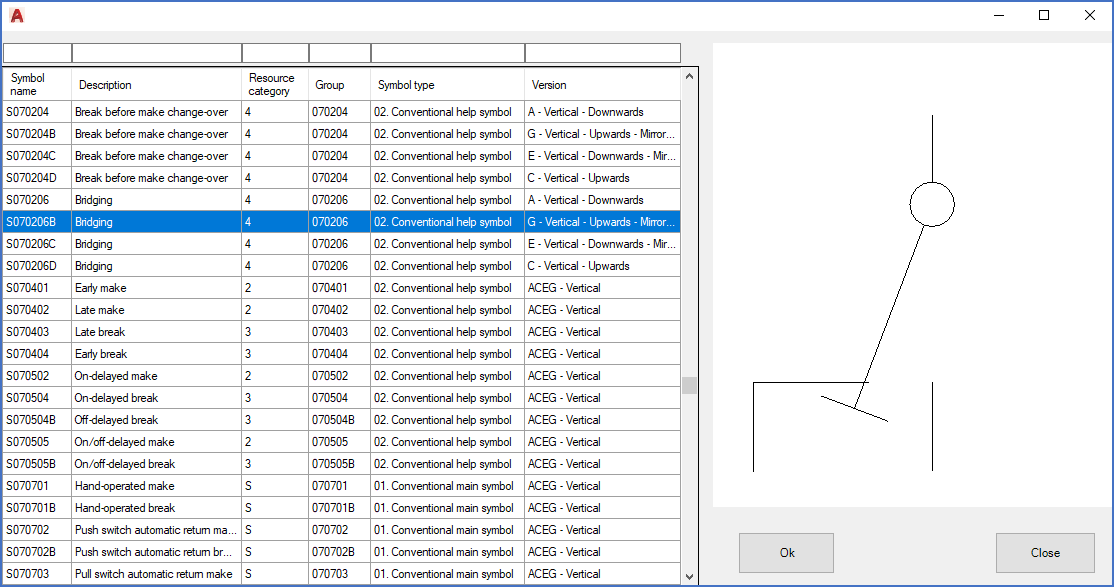
Figure 1079: The Group select dialogue
The Group select dialogue is used to define a group by selecting a symbol which belongs to the desired group:
oYou click on a symbol within the group that you want your symbol to be part of, and confirm your choice with the OK button in the lower right part of the dialogue.
oIf you cannot find any suitable symbol to choose, you can exit the dialogue without selecting any symbol using the Close button, also in the lower right corner of the dialogue.
When you enter the Group select dialogue, a filter has been automatically set according to the data that has already been defined in the Symbol data dialogue. Typically, a filter would be set on Resource category, and Symbol type.
All symbols in the current symbol library that fits the filter are listed in the dialogue. You can select any symbol in the list by clicking on it. A view of that symbol will then be displayed to the right, like in the figure above.
You can refine the filter by adding or removing information in the filter fields on top. When you add filters for multiple columns, those filters will be combined with "logical AND", meaning that all specified filters must fit for a symbol to be displayed.
Please note that everything you add is used for free text filtering, meaning that for example "A" is interpreted as "*A*". This means that anything which contains an "A" in that particular field is considered a hit.
The table below explains the columns/fields that are presented and which are also available for filtering.
Field/column |
Explanation |
|---|---|
Symbol name |
In this field, you can type a symbol name, or part of a symbol name. All symbols with names containing the character combination you enter, will be considered a hit.
|
Description |
Filtering on the description may be very useful. If you type for example fuse, you will get a hit for all descriptions that contains the word fuse.
|
Resource category |
You can enter the complete resource category or just a part of it. Please note that for example A will display all subcategories of A as well, but also any symbols belonging to a subcategory named A, even within other main categories, for example MA.
|
Group |
Here, you can type a group name or part of a group name.
|
Symbol type |
You can type a part of the description of a symbol type, or the two digit number of it. For instance conventional will get a hit on all symbols of the first three types, while 03 will get a hit only on 03. Conventional contact mirrors.
|
Version |
For filtering on this field, you can use keywords such as vertical or upwards, as well as the actual letters, like ACEG.
|