|
<< Click to Display Table of Contents >> Status |
  
|
|
<< Click to Display Table of Contents >> Status |
|
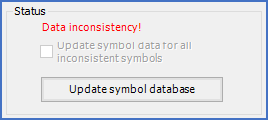
Figure 810: The "Status" section is the very essence of the "Symbol data control" feature.
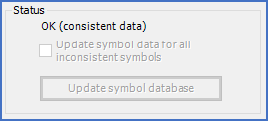
Figure 811: Here, symbol data is identical in symbol database and drawing sheet.
When a symbol has been selected, the basic conclusion is presented in the Status section, as showed in the two figures above.
Either the data is identical, as in the second figure, or they differ, as in the first figure.
The data may differ in many different ways, some more significant than others.
•There might be insignificant differences, like when the description text is not identical. That kind of deviation does not affect the functionality and may be ignored without consequence.
•There might be significant differences, like if the number or placement of connection points differ. In that case, either the symbol or the symbol database contain incorrect information, which may affect functionality and create serious problems, like errors in generated reports. Action is needed in such a case, the first being to identify which side is correct.
•Symbol data may be missing in either the symbol or the symbol database. In such a case, you will not have to worry about which side is correct, and there is only one possible way of correcting the problem. You can therefore act directly.
Possible reasons for differences in the data
A symbol which is in use in existing projects should normally never be changed, not even if errors are found. If a symbol that is in use is determined to be incorrect, the correct way of resolving the situation, is to create a new symbol with a new name to use from then on, and to prevent the old incorrect symbol from further use. Typically, the latter is achieved by removing the symbol from the Symbol Insert Tool, in other words to hide it. It should however not be deleted from the symbol library, since that would make matters worse.
Possible reasons for data missing in one side or the other
If a project is exported from one installation of cadett ELSA and imported to another, the user defined symbols that are used in the project should also be exported and imported in a corresponding way. If that is not done, you will end up with "dead symbols", meaning that some symbols will not be OnLine, or in other words act as "stupid AutoCAD blocks", without any intelligence. The reason for that behaviour, is that the symbol database information is missing. The Symbol data control can be used to detect that kind of error, and to correct it, for one symbol at a time. The Update symbol database button can then be used to recreate the needed information in the symbol database. Please refer to the sub-topic with the same name.
Before cadett ELSA 7.7 (R24 in the year 2004) - backups of symbol data in the symbols were not supported. When the new format was introduced in 2004, tools to update user defined symbols were also provided, but if no such update for one reason or the other has been performed, symbols without symbol information may still exist. Two possibilities exist. The symbol may never have been updated, or the symbol in the symbol library may be updated, but the drawing sheet contains an old version of the symbol. First you have to determine which possibility is the one that you have encountered. The way of doing that, is to first make sure that the symbol in the drawing sheet is the most recent one by replacing it with the current version. Thereafter, you repeat the check using the Symbol data control feature. If the discrepancy disappears, you simply need to replace the symbol wherever you find it. If the discrepancy remains, you need to first update the symbol, then replace the symbol wherever it is found.
Please refer to the two sub-topics that are listed below for descriptions of updating symbols and drawing sheets respectively.
•Update symbol
•Update drawing sheets (replace the inserted symbol with the current version)