|
<< Click to Display Table of Contents >> Select license server |
  
|
|
<< Click to Display Table of Contents >> Select license server |
|
The first time you start cadett ELSA on a workstation, you will in most cases be presented with a dialogue box that tells you that there is no contact with the license server. Please refer to the figure below.
The reason for that message, is that you need to provide information about where cadett ELSA should look for the license server.
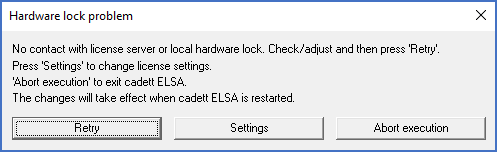
Figure 2509: This message is shown when cadett ELSA cannot find the license server, for instance when information where to look is missing.
Please click the Settings button.
If you do not get that dialogue box, and cadett ELSA instead starts, for example since some other license system is also available, you can enter the settings manually, using the Alternatives command in the Tools pull-down menu.
You will enter the Alternatives dialogue box, shown in the figure below.
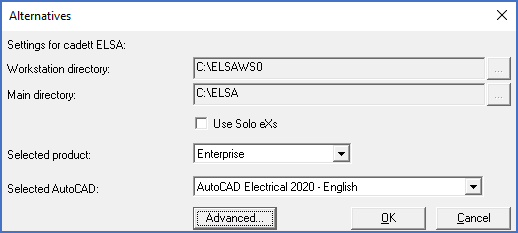
Figure 2510: The "Alternatives" dialogue box
In the Alternatives dialogue box shown above, click the Advanced button.
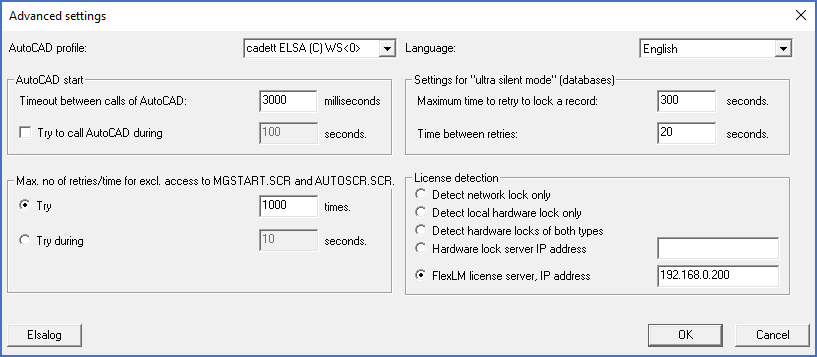
Figure 2511: The "Advanced settings" dialogue box
You will then enter the Advanced settings dialogue box, shown in the figure above.
In the License detection section in the lower right part of the dialogue box, you should then configure the proper way for the workstation to access the license server.
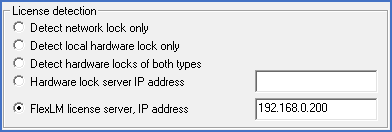
Figure 2512: The "License detection" section
Check FlexLM license server, IP address, as shown in the figure above.
In the field to the right of the radio button, specify the IP address of the license server, like shown in the figure above.
If the license server is located locally on the same computer, please use a local loop-back by specifying the IP address as 127.0.0.1.
If you, for some reason, use another port than the default 1280, you can specify that port manually. You do that by adding the port to the IP address configuration, like this:
PORT@IP-ADRESS
Example:
1380@192.168.0.200
Please note that 1380 above is an example of a non-default port. The default port that should normally be used, is 1280.
Click OK and OK again.
You will then be back with the dialogue box shown in the figure above.
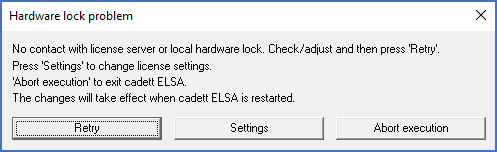
Figure 2513: This dialogue box is shown when no contact with a license server or a hardware lock can be made.
Click Retry and possibly Retry once more if needed.
If everything is working as it should, a connection with the license server is then established, a license is allocated for the workstation and cadett ELSA is starting.
You are then up and running.
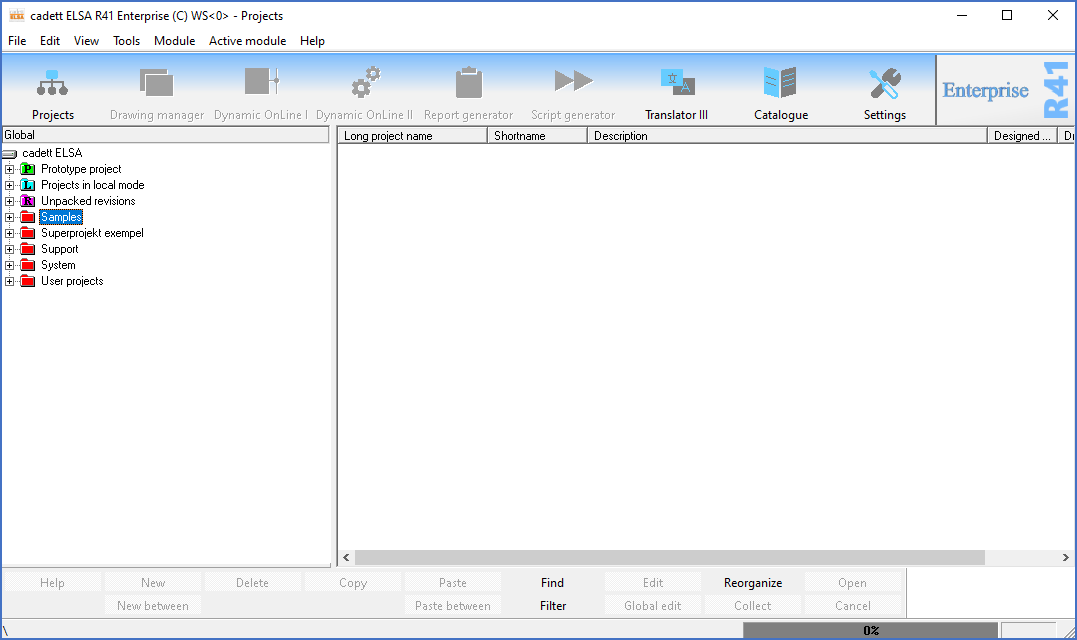
Figure 2514: cadett ELSA is up and running!