|
<< Click to Display Table of Contents >> Product selection |
  
|
|
<< Click to Display Table of Contents >> Product selection |
|
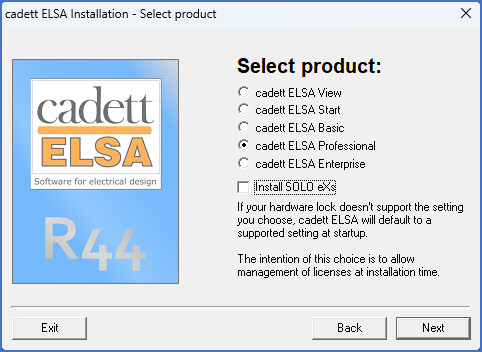
Figure 2382: You select a product for each workstation separately
The next step is to select a product. You can make different selections for different workstations using the same central network installation of cadett ELSA.
The available alternatives are described in the table below.
Product |
Description |
|---|---|
cadett ELSA View |
The simplest alternative. View only. AutoCAD cannot be used.
|
cadett ELSA Start |
The simplest step-in design alternative. Single user only. AutoCAD is needed. Cannot be used in this case.
|
cadett ELSA Basic |
The standard Basic alternative. Multi-user network installations supported. AutoCAD or Solo eXs is needed.
|
cadett ELSA Professional |
The most commonly used alternative. AutoCAD or Solo eXs is needed.
|
cadett ELSA Enterprise |
The top-level product with additional functionality for large businesses like distributed workplaces, cloud usage, Super projects, and much more. AutoCAD or Solo eXs is needed.
|
Please note that if you would select for example the cadett ELSA Professional, even though such a license is not available, but a license of for example cadett ELSA Basic are, the program will start as a cadett ELSA Basic anyway. If you do not have an available license for the selection that you have made, an automatic selection of the “best available” alternative will be made. The installation will run without errors, but you cannot start the program without a license!
You can mix different product levels between workstations within the same network installation.
Another possible possibility (!) here is the option of installing the Solo eXs, which is controlled by a separate check-box, as shown in the figure above.
Even if the Install Solo eXs option is available, you might not be able to use it anyway. That is because you need a valid Solo eXs license, which consists of two parts. You need an updated cadett ELSA license with support for the cadett ELSA Solo, and you need a separate Solo eXs license installed on a Solo eXs license server. Please refer to the Solo eXs licensing topic.
If you do check this option, the Solo eXs will be installed in the end of the workstation installation procedure. Please note, that it is also possible to make the Solo eXs installation separately, either beforehand or afterwards. Please refer to Solo eXs installation topic.
When you have selected a proper product and decided whether to install Solo eXs or not, you click Next and continue with the next step, which is described in the topic that is listed below.
•The workstation directory is created and files are copied