|
<< Click to Display Table of Contents >> Solo eXs installation |
  
|
|
<< Click to Display Table of Contents >> Solo eXs installation |
|
The CAD Engine of cadett ELSA LT is provided in a cooperation between cadett, Autodesk, and Mensch und Maschine of Germany. The name of this AutoCAD OEM based CAD Engine is Solo eXs. On the screen, the software also presents itself as "eXs", both in the installation process and when running the software.
The Solo eXs installation is simple and straightforward.
The installation of Solo eXs can be started specifically with an alternative in the main menu of the cadett ELSA installation program. It can also be run as part of either a local installation or a workstation installation of cadett ELSA.
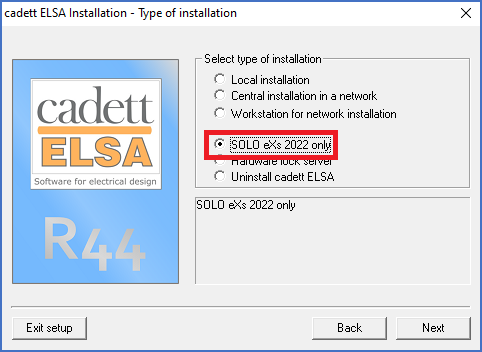
Figure 2560: The option of making a Solo eXs installation only
The figure above shows the menu option that specifically installs Solo eXs and nothing more.
Regardless of in which way the Solo eXs installation procedure is started, it will be simple, but maybe a bit time-consuming due to the pure size of the software.
Start the installation with the Next button, as shown in the figure above.
An obstacle that you might run into in the very beginning of the Solo eXs installation procedure is shown in the figure below. If a reboot of the computer is pending, like for a Windows Update or similar, a dialogue will inform you of this.
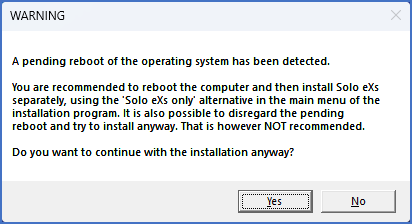
Figure 2561: A pending reboot is blocking the Solo eXs installation. Please reboot and try again, or continue with the installation anyway!
In that case, you have two options. Either you can abort the installation, restart the computer, and then restart the installation, or you can continue with the installation anyway. The former case is the most safe one, but the latter will in most cases still work fine.
The installation package is then unpacked, which is somewhat time consuming. A slide-show, part of which is shown in the figure below, will be displayed on the screen while that is happening.
Figure 2562: A slide-show is displayed while the installation package is unpacked.
In some rare cases, if you have chosen to continue installation despite a pending reboot, the installation cannot continue. A dialogue box like shown in the figure below will then be displayed. In that case, the installation must be aborted, the computer rebooted, and the installation restarted. This is however not a common situation.
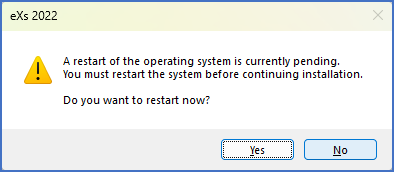
Figure 2563: In the rare case that it is impossible to continue with the installation, this dialogue will turn up.
When the unpacking is finished, and no further obstacles have been found, the dialogue shown in the figure below will appear.
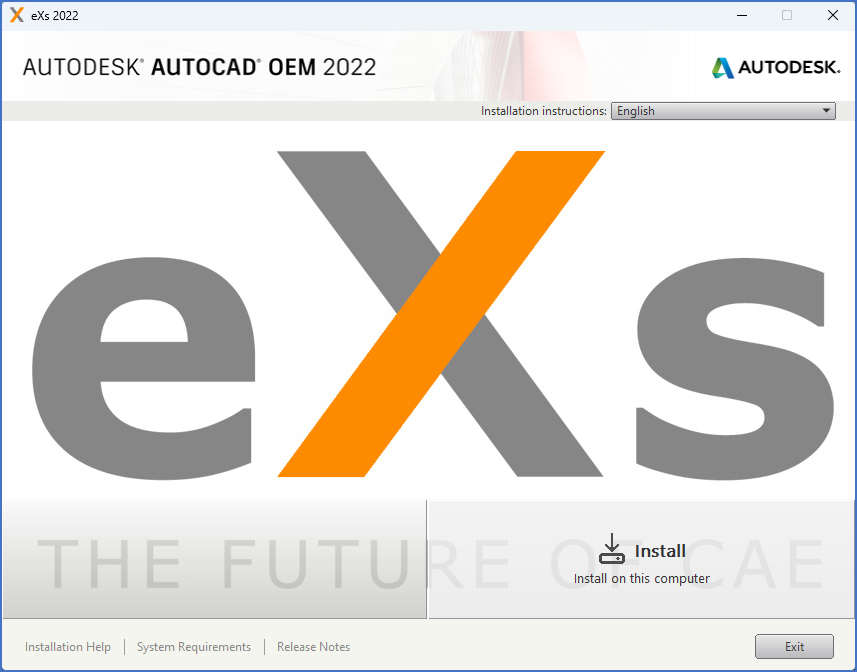
Figure 2564: You click "Install" in the lower right corner to start the actual installation of Solo eXs.
There, you are asked to continue the installation by clicking Install in the lower right corner of the dialogue, like shown in the figure above.
The license agreement is displayed, as shown in the figure below. Please select your country, accept the license agreement by selecting I Accept and then click the Next button to continue.
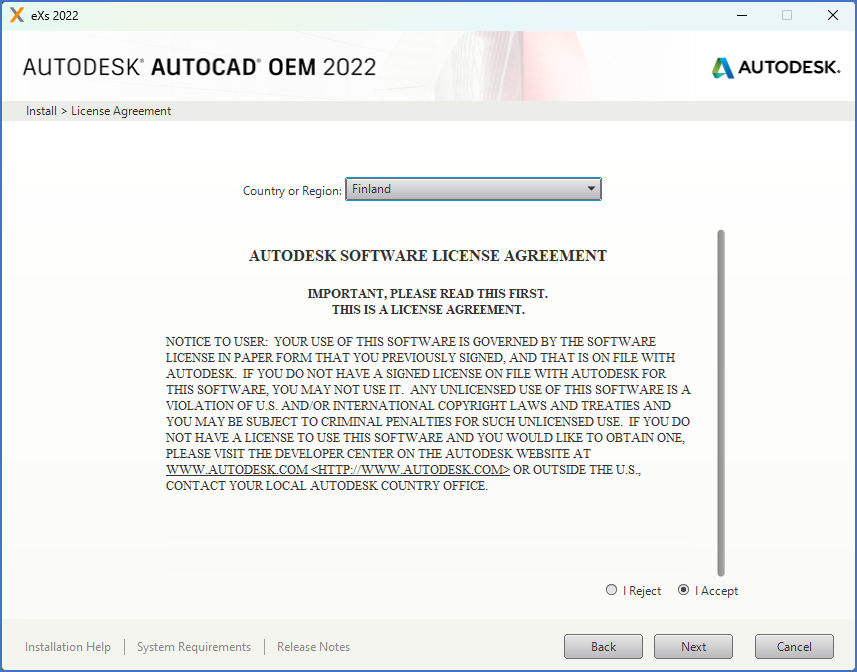
Figure 2565: Select your country, read and accept the license agreement. Then click "Next".
You will be asked to adjust and confirm the selected path in which to install the software as shown in the figure below. In almost all cases, it is best to accept the default.
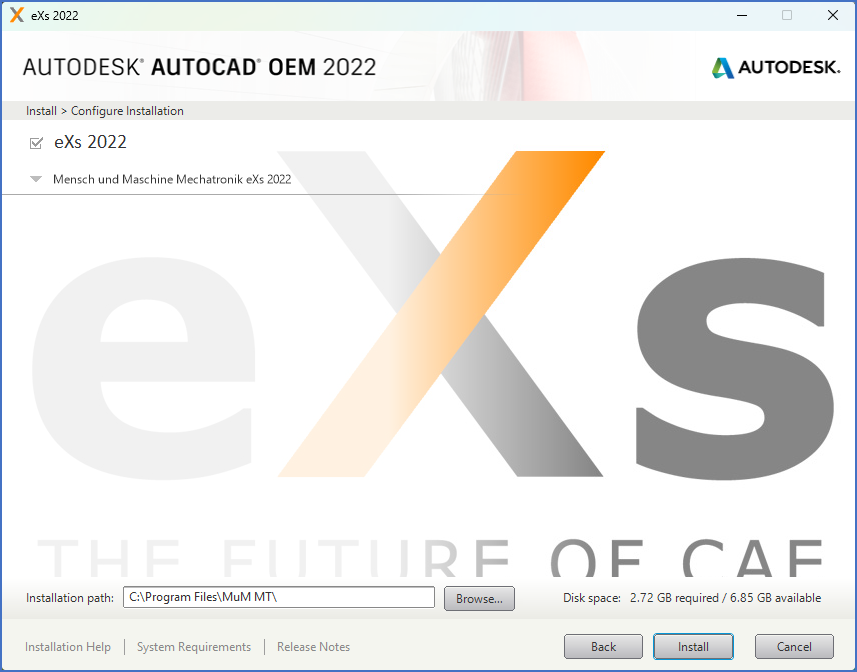
Figure 2566: Here, the Installation path for the Solo eXs is specified. Please accept the default.
The longest delay during the installation procedure will follow, when the main part of the installation is performed, which will typically take a few minutes. A dialogue as shown in the figure below will inform you of the progress.
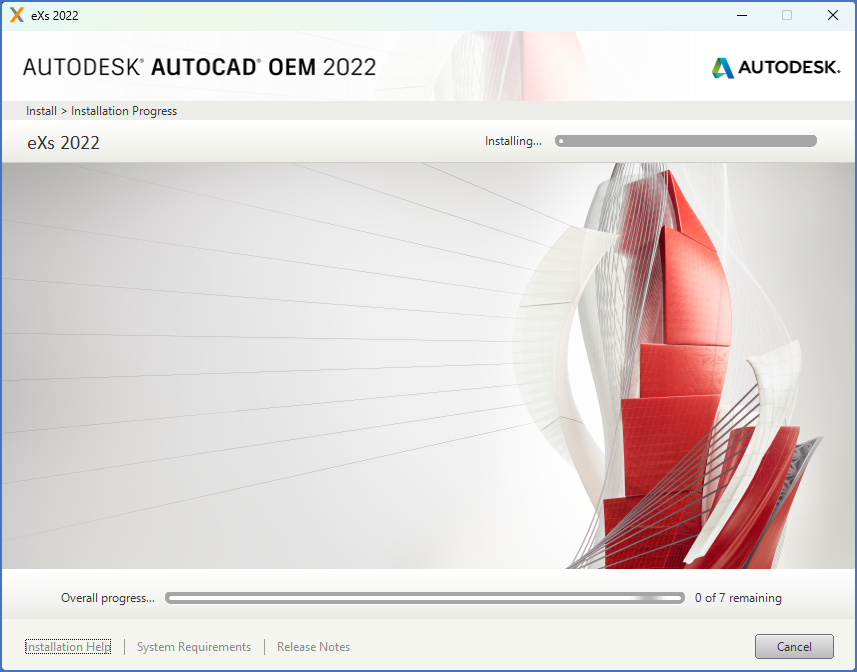
Figure 2567: The installation is proceeding.
You will be informed that the main part of the installation has succeeded by a dialogue like shown in the figure below. Please note however, that a very important step still remains. Do therefore not reboot your computer before that part is finished!
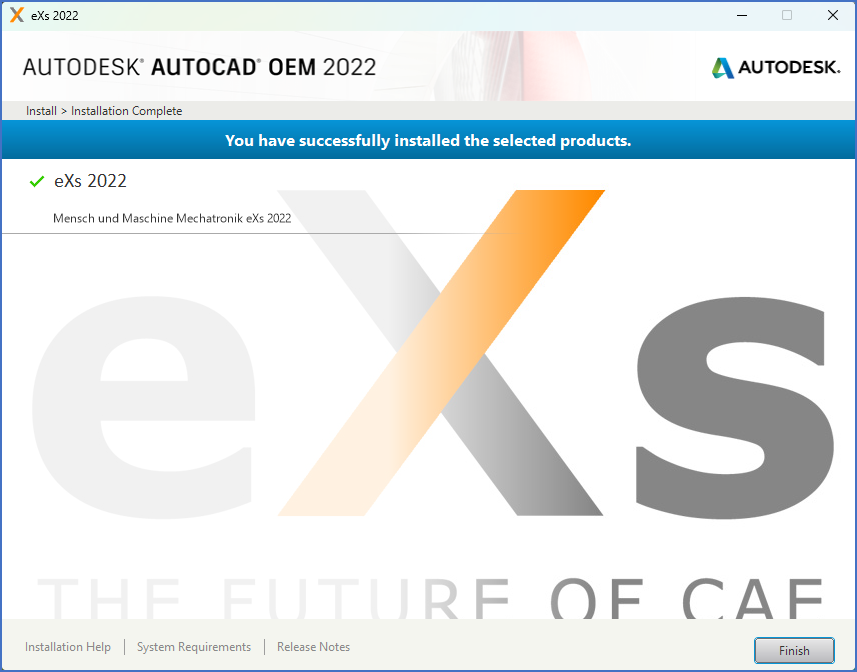
Figure 2568: The "Solo eXs" installation is almost finished. Please click "Finish".
Click Finish to continue to the final steps.
In some cases, a reboot is necessary to finalise the installation. In such cases, a dialogue will be displayed to inform you about that. If that happens, please click No and continue the installation until it is completely finished. Then reboot your computer. Otherwise, the installation will be terminated before it is finished, and the entire procedure will fail, resulting in a useless installation, that must be redone from start.
Please note, that after you have clicked Finished, the dialogue will close and a delay will occur, which in some cases will continue for some time, maybe even minutes, before the final dialogue appears. It is very important to wait for the final dialogue before doing anything else, like restarting the computer. Otherwise, you will end up with a useless installation.
A dialogue like shown in the figure below, will finally inform you that the installation is completely finished.
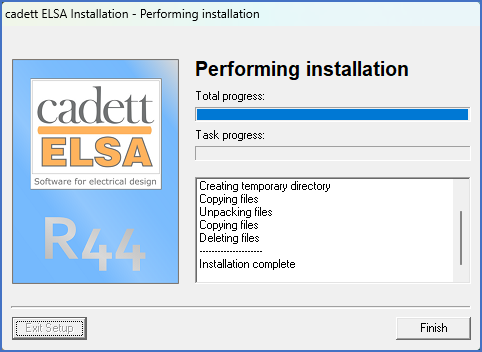
Figure 2569: If this dialogue has not turned up yet. the installation is not completed. Please click Finish and then restart your computer.
Please click Finish and then restart your computer, if you have been informed of such a need.
After installing the Solo eXs, you need to connect it to a valid license. Please refer to the topic named Solo eXs licensing for instructions of how to do that.