|
<< Click to Display Table of Contents >> Pack/sort check-box |
  
|
|
<< Click to Display Table of Contents >> Pack/sort check-box |
|
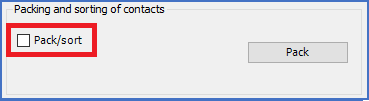
The Pack/sort check-box controls what the button to the right should do.
The figure above shows the Packing and sorting of contacts section when the check-box is unchecked. In that case, the button is simply named Pack, and packing is the only thing that is done when you click the button. The sequence is unchanged, but any gaps in the numbering will be eliminated.
The figure below shows the same section when the check-box is checked. In that case, the button is named Pack/sort., and clicking it will result in both a sorting and a packing.
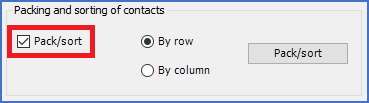
Two additional radio buttons are also displayed, with which you can determine whether the sorting should be performed By row or By column. In most cases, that setting will not matter at all, since the result will not differ. However, if for example a PLC mirror consists of I/O's in multiple columns or rows, there will be a difference. The figure below shows an example of that. Sorting By column will give the correct result in this example, while By row would incorrectly sort J0.0, J2.0, J0.1, J2.1, J0.3, and so on.
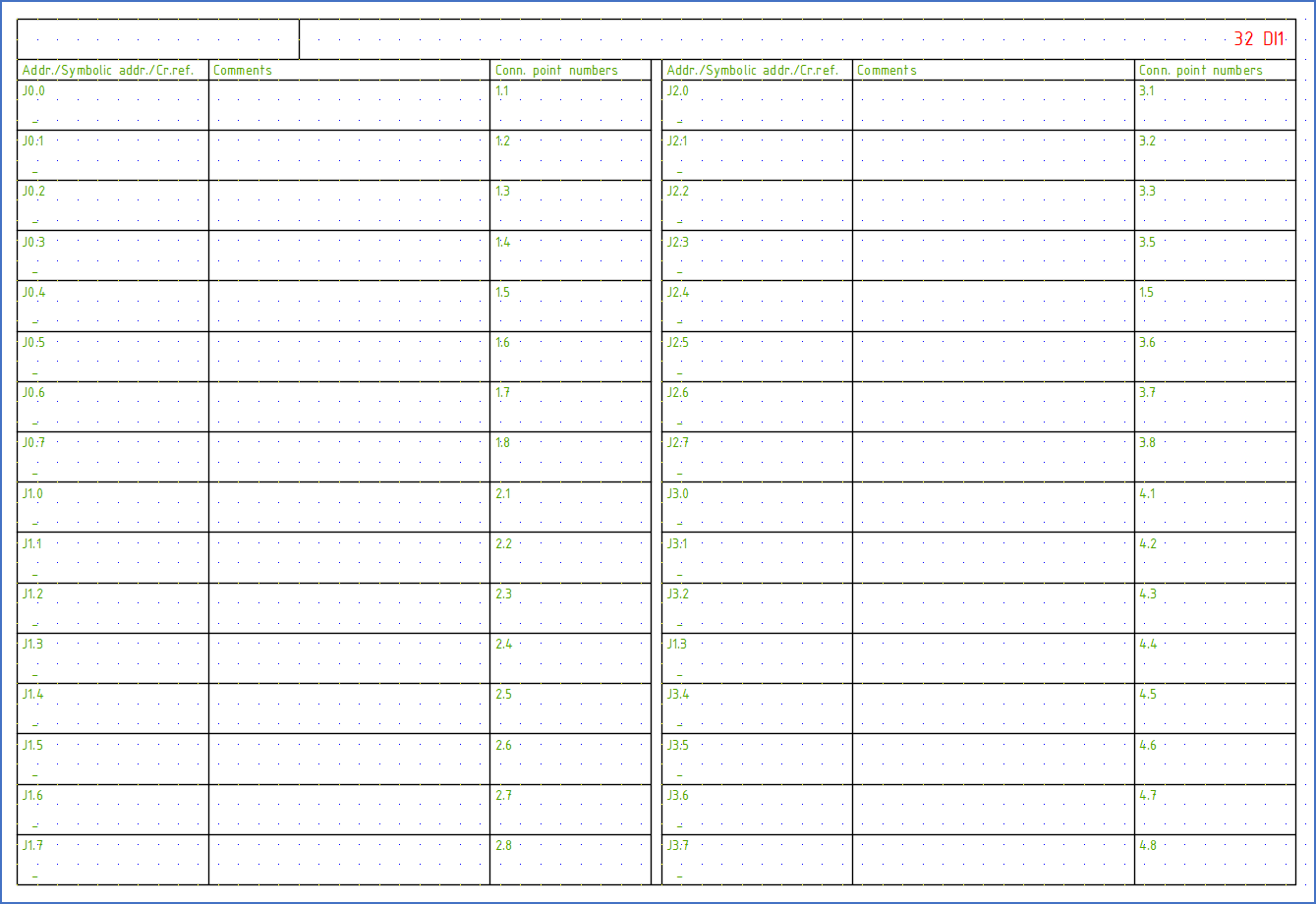
Figure 1103: For a PLC mirror like this one, where the I/O's are arranged in two columns, each sorted by row, the radio buttons will make a difference.