|
<< Click to Display Table of Contents >> Network installations |
  
|
|
<< Click to Display Table of Contents >> Network installations |
|
To install an incremental update of a network cadett ELSA installation including thin client solutions, you should follow the steps described below.
1.Copy the downloaded update file to a folder on the server. One practical way of handling this is to create a MEDIA folder on the same drive as cadett ELSA's main directory. That MEDIA folder will then be accessible both from the workstations and from the server. (For example you can have X:\ELSA and X:\MEDIA in parallel on the same drive, in this example X:).
2.Exit cadett ELSA on all workstations. (If any workstation is still running, the installation will fail).
3.The installation must be executed directly on the server. Therefore, please login to the server using Remote Desktop or similar.
4.For maximum security, it may be advisable to take a backup copy of the entire ELSA directory including its sub-directories.
5.Start the EXE file, for instance by double-clicking it.
6.You are then typically elevated to administrator. (However, this varies dependent on how User Account Control - UAC - is configured on the server). In that process you may have to provide user credentials for an administrator account, or simply confirm the elevation.
The figure below shows an example of how such a confirmation might look like. Please note that this may vary widely depending on security settings, company policies and other circumstances.
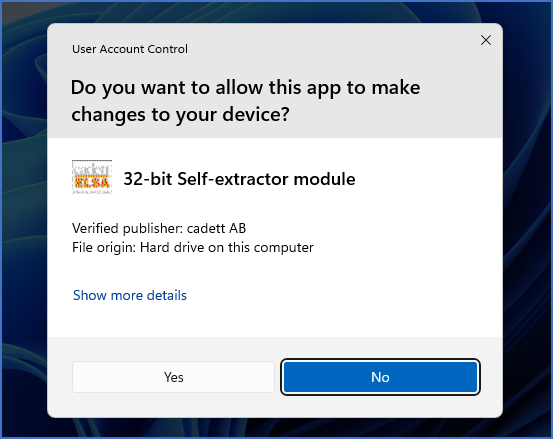
Figure 2444: Example of how the elevation might look like
7.When the installer has started, a dialogue box like the one shown in the figure below will be displayed. Provided that the revision number presented on the top is the one that you expect, you can click the Continue button. Otherwise, you must have selected the wrong file. Then click Exit and make the necessary corrections.
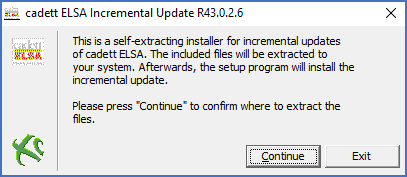
Figure 2445: The installer has started. Please note the version and revision number in the top.
8.The license agreement is presented on the screen, as shown in the figure below. Read all the details, discuss them with your lawyers, and then click Agree.
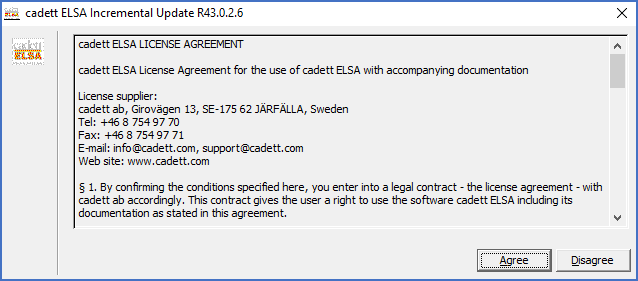
Figure 2446: The license agreement must be confirmed in order to proceed.
9.The installation package, which is delivered in a compressed format, will thereafter be unpacked. A temporary folder must be created for that purpose. In almost all cases, you can simply confirm the default, which is shown in the figure below. If this folder annoys you, or if you have limited space on your hard, you can delete it after the installation is finished.
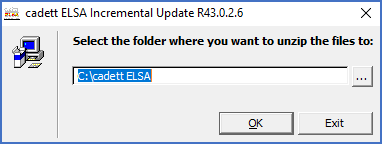
Figure 2447: Here, you decide where the temporary files needed for the installation should be unpacked.
10.When you have confirmed which temporary folder to use, as shown in the figure above, the installation is extracted in that folder, as shown in the figure below.
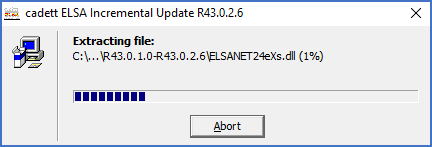
Figure 2448: The files that are included in the update are extracted from the compressed installation file.
11.When the extraction is finished, a dialogue box informs you about that, as shown in the figure below. Please confirm with the OK button.
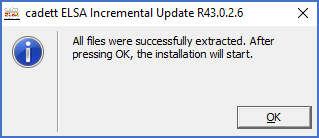
Figure 2449: All files of the update has been extracted.
12.You are informed that cadett ELSA must be closed down before you can continue, as shown in the figure below. When you have done that, please confirm with the OK button.
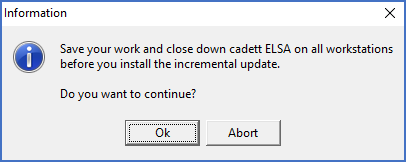
Figure 2450: If cadett ELSA is running, the installation cannot be done.
13.If have not already created a fresh backup, it is a very good idea to make one now. Copy the entire cadett ELSA main folder (X:\ELSA or similar) before you continue. You never know if and when it will be needed! The figure below shows the dialogue box that is displayed to inform you about this. Please confirm with the OK button.
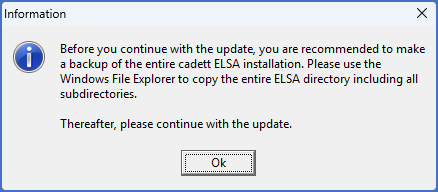
Figure 2451: A backup is always a good thing!
14.A dialogue box like the one shown in the figure below will then be displayed. The actual installation can be started from there by clicking the Install button.
If the revision in question has already been installed, you will have the opportunity to install it once more using the check-box in the lower left corner of the dialogue. If it has not, that check-box will be greyed out, like in the figure below.
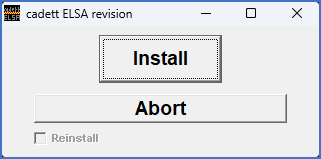
Figure 2452: Click "Install" to start the actual update.
15.The installation will then be performed. Detailed information the individual steps of the installation will be presented on the screen like shown in the figure below.
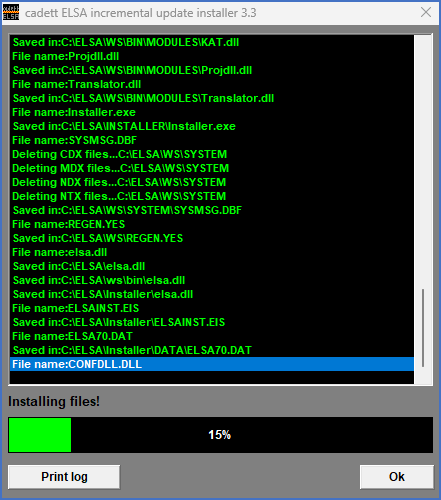
Figure 2453: The progress of the actual update procedure is communicated with this dialogue box.
16.When the installation procedure is finished, a dialogue box like shown in the figure below will be displayed. There, you receive basic information about backup copies of original files. Please refer to the Technical details topic for more information about that.
Click OK to continue.
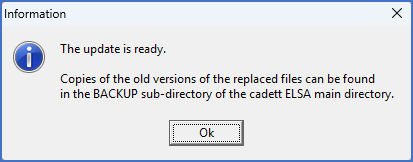
Figure 2454: Information about the automatically created backup of replaced files is presented in this dialogue box.
17.You are presented with the option to view the revision history, which is a text file named REVHIST.TXT that contains detailed information about major changes between each revision, from the first versions of cadett ELSA and onwards until today. This text file is written chronologically, meaning that information about the revision that you have just installed is found in the end of the file.
As shown in the figure below, you can click Yes to view the file, or No to skip that.
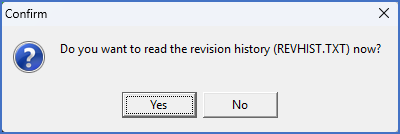
Figure 2455: Click "Yes" to view the revision history, or "No" to skip it.
18.If you click Yes, REVHIST.TXT will be opened in Notepad, as shown in the figure below.
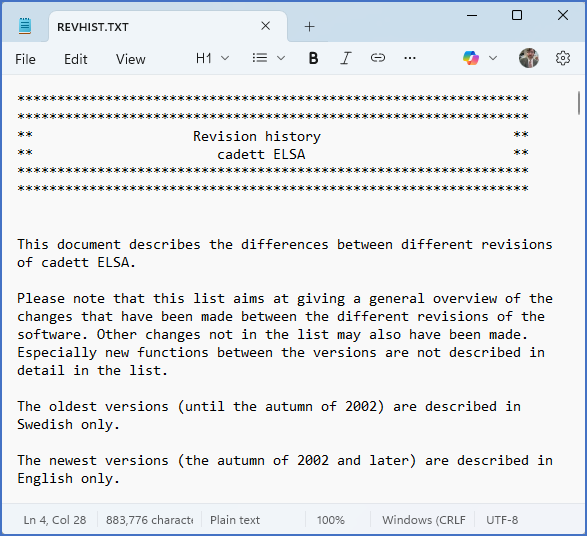
Figure 2456: "Notepad" is used to present the revision history when applicable.
19.The installation progress has then reached 100 %, and the final message - Ready! - is displayed, as shown in the figure below.
Click Ok., and then proceed with updating the workstations, as explained below.
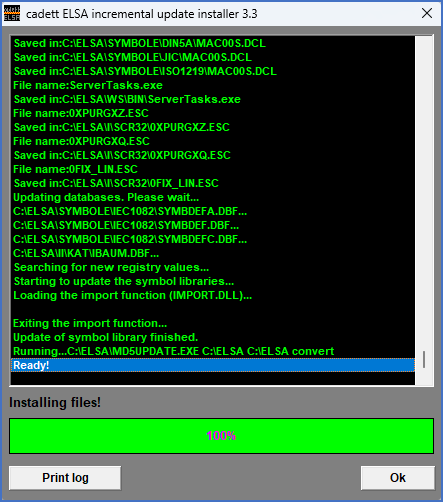
Figure 2457: The installation is ready.
20.You are ready to update the workstations. Please leave the server!
21.The update of the individual workstations is made automatically the first time cadett ELSA is started on each workstation after the update on the server. Please note that in some cases, the software must elevate to administrator to perform the workstation update. A need to provide additional login information might therefore arise. In most cases, this is however not needed.