|
<< Click to Display Table of Contents >> Manually switching version of an already inserted symbol |
  
|
|
<< Click to Display Table of Contents >> Manually switching version of an already inserted symbol |
|

Figure 1288: The "" command
In the Modify panel of the Home tab in the ribbon menu, you can find the Swap symbol version command, as shown in the figure above.
If you have an already inserted symbol in the current drawing sheet like the transformer shown in the figure below, you can use that command to easily swap that symbol to the next available version of it.
The red cross in the two figures below, illustrates the insertion point of the symbols.
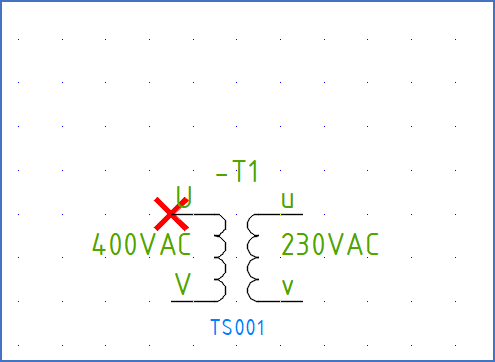
Figure 1289: A horizontal symbol is inserted in the current drawing sheet as shown here. The red cross is not shown in reality. It has been added for clarity and represents the insertion point.
The next version of the selected symbol will replace the current one. The insertion point will remain in its original position.
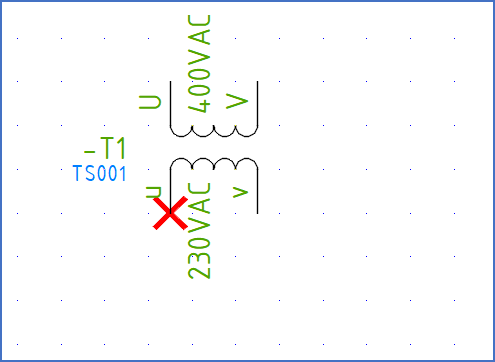
Figure 1290: The "Swap symbol version" command will swap to the next available version of the symbol, in this case the vertical version of the same symbol. Please note that the insertion point is unchanged.
In the example above, if the command is used once more, the original symbol version will come back. That is because there are only two versions of this particular symbol. For symbols with a larger number of available versions, like four or eight, you might have to repeat the command multiple times to get to a desired version. If the command is repeated enough times, the original version will finally reappear.