|
<< Click to Display Table of Contents >> Automatically switching version when moving a symbol |
  
|
|
<< Click to Display Table of Contents >> Automatically switching version when moving a symbol |
|

Figure 1232: The "Move symbol" command is found in the "Modify" panel of the "Home" tab in the ribbon menu.
The Move symbol command has a built-in feature that is activated when moving one single symbol only.
In that case, the direction of the lines that the symbol is moved to is detected and compared with the direction of the lines that the symbol is moved from. If needed, the symbol version is adjusted accordingly.
In other words, if a symbol is moved from horizontal lines to vertical lines, the original horizontal symbol version is automatically replaced with a vertical version. Of course, the opposite case works in a corresponding way.
An example presented below shows a rotary switch which is moved from vertical lines to horizontal ones.
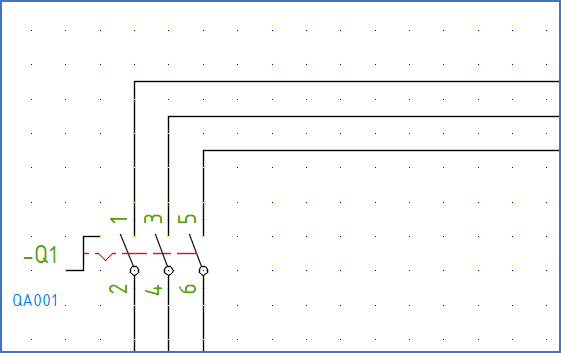
Figure 1233: This symbol is supposed to be moved to the horizontal lines above.
First, the Move symbols command is selected, as shown in the uppermost figure.
Then, the symbol in question is selected. Please note that the feature which is described here will work only if the number of selected symbols is limited to one.
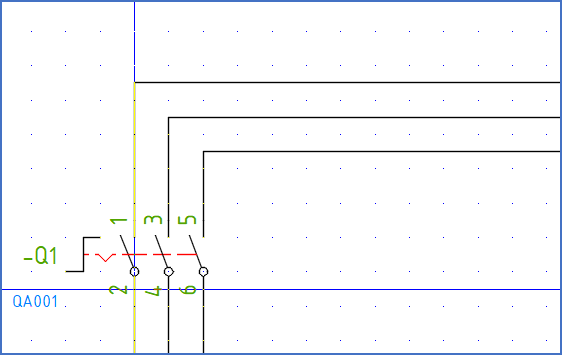
Figure 1234: The base point can be selected arbitrary, but placing it on the insertion point of the symbol as shown here may simplify things.
After confirming the selection with the <RETURN> key, you are asked to select a base point. To make the further process as easy as possible, positioning this base point at the insertion point of the symbol is advisable. The figure above shows an example of that.
It is possible to select any base point, but when moving the symbol, the insertion point must be placed on the line to which the symbol should be moved. That may be a bit tricky to do if the base point is selected inappropriately. Placing the base point on the insertion point is therefore a well-motivated recommendation. The insertion point is normally placed in the lower left connection point of vertical symbols, and in the upper left connection point of horizontal symbols.
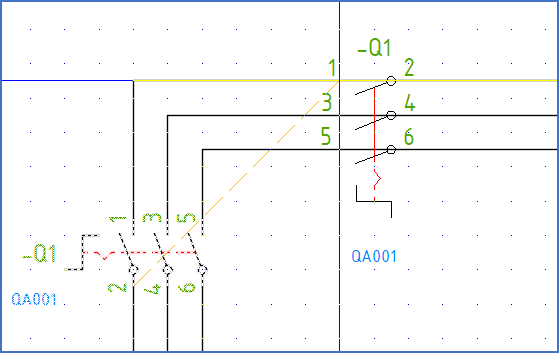
Figure 1235: The base point has here been placed in the insertion point of the symbol, which makes it easy to perform the move.
Next, you are asked for the second point of the move. Since ORTHO mode is normally active, moving a symbol diagonally like shown in the figure above is therefore not possible, unless you deactivate ORTHO. You can do that by simply pressing the <F8> key, or with the convenient icon that you can find in the lower right corner of AutoCAD's main window, as illustrated in the figure below.

Figure 1236: The "ORTHO mode" icon is found in the lower right corner of the AutoCAD main window.
The figure below shows the result.
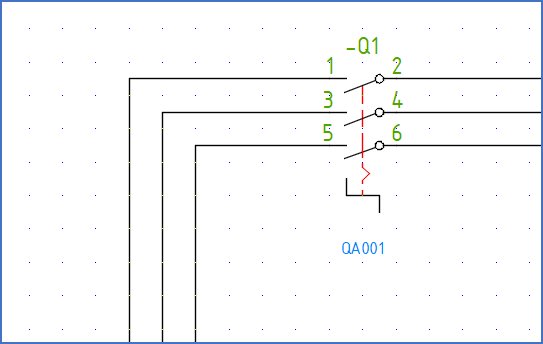
Figure 1237: The symbol has been moved and the version thereby successfully adjusted.
The symbol has been replaced with a version that fits the lines, while the values all attributes have been transferred.