|
<< Click to Display Table of Contents >> Create a PS_CADETT virtual printer |
  
|
|
<< Click to Display Table of Contents >> Create a PS_CADETT virtual printer |
|
For a number of older PDF generation script sequences, another virtual printer is used. This is currently true for all script sequences that generate non-searchable PDF files.
Please note that PS_CADETT.PC3 is created automatically if it missing when the QuickPDF feature is started, even though QuickPDF itself does not use PS_CADETT.PC3. Here, a description of how you can create it manually instead is provided.
The creation of the PS_CADETT virtual printer is described in full detail here.
Please follow these steps:
1.Open a drawing sheet using the Drawing Manager.
2.In the File tab of the ribbon menu, please select the Printer Settings… command found top left in the menu.
3.Click the Add or Configure Plotters… button.
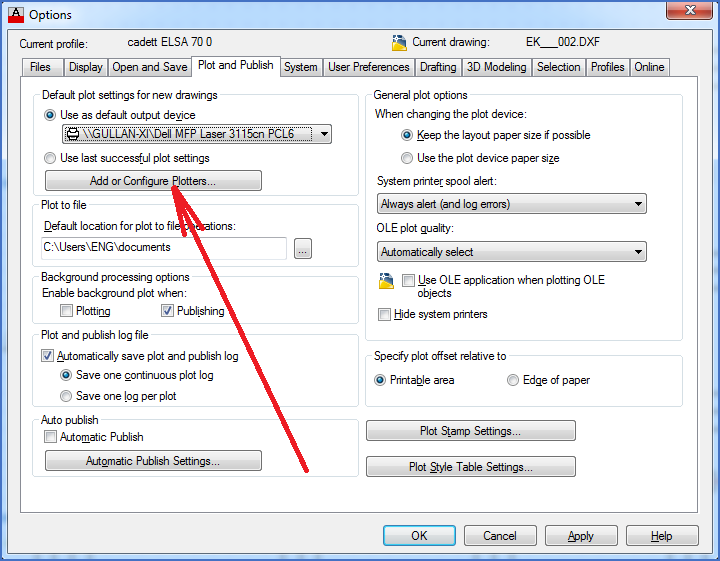
Figure 2603: The "Options" dialogue box where the "Add or Configure Plotters..." button is pressed.
4.A list of available plotter definitions is displayed. In that list, you can also find a shortcut for the wizard used to create new plotter definitions.
5.Double-click the Add-A-Plotter Wizard shortcut.
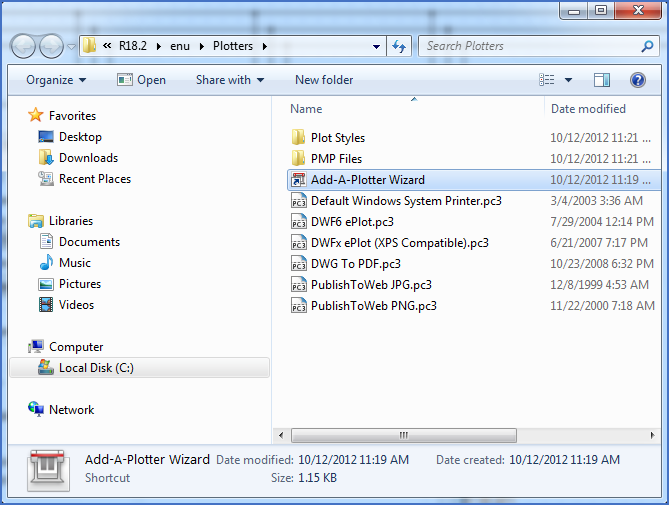
Figure 2604: The "Add-A-Plotter Wizard" is started with a double-click.
6.Click Next > in the Introduction Page.
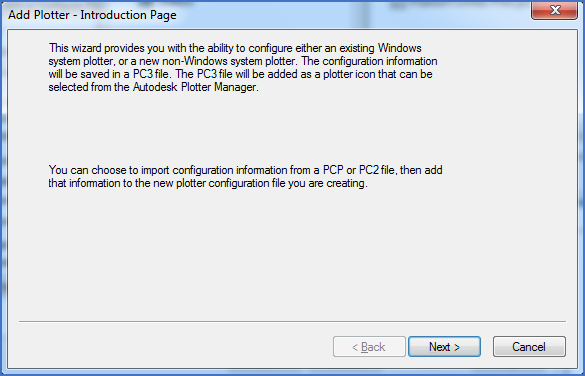
Figure 2605: The "Next >" button is pressed.
7.Specify My Computer and then click Next >.
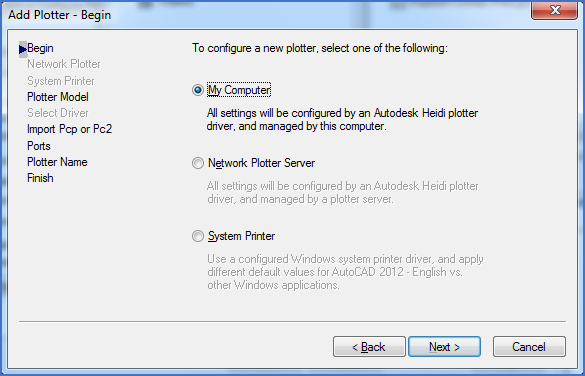
Figure 2606: "My Computer" is selected.
8.Select Adobe and PostScript Level 1 Plus. Then click Next >.
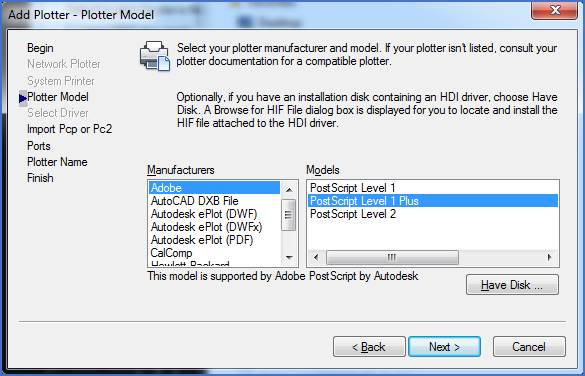
Figure 2607: Select "Adobe" and "PostScript Level 1 Plus".
9.Do not import anything. Simply click Next >.
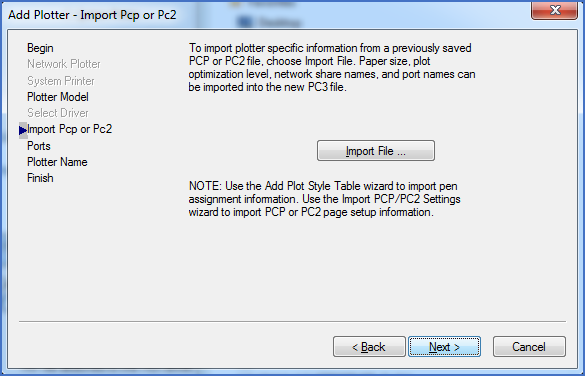
Figure 2608: Simply click "Next >".
10.Select Plot to File and then click Next >.
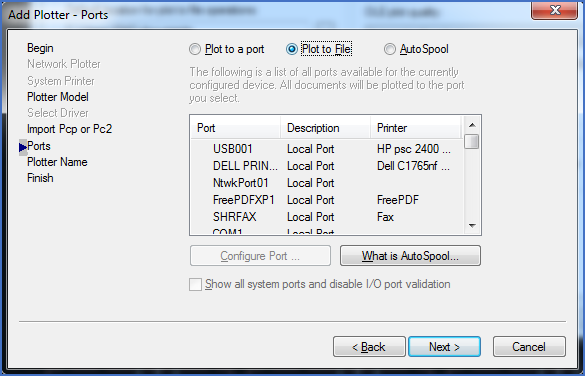
Figure 2609: Select "Plot to File".
11.Specify the name of the virtual printer. It must be exactly PS_CADETT.
No variations are allowed if you want to use the standard script sequences that are included in the delivery of the software.
Then click Next >.
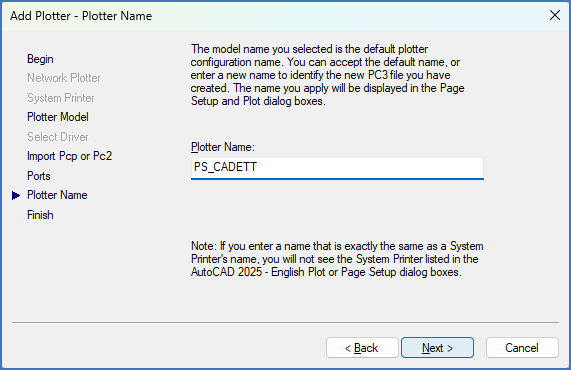
Figure 2610: The plotter name should be "PS_CADETT".
12.Click the Edit Plotter Configuration… button.
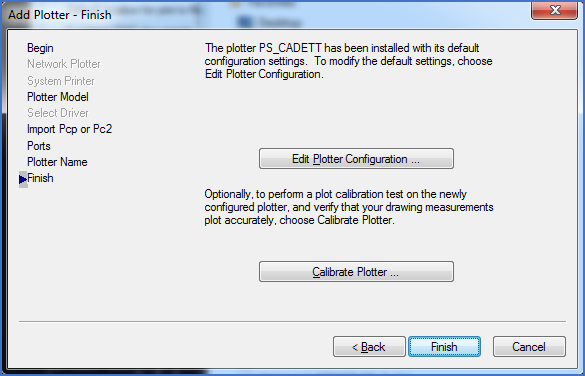
Figure 2611: Click "Edit Plotter Configuration...".
13.In the upper part of the next dialogue, please select Custom Properties. Then click the Custom Properties… button that appears.
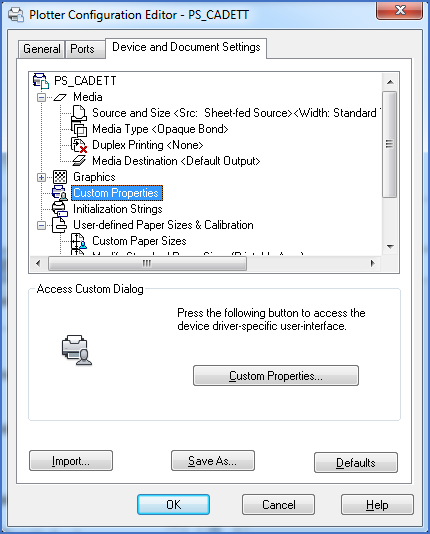
Figure 2612: Select "Custom Properties".
14.Select PS PostScript and then uncheck everything else. Nothing should be activated apart from PS PostScript. Then click OK.
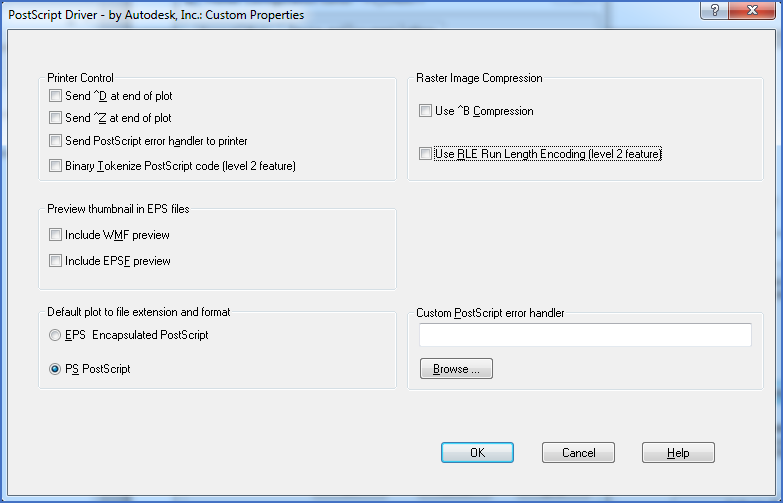
Figure 2613: Uncheck everything except "PS PostScript".
15.In the upper part of the dialogue, please select Modify Standard Paper Sizes (Printable Area).
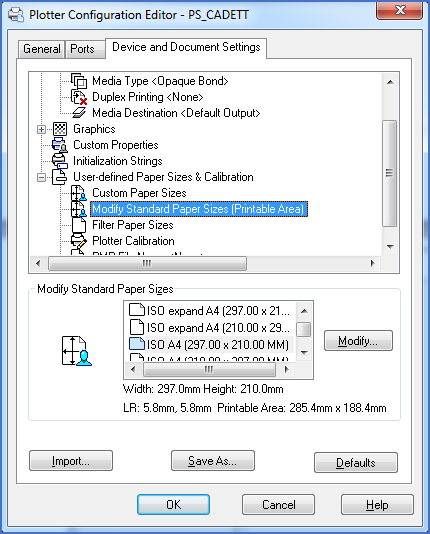
Figure 2614: "Modify Standard Paper Sizes (Printable Area)" is selected.
16.Then, in the lower part of the dialogue, please select ISO A4 (297.00 x 210.00 MM). When that is done, click the Modify… button to the right.
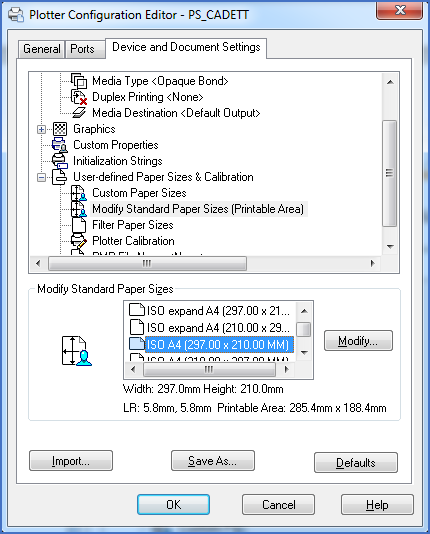
Figure 2615: "ISO A4 (297.00 x 210.00 MM)" is selected and modified.
17.Adjust the margins. 3 millimeters in all directions is a reasonable choice.
Then click Next >.
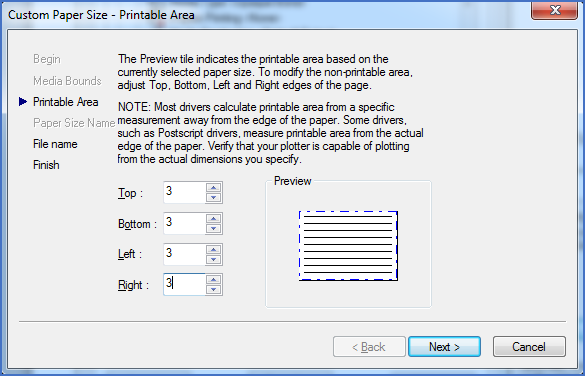
Figure 2616: 3 millimeters is a recommended value for the margins.
18.The PMP file to store this information in should preferably be given the same name as the virtual plotter, in other words PS_CADETT. After typing that, click Next >.
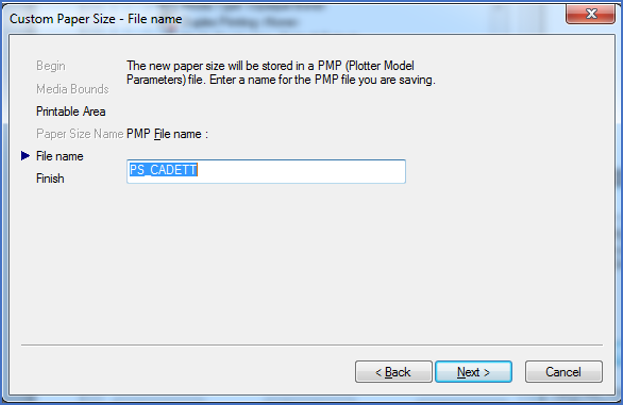
Figure 2617: The name if the PMP file should be "PS_CADETT".
19.Select Sheet-fed Source and click Finish.
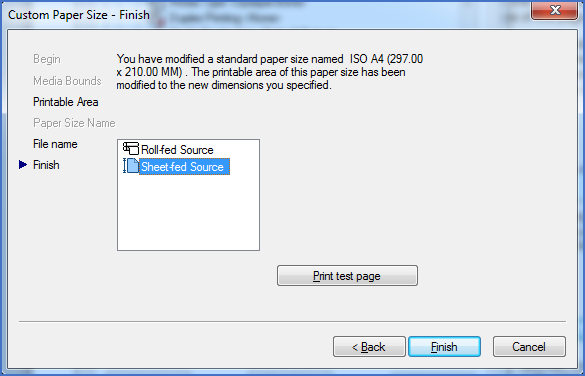
Figure 2618: "Sheet-fed Source" is selected.
20.The virtual plotter is ready. You only have to confirm a few dialogue boxes to exit the procedure and then you are done.