|
<< Click to Display Table of Contents >> Create a PDF_CADETT virtual printer |
  
|
|
<< Click to Display Table of Contents >> Create a PDF_CADETT virtual printer |
|
A virtual printer named PDF_CADETT.PC3 must be present in AutoCAD in order to use PDF generation with QuickPDF or script sequences supporting the searchable text feature.
Please note that PDF_CADETT.PC3 is created automatically if it missing when QuickPDF is started. Here, a description of how you can create it manually instead is provided.
Please also note that other script sequences for PDF generation that are also included in the delivery of cadett ELSA are using another virtual printer, the PS_CADETT.PC3. How that is installed is described in the next topic, which is named Create a PS_CADETT virtual printer.
The virtual printer for searchable PDF’s – the PDF_CADETT.PC3 – is manually created the following way:
1.Open a drawing sheet using the Drawing Manager.
2.In the File tab of the ribbon menu, please select the Printer Settings… command at the top left.
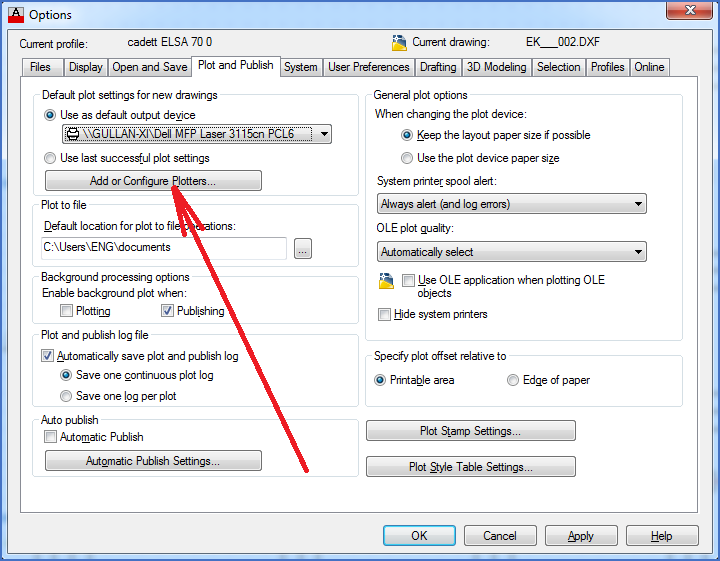
Figure 2586: The "Options" dialogue box where the "Add or Configure Plotters..." button is pressed
3.Click the Add or Configure Plotters… button, as shown in the figure above.
4.Double-click the Add-A-Plotter Wizard shortcut, as shown in the figure below.
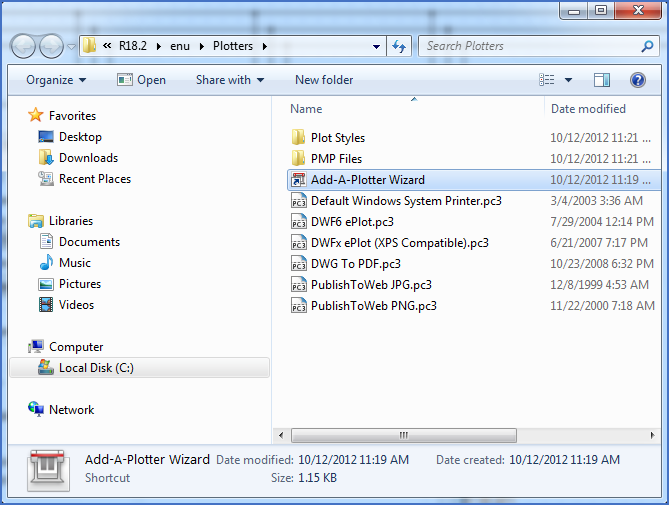
Figure 2587: The "Add-A-Plotter Wizard" is started with a double-click.
5.Click Next > in the Introduction Page.
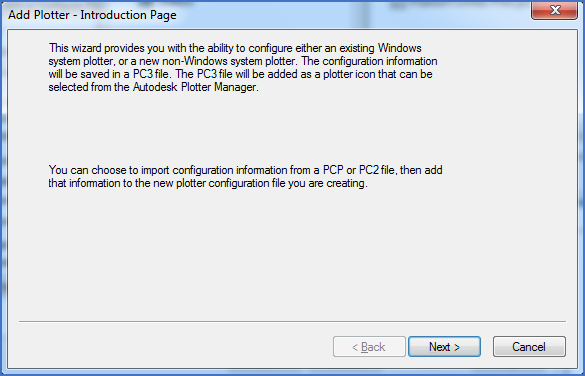
Figure 2588: The "Next >" button is pressed.
6.Specify My Computer and then click Next >.
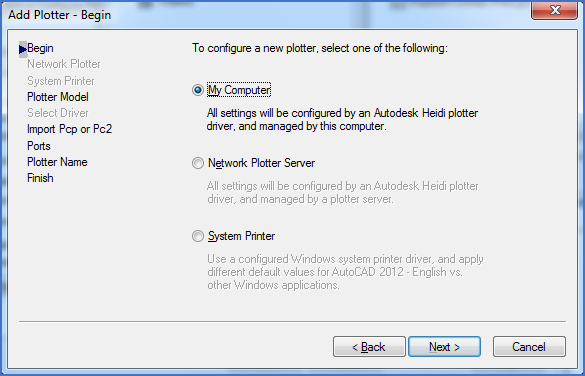
Figure 2589: "My Computer" is selected.
7.Under Manufacturers, please select Autdesk ePlot (PDF). Under Models, please specify DWG to PDF. Then click Next >.
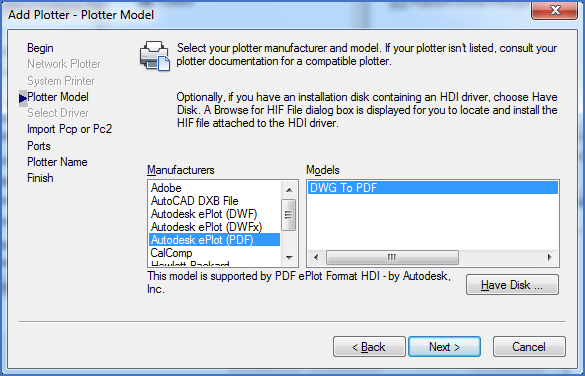
Figure 2590: "Autodesk ePlot (PDF)" and "DWG To PDF" are selected.
8.Click Next >.
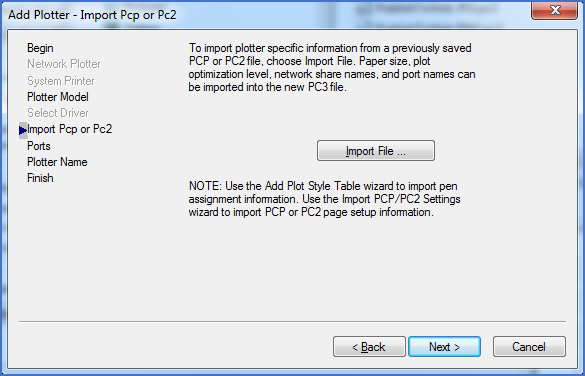
Figure 2591: The "Next >" button is pressed.
9.Select Plot to File, then click Next >.
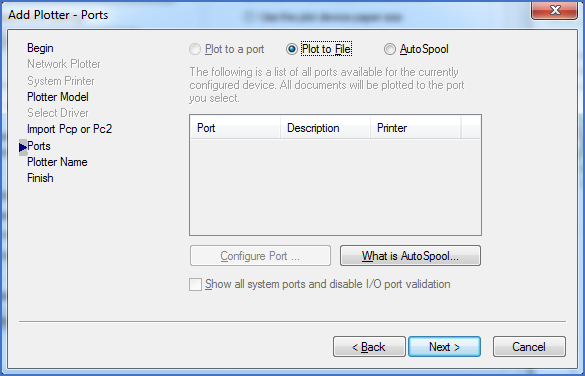
Figure 2592: "Plot to File" is selected.
10.Specify the Plotter Name as PDF_CADETT. Then click Next >.
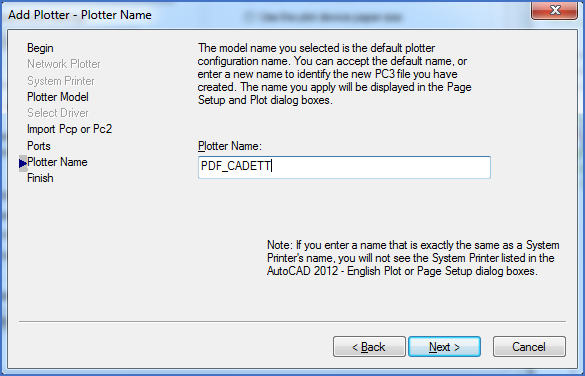
Figure 2593: The name of the virtual PDF printer must be exactly "PDF_CADETT".
11.Click the Edit Plotter Configuration… button.
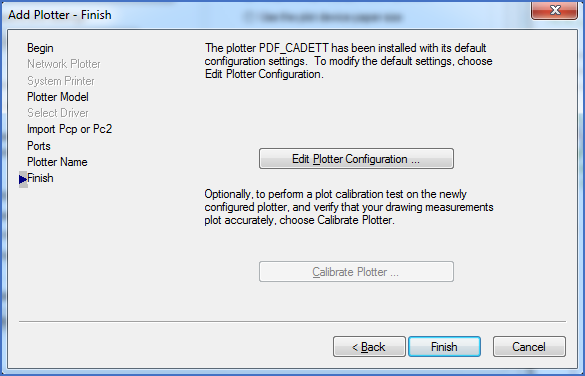
Figure 2594: The "Edit Plotter Configuration..." button is pressed.
12.In the upper part of the dialogue, please select Custom Properties. Then click the Custom Properties… button that appear in the lower part of the dialogue.
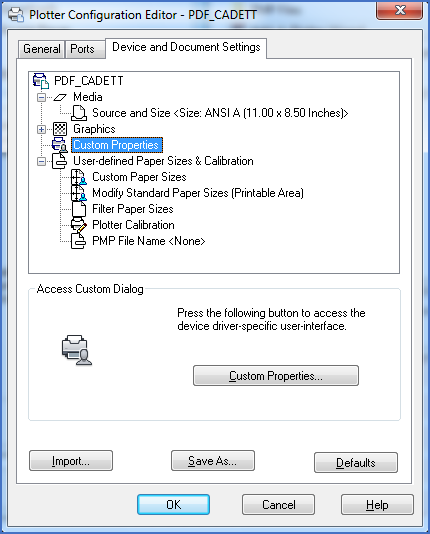
Figure 2595: Select "Custom Properties" and then click the "Custom Properties..." button.
13.The look of the next dialogue differ depending on the version of AutoCAD that you are using. Below you will find pictures of both the old and the new dialogue. The old one was used in AutoCAD 2015 and older. The new one is used in AutoCAD 2016 and newer.
In AutoCAD 2016 or newer, please uncheck Show results in viewer, Create bookmarks and Include layer information.
In AutoCAD 2015 or older, please uncheck Open in PDF viewer when done.
Then click Ok.
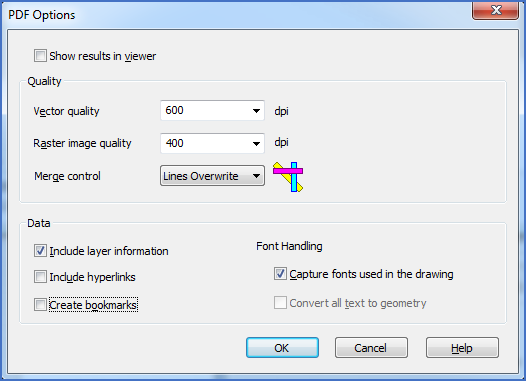
Figure 2596: This dialogue is used in AutoCAD 2016 and newer. Uncheck both "Show results in viewer" and "Create bookmarks". Unchecking "Include layer information" is also recommended.
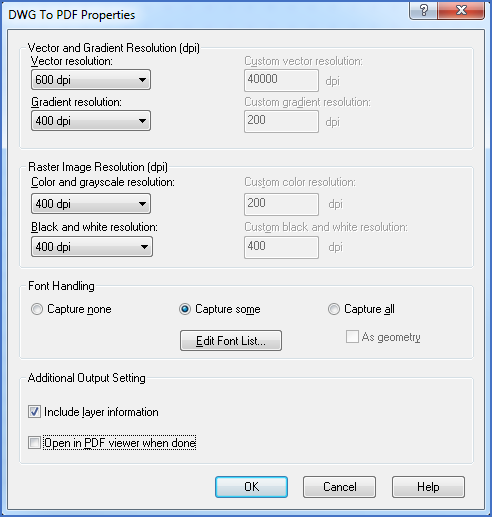
Figure 2597: The old dialogue used in AutoCAD 2015 and older
14.In the upper part of the appearing dialogue, please select Modify Standard Paper Sizes (Printable Area).
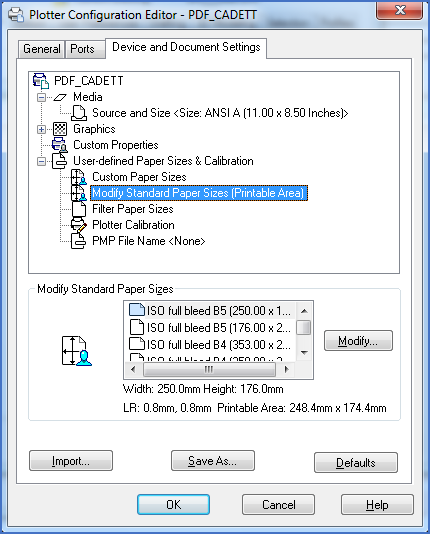
Figure 2598: Select "Modify Standard Paper Sizes (Printable Area)".
15.In the lower part of the dialogue, please select ISO A4 (297.00 X 210.00 MM). Then click the Modify… button.
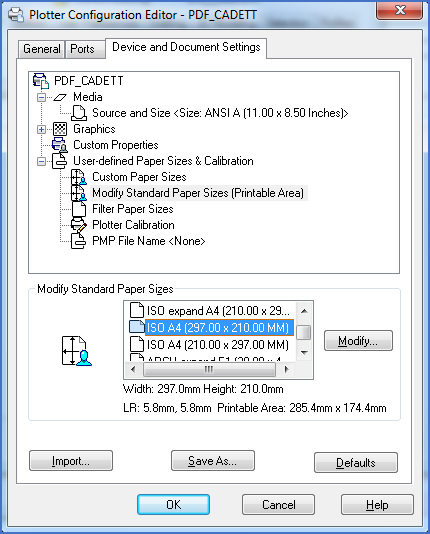
Figure 2599: Select "ISO A4 (297.00 x 210.00 MM)" and click the "Modify" button.
16.Adjust the margins with suitable values, for example 3 mm as shown below. Then click Next >.
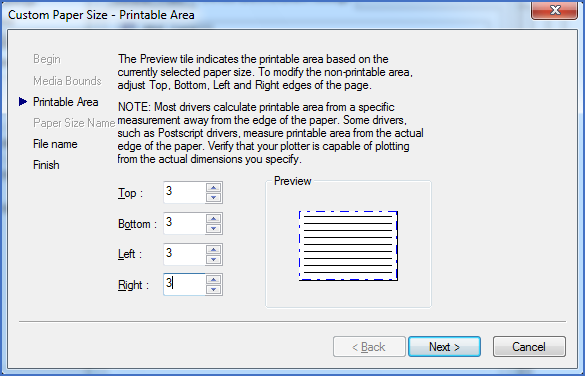
Figure 2600: The margins have been adjusted to reasonable values.
17.The margin information will be stored in a so-called PMP file. Please accept the default file name of that (identical with the PC3 file). Then click Next >.
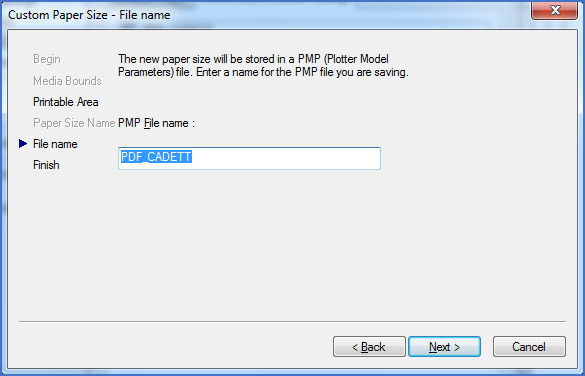
Figure 2601: "PDF_CADETT" is a perfect name here too.
18.Please repeat the process described in items 14 – 17 above, this time for the standard paper size ISO A4 (210.00 x 297.00 MM), which is used by the QuickPDF feature.
19.Click Finish, Ok and then Finish again. The virtual printer is then ready for use.
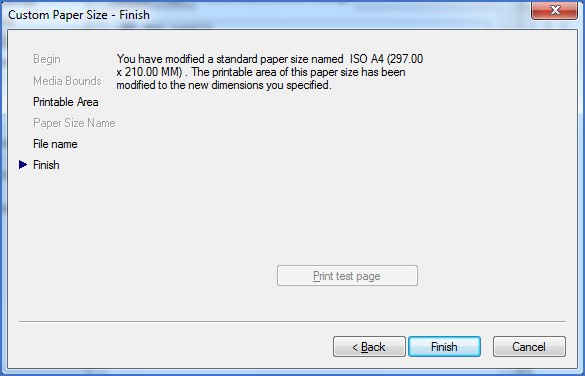
Figure 2602: The "Finish" button ends the procedure.