|
<< Click to Display Table of Contents >> Using FieldExUtil.exe for hardware lock updates |
  
|
|
<< Click to Display Table of Contents >> Using FieldExUtil.exe for hardware lock updates |
|
How you update a hardware lock, is described in practical terms below.
First, you must make sure to use the console of the computer to which the hardware lock is attached.
•For a local lock, you simply run the procedure on the computer to which the lock is connected.
•For a network lock, if you cannot, or do not like to, physically access the server, you therefore need to use remote desktop or similar to be able to execute the update procedure on the server itself.
The procedure is as follows:
•Use the Windows File Explorer to find and start FieldExUtil.exe. The location of that file is \ELSA\HWLOCK\LICENSE_UPDATE.
oFor a local hardware lock in a local installation that would typically mean that you double-click C:\ELSA\HWLOCK\LICENSE_UPDATE\FieldExUtil.exe
oFor a local hardware lock in a network installation that would typically mean that you double-click X:\ELSA\HWLOCK\LICENSE_UPDATE\FieldExUtil.exe (or similar).
oFor a network lock, it would typically mean that you double-click
C:\CADETT\ELSA\HWLOCK\LICENSE_UPDATE\FieldExUtil.exe (or similar).
•A dialogue box like the one shown below in the figure below will be displayed.
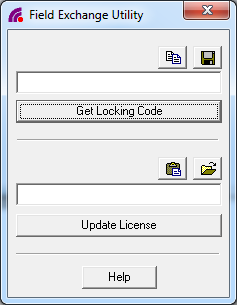
Figure 2461: The "FieldExUtil" hardware lock update utility
•Click the Get Locking Code button to verify that the communication with the hardware lock is working. A code should be displayed, like shown in the figure below.
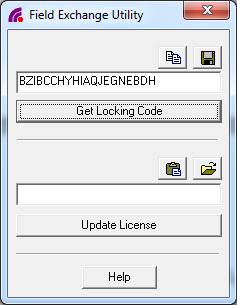
Figure 2462: A "Locking Code" is displayed.
•In cases where the hardware lock communication fails, the text “Error” is instead displayed. That typically happens when you are executing the utility on the wrong computer, like on the workstation when the hardware lock is connected to a server.
•In some cases, you need to send the code to cadett, but in most cases that is not necessary. If needed you will be asked for it.
•The so-called "License Code” will be sent to you in an e-mail from
license@cadett.com.
•Copy the License Code from the e-mail and paste it in the field directly above the Update License button. Please make sure not to add any additional characters like line-feeds or similar. The entire License Code, which might be quite long, must be in one single line.
Example of a typical License Code:
EDHOGOJDBIJCAFJTAFHKFXBRDOGUDWFYDJHHDAHSEEAGFHBHHYBFFMHGIYIMIYIDDFJMDMJTJNJUEMGTFRCYDLGSCBJPBFFOCWAKIZFDAKHNCAGYAZGVJACXBYAKBNGQIRJPALEKJKICFVAZHQCJJACIHUBNFCIKMQ
•Click the Update License button.
•If the update is successful, a message will tell you so. Otherwise, an error message will be displayed.
•A possible reason for the update failing is codes and hardware locks being mixed up. Each code can be used for one particular hardware lock only and cannot be used for any other physical hardware lock than the one for which it is intended.