|
<< Click to Display Table of Contents >> Symbol libraries |
  
|
|
<< Click to Display Table of Contents >> Symbol libraries |
|
For each symbol library, you can select if settings and/or symbols should be imported. For symbols, you also have the possibility to specify each individual symbol to import. When updating, the import of symbols is “soft”. Therefore, any changes made to standard symbols will be lost while user defined symbols will be imported unchanged. On the other hand, the import of settings is “hard”. Changes made in the settings will therefore be imported and transferred unchanged.
This requires further explanations, which are offered below.
Each symbol library contains a large amount of symbols, and a number of settings for AutoCAD and for the symbol macros in the Drawing Environment. The settings for AutoCAD control such things as the default GRID and SNAP, as well as the DXF file format used when saving drawing sheets. The settings for symbol macros control for example the graphical layout of terminals and boundary boxes. These settings varies between different industrial standards and therefore also between different symbol libraries. The industrial norm (standard) concept and the symbol libraries are intimately connected to one another. The actual settings are saved in configuration files (INI files), located in the symbol libraries themselves.
When importing a symbol library, you can control the import of settings and symbols separately:
•When importing directly after an update, you should of course import both symbols and settings, to be able to use your symbols and settings as before.
•If you, on the other hand, are importing symbols to an installation already in use, for example from an installation on a separate computer, maybe a laptop that has been used during travelling work, you should absolutely not import the settings. Doing so could cause a sudden change of behaviour. For example, the terminals and cables could start looking different than they did before. Please be aware of this!
You select to import settings and/or symbols by simply checking the appropriate alternatives. Please refer to the figure below. As you can see in the figure, you can check each symbol separately and thereby select if it should be imported or not.
It is entirely possible to use this function to import one or a few symbols from another installation without affecting anything else in the receiving installation. Just stay focused when you select what to import, and you will find this being a very powerful and effective aid to your work!
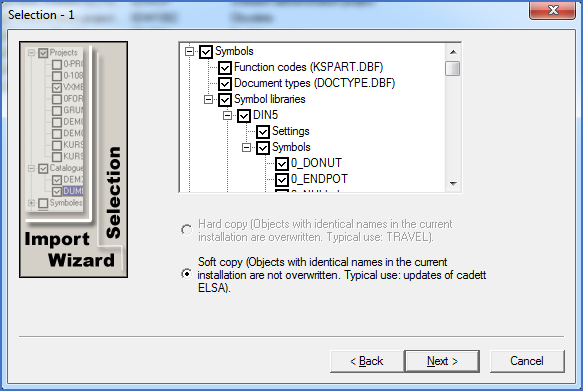
Figure 2550: Selection for import of symbol data