|
<< Click to Display Table of Contents >> Starting the installation program |
  
|
|
<< Click to Display Table of Contents >> Starting the installation program |
|
To be able to run the installation, you need administrator privileges, either directly or through elevation, in the ordinary Microsoft Windows fashion.
You can easily find the mapped drive (X: in the example) using the Windows File Explorer. On the mapped drive, you will find the cadett ELSA main directory, usually named ELSA.
In the ELSA directory, you will find an Installer sub-directory and in that, the setup.exe file. Double-click that file, and the installation program will start.
Example
In the example above, you should in other words start the file:
X:\ELSA\Installer\setup.exe
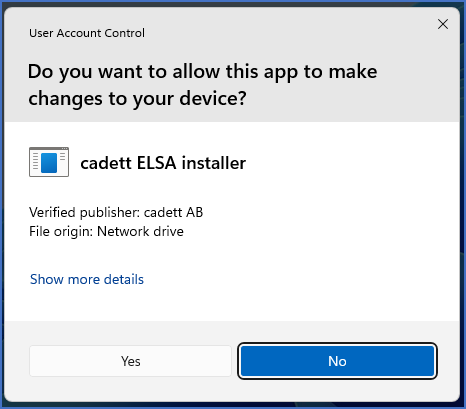
Figure 2373: User Account Control (UAC) Security Warning dialogue box
A security warning, as shown in the figure above, might be displayed depending on your particular network environment, and operating system settings. If so, please click the Yes button to allow the installation program to install.
What happens here, is that you are elevated to administrator privileges, which are needed for the installation.

Figure 2374: The installation program starts.
The installation program then starts, as shown in the figure above.
Proceed to the language selection by clicking the Next button.

Figure 2375: Language selection for the workstation setup
Please select your preferred language for the workstation setup. The following description assumes English.
Then click Next.

Figure 2376: Selecting workstation setup
When arriving at the installation type selection, as shown in the figure above, please select Workstation for network installation, and nothing else. Then click Next.
The next step is described in the topic that is listed below.
•Remove hardware lock Reminder