|
<< Click to Display Table of Contents >> Map a drive |
  
|
|
<< Click to Display Table of Contents >> Map a drive |
|
The drive-letter that is needed for cadett ELSA may be mapped using a policy, meaning that it is done centrally, typically by the IT department. Please note that it is extremely important in that case to use the UPDATE option.
Please follow the steps described below to map a drive letter manually from the workstation.
The figures in the description below is from an English version of Microsoft Windows 11. If you are using another operating system version, the appearance will vary more or less. The general procedure will however most likely be similar.
•Start the Windows File Explorer.
•Navigate to the server where cadett ELSA is installed. You will typically find it under Network, as shown in the figure below.
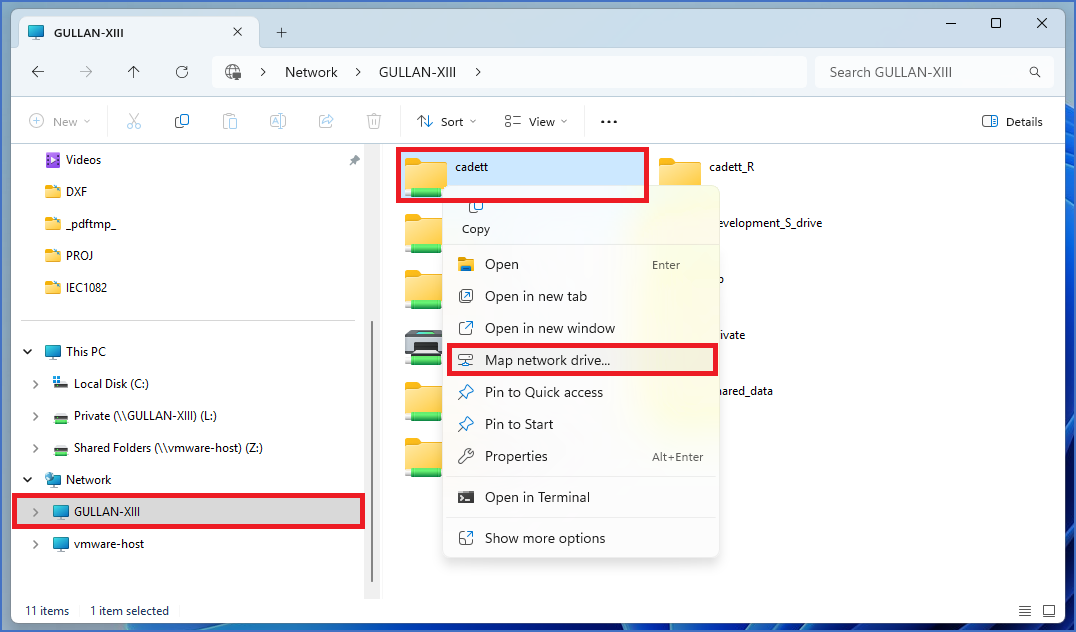
Figure 2371: Here, the "Windows File Explorer" is used to map drive letter "X:" to a resource named "cadett" that is shared from a server named "GULLAN-XIII".
•If you cannot find the correct server under Network, you can instead type the name of the server in the field in the top of the File Explorer dialogue. Use two back-slashes in the beginning of the name. (In the example above, that would be \\GULLAN-XIII).
•The resources that are shared from the selected server, will be displayed to the right in the File Explorer, as shown in the figure above.
•Right-click on the resource that has been shared for cadett ELSA (in the example, that resource is called cadett).
•In the context menu that is displayed, please select Map network drive..., as shown in the figure above. A dialogue box, like shown in the figure below, will be displayed.
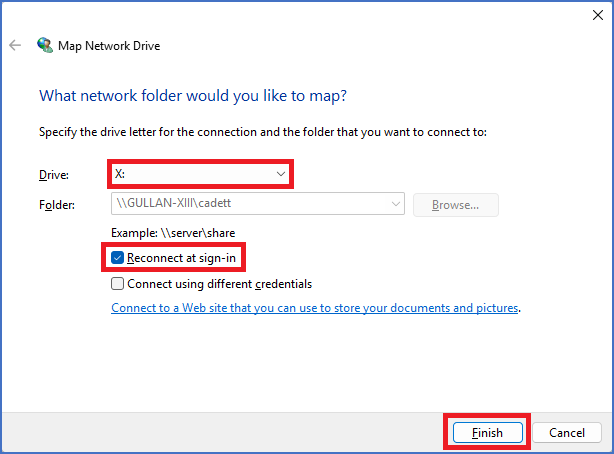
Figure 2372: The "Map Network Drive" dialogue
•Select the appropriate drive letter (the same as you selected when you made the server installation).
•Check Reconnect at sign-in.
•Hopefully, you can use the same credentials (log-in options) for the server connection as for the workstation, but if not, please also select Connect using different credentials (avoid if possible).
•Click Finish to establish the mapping.