|
<< Click to Display Table of Contents >> Select license server |
  
|
|
<< Click to Display Table of Contents >> Select license server |
|
The first time you open a drawing sheet from the Drawing Manager with the Solo eXs, meaning the first time that you start the Solo eXs after installation, a dialogue will be displayed where you are supposed to enter the name of the Host computer (server) where the license server is running. The dialogue looks like shown in the figure below.
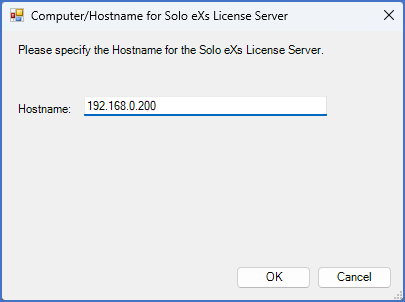
Figure 2536: Specification of the host name of the license server
Please enter the IP address or the name of the server as shown in the figure above.
After you have done that, the Solo eXs will start and you are up and running.
If your license server is located directly on the workstation, you can simplify this configuration by entering 127.0.0.1 (a so-called local loop-back) instead of the name of your own computer.