|
<< Click to Display Table of Contents >> Projects |
  
|
|
<< Click to Display Table of Contents >> Projects |
|
All projects, including their project parameters, drawing sheets, revisions and other files can be imported.
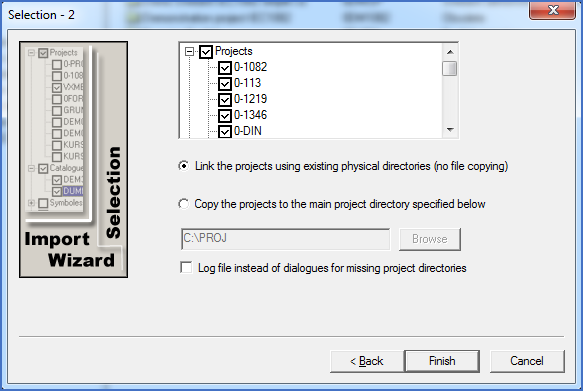
Figure 2554: Selection of projects to import
Under the Projects group, you will find each individual project, and you have the possibility of specifying individually for each project whether it should be imported or not.
The projects are presented with their short-names. When you move the mouse-pointer over each project, the long-name will pop up as an extra selection aid.
Below the selection window you will find two radio buttons. Either you link your projects or you copy them.
You have to decide by yourself which of these two alternatives is the best in the current situation.
In that decision, the following general guidelines may be useful:
•When updating an existing installation on the same computer or server that was used before, you should normally select the first alternative, to Link the projects.
•When moving cadett ELSA to a new server by making a new installation there and importing from the old server, you could in some cases select to Copy the projects. If you do, new directories for all projects will be created in a standardised way, and the files of the projects will be copied there. An alternative however, is to copy both cadett ELSA and the projects to the new server first, replicating the entire directory structure of the old server, and then use the same procedure for the installation that is used when updating on an existing server, in other words to Link the projects. In most cases, that is the preferred alternative.
Please refer to the description below for more detailed information needed to make an informed choice!
Besides deciding here whether to link or copy the projects, you must decide whether to display dialogues for missing projects or not. That choice may affect the effectiveness of the entire import process in a substantial way, so please read the information provided below carefully.
Detailed information about the respective radio-buttons and the check-box is available in the sub-topics that are listed below.
•Link the projects using existing physical directories (no file copying)
•Copy the projects to the main project directory specified below
•Log file instead of dialogues for missing project directories