|
<< Click to Display Table of Contents >> Installing the license server |
  
|
|
<< Click to Display Table of Contents >> Installing the license server |
|
Please start the installation by double-clicking the installation file.
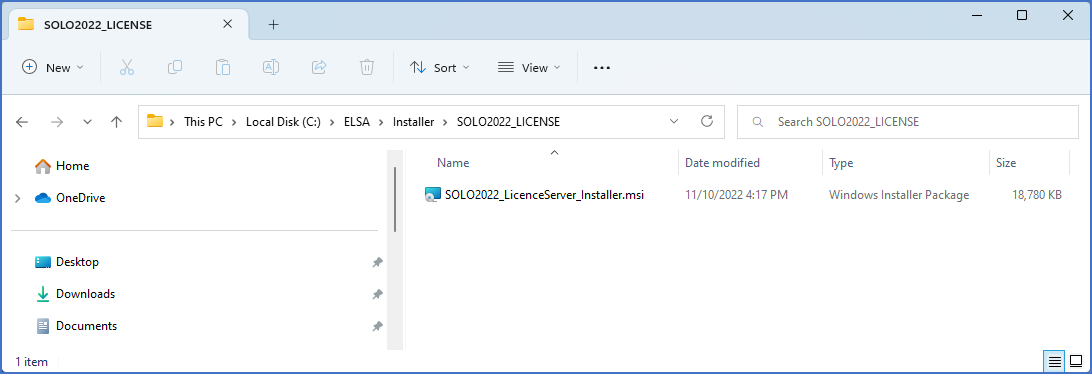
Figure 2515: The installation file located in the "SOLO2022_LICENSE" directory of the main cadett ELSA installation
The installer starts immediately and displays a dialogue box like shown in the figure below.
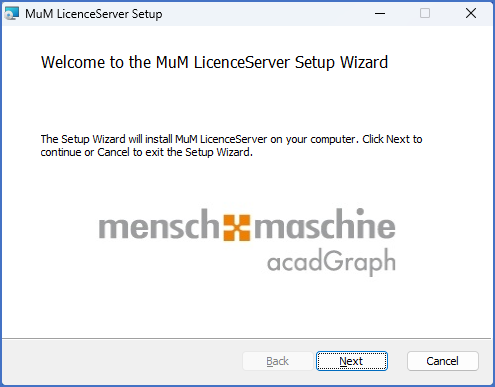
Figure 2516: The installer has been started. Please click “Next”.
You click Next to continue the installation process. A dialogue box like shown in the figure below is displayed. There you can take your time to study the license agreement together with your lawyers. To make it easier for everybody involved, the text is in German (!).
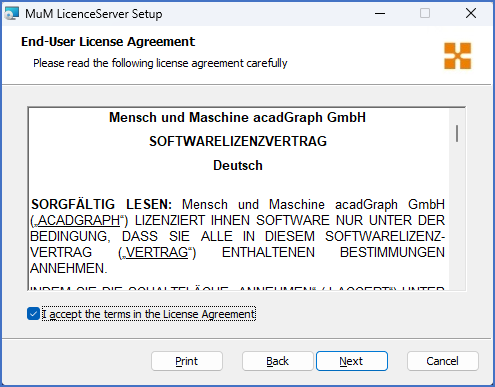
Figure 2517: Use the check-box in the lower left corner to accept the license agreement. Then click “Next”.
You accept the license agreement with the check-box that you find in the lower left corner of the dialogue box. When you have done that, you click the Next button.
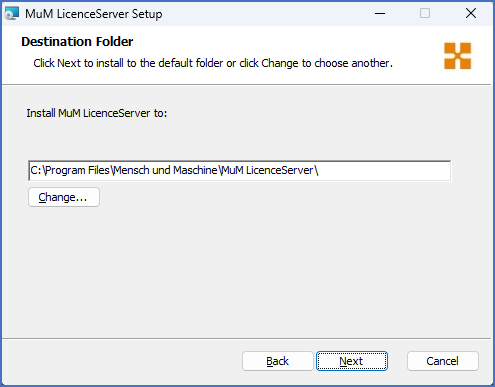
Figure 2518: The default directory is recommended.
The next step is to select a suitable directory to install the license server in. The default directory will do fine, so that is the recommended choice.
Click Next to continue.
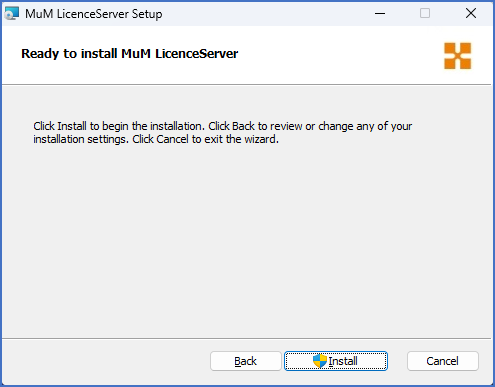
Figure 2519: When you click the “Install” button, the installer will elevate to administrator.
You are then ready to start the actual installation, which you do by clicking the Install button. When you do, the installer will elevate to administrator, which might require additional access information to be entered. Please refer to the figure below.
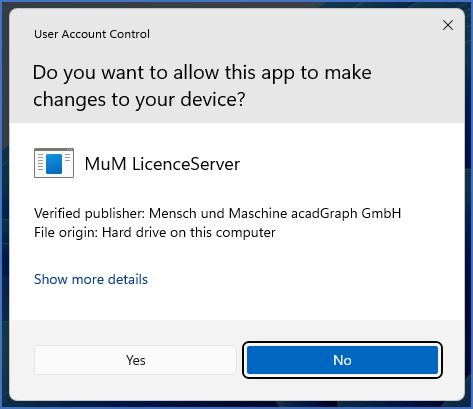
Figure 2520: The installer is elevating to administrator.
Click Yes and add any requested access information. When you have done that, the installation process will continue, as shown in the figure below.
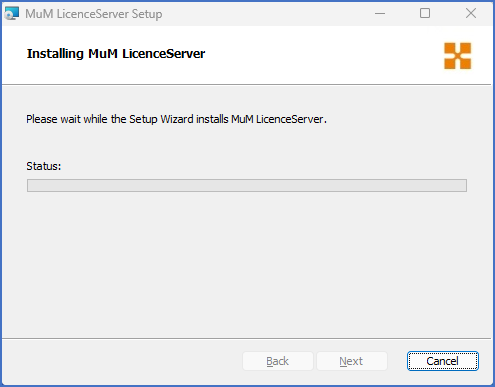
Figure 2521: A progress bar will show that the actual installation is proceeding.
When the installation is ready, a final dialogue box, as shown in the figure below, will inform you about that.
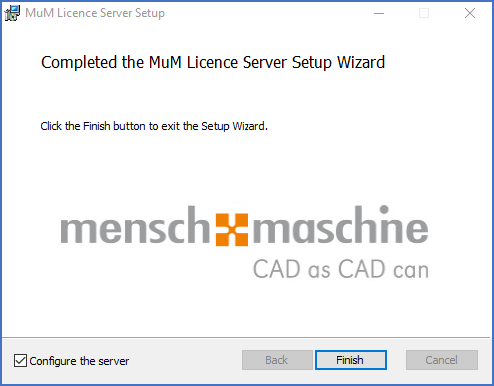
Figure 2522: The installation is ready. You can select to immediately configure the license server.
A check-box in the lower left corner of the dialogue box allows you to immediately start the configuration of the license server, but you can also uncheck that, to start the configuration separately at a later point in time.
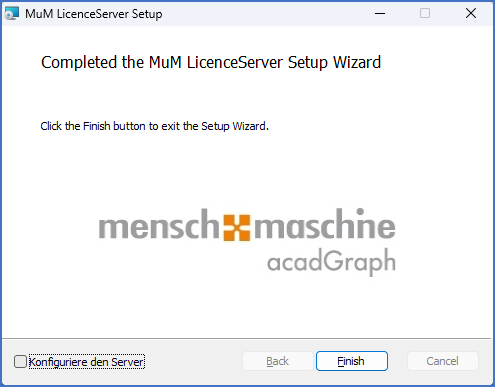
Figure 2523: You can also select to configure the license server later.
Here we assume that you will start the configuration later. Uncheck the check-box, like shown in the figure above, and then click Finish.
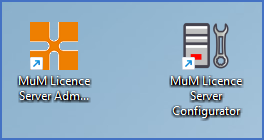
Figure 2524: Two shortcuts are created by the installer.
Two shortcuts have been added to your desktop, as shown in the figure above. One is used to configure the license server. The other is used for administration of licenses.
Please continue with the remaining steps that are listed below.