|
<< Click to Display Table of Contents >> Installing a neutral workstation |
  
|
|
<< Click to Display Table of Contents >> Installing a neutral workstation |
|
One neutral workstation installation for each workstation server is needed for thin client solutions.
It is also possible to install a neutral workstation on a conventional “thick client”, meaning a conventional computer connected to a cadett ELSA server in a local area network (LAN).
Neutral workstations can be installed only after enabling this feature in the DYN_WS.INI configuration file.
The procedure is as follows:
1.First, make sure that the mapping of the cadett ELSA main drive is in place.
2.Using the Windows File Explorer, please double-click the following file (X:\ELSA is a typical example of a cadett ELSA main directory):
X:\ELSA\Installer\SETUP.EXE
You will then be elevated to administrator, which may require additional login information to be provided.
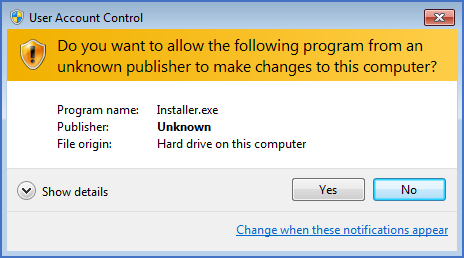
Figure 2412: The installer will elevate to administrator.
3.After you have elevated to administrator, the installer starts. Please click Next.
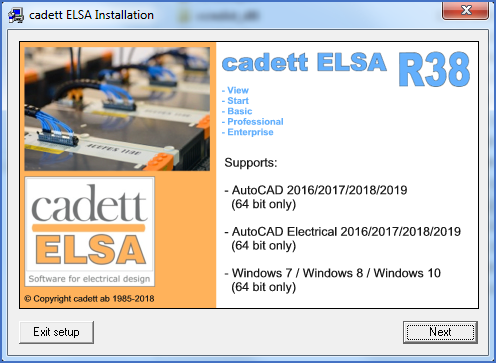
Figure 2413: The installer presents itself.
4.Thereafter, please select a suitable language and click Next.
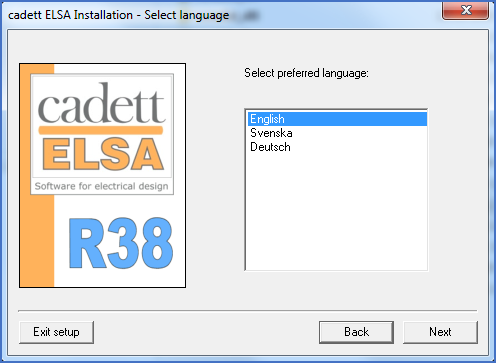
Figure 2414: A preferred language for the installation menus is selected.
5.The only option that will be available, besides Uninstall, is installation of a Neutral workstation for thin clients. The Neutral workstation will be the default. Please click Next to confirm the default.
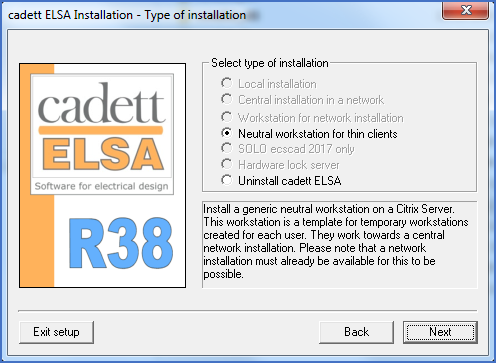
Figure 2415: A Neutral workstation installation is selected.
6.Please add the proper search path for the cadett ELSA main directory, either by typing or by browsing using the Browse button to the right. Then click Next.
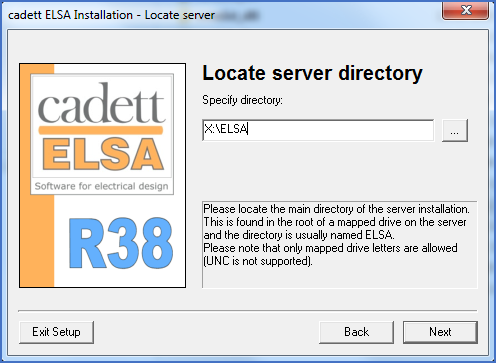
Figure 2416: The search path for the cadett ELSA main directory is specified.
7.The installer will do its job. Please wait for it to finish.
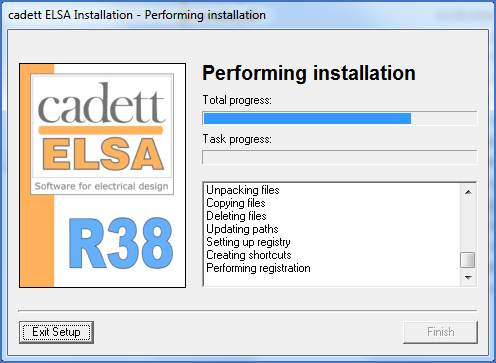
Figure 2417: The installer is doing its job.
8.The installation procedure is finished. Please click Finish.
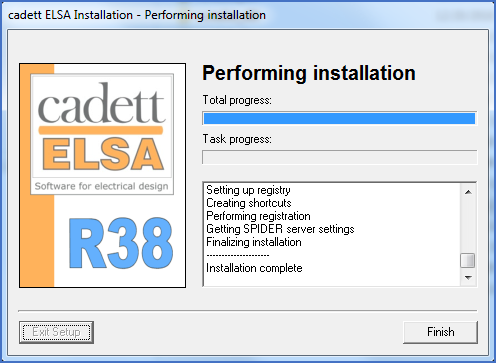
Figure 2418: Ready!