|
<< Click to Display Table of Contents >> Download installation media |
  
|
|
<< Click to Display Table of Contents >> Download installation media |
|
To download the installation media that you need for a new installation or an update of cadett ELSA, you first enter the homepage of cadett at the address specified below.
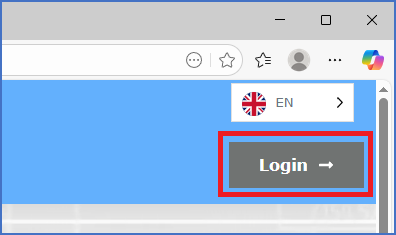
Figure 2310: The "Login" button is currently (January 2026) found in the upper right corner of the homepage.
Please login with your e-mail address and your password using the Login feature shown in the figure above.
If you do not yet have a password, you can get one using the Password request feature, which you find in the Support menu, as shown in the figure below.
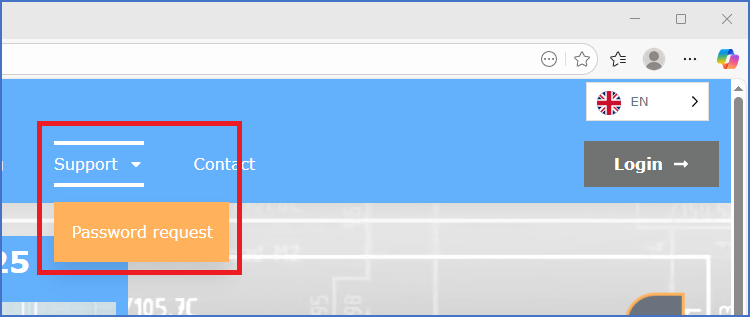
Figure 2311: The "Password request" feature is found in the "Support" menu.
When you have successfully logged in, the Support menu will be populated with additional features, among them the Downloads area, as shown in the figure below.
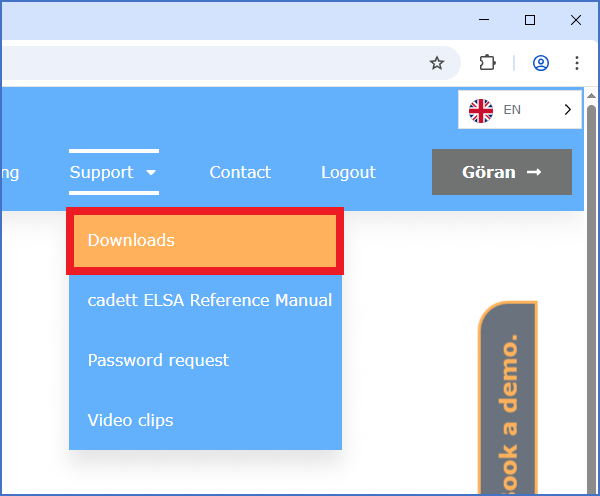
Figure 2312: You find the entrance to the "Downloads" area in the "Support" menu.
Please enter that area. Then select Updates and complete installation files.
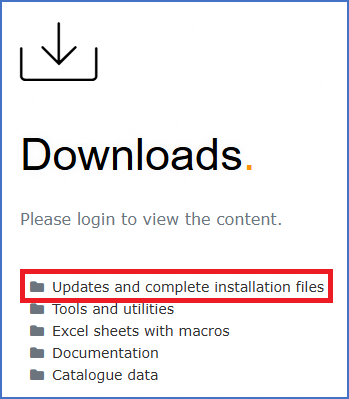
Figure 2313: You will find incremental updates in the "Updates and complete installation files" folder.
Select your current version of cadett ELSA, and below that, the most recent update.
Please note that the Download area contains both complete installation files, and incremental updates. If you are updating within a version, you should download the update, otherwise the complete installation file.
Please also note that some installation files may be available from two separate servers, giving you a second chance, if the you would run into problems with the first one.
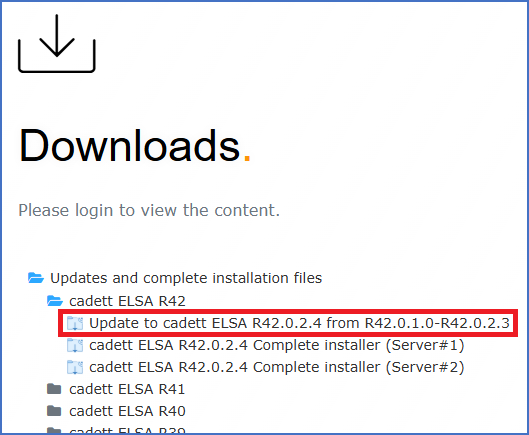
Figure 2314: Please select the most recent complete installation file or incremental update that is available for your cadett ELSA version, depending on what kind of installation you are about to make.
When you have selected the proper file, an information page, like the one shown in the figure below, will be presented. Carefully read the information text to the right, and download the associated file with the Download button to the left.
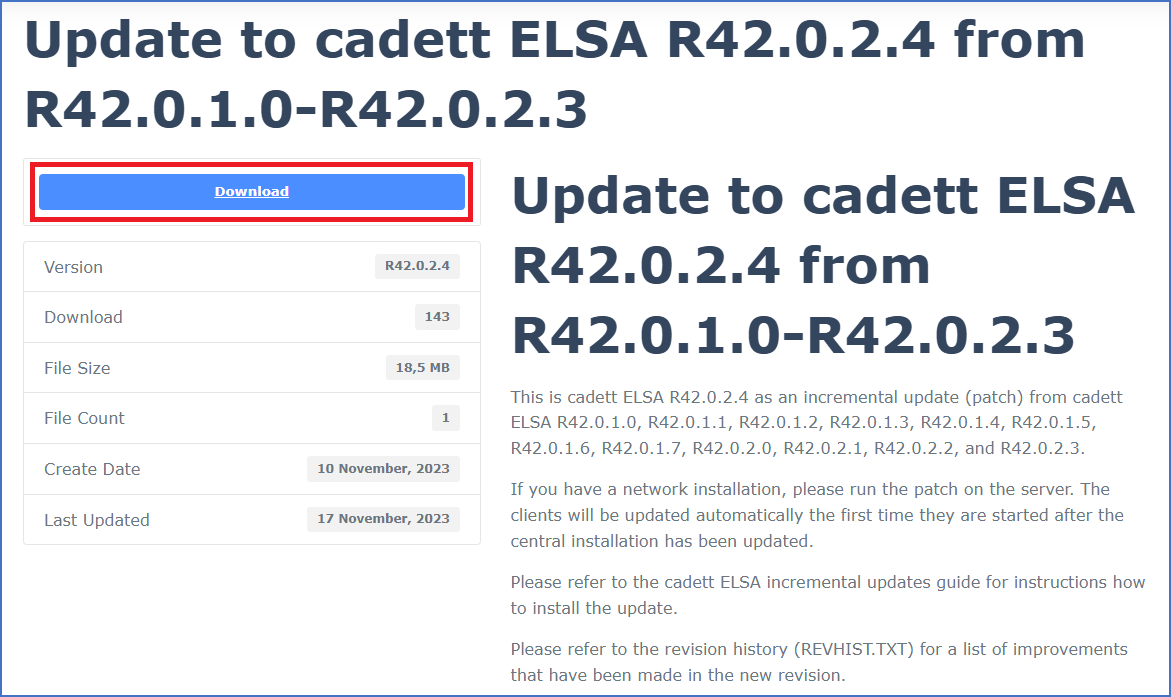
Figure 2315: Please carefully read the information that is provided to the right. Download the installation file using the "Download" button.
Depending on the settings of your web browser, the installation file in most cases end up in the Downloaded files folder. You can then move it to a more convenient location using the Windows File Explorer.
How you make the installation is discussed in separate topics, depending on what kind of installation you are doing.