|
<< Click to Display Table of Contents >> Configuration |
  
|
|
<< Click to Display Table of Contents >> Configuration |
|
Either way, the MuM License Server Configurator main dialogue box shown below will be displayed.
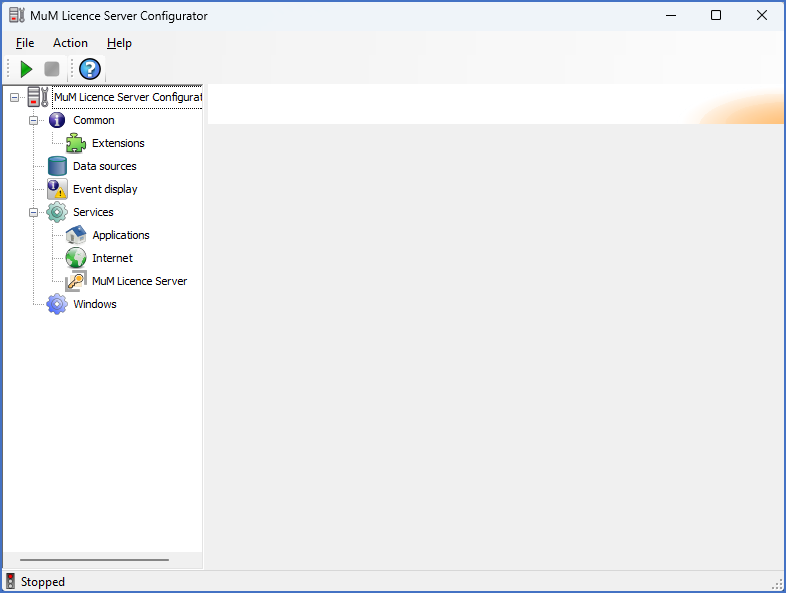
Figure 2526: The Mum License Server Configurator main dialogue box
To start the service of the MuM License Server, please first select the Windows icon in the tree to the left, as shown in the figure below.
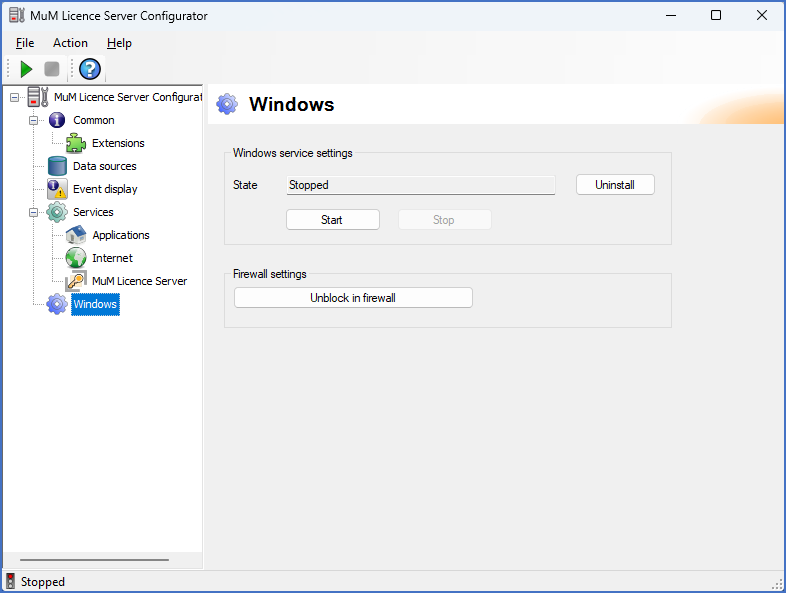
Figure 2527: Starting the license server
Then click the Start button in the Windows service settings section to the right.
Please note, that when doing so, an elevation may take place, depending on the current user rights situation.
Alternatively, you can start the service using the Windows Services tool.
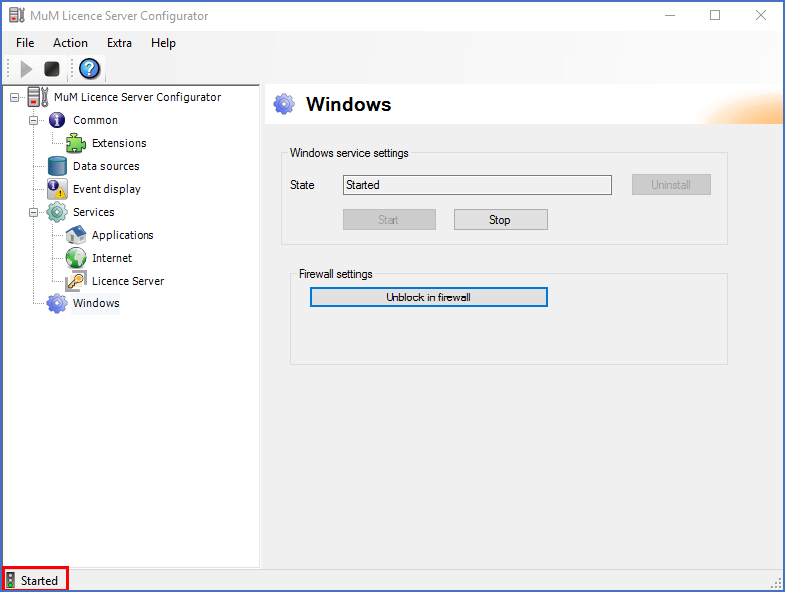
Figure 2528: The service is running.
The symbol in the lower left corner, as shown in the figure above, tells you whether the service has been properly started or not.
Please continue with the remaining steps listed below.