|
<< Click to Display Table of Contents >> Avoiding a security warning when cadett ELSA is started |
  
|
|
<< Click to Display Table of Contents >> Avoiding a security warning when cadett ELSA is started |
|
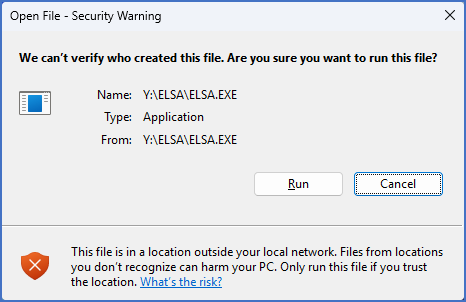
Figure 2394: A "Security Warning" like this may turn up when starting a network version of cadett ELSA.
If you get a security warning as displayed in the figure above when you start cadett ELSA, you need to make a simple configuration to get rid of it. One possible way of doing that is described here.

Figure 2395: "Settings" shortcut
Please first start the Windows Settings, using the gear wheel shortcut shown in the figure above. You can access it with the Windows Start button.
Then select Network & internet as shown in the figure below.
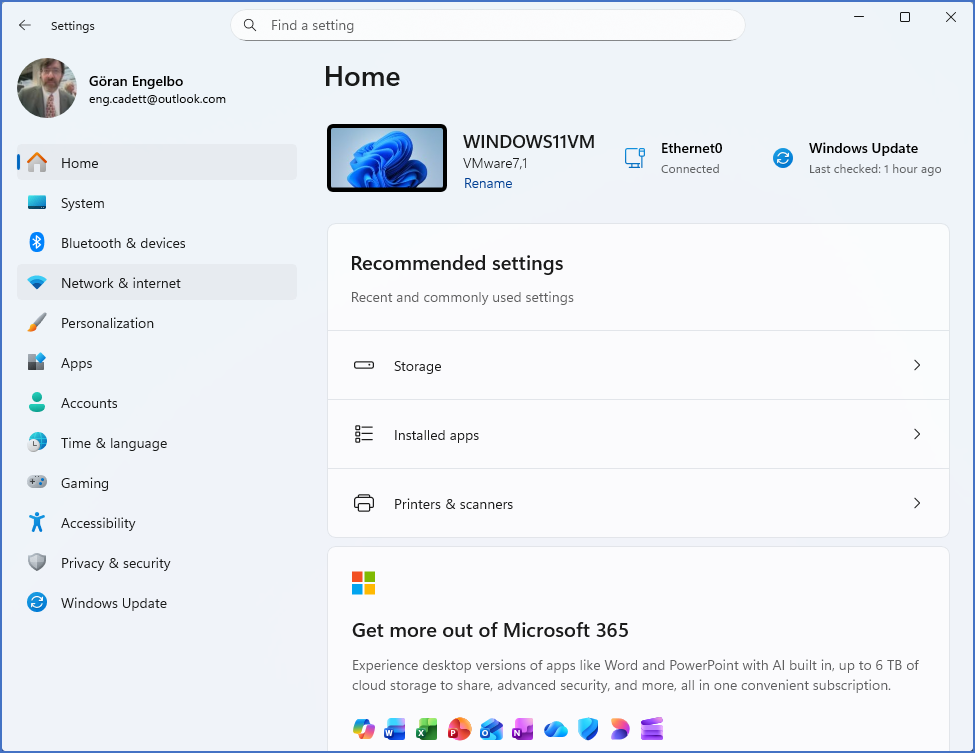
Figure 2396: Under "Settings / Home", please select "Network & internet".
The next step is to select Advanced network settings as shown in the figure below.
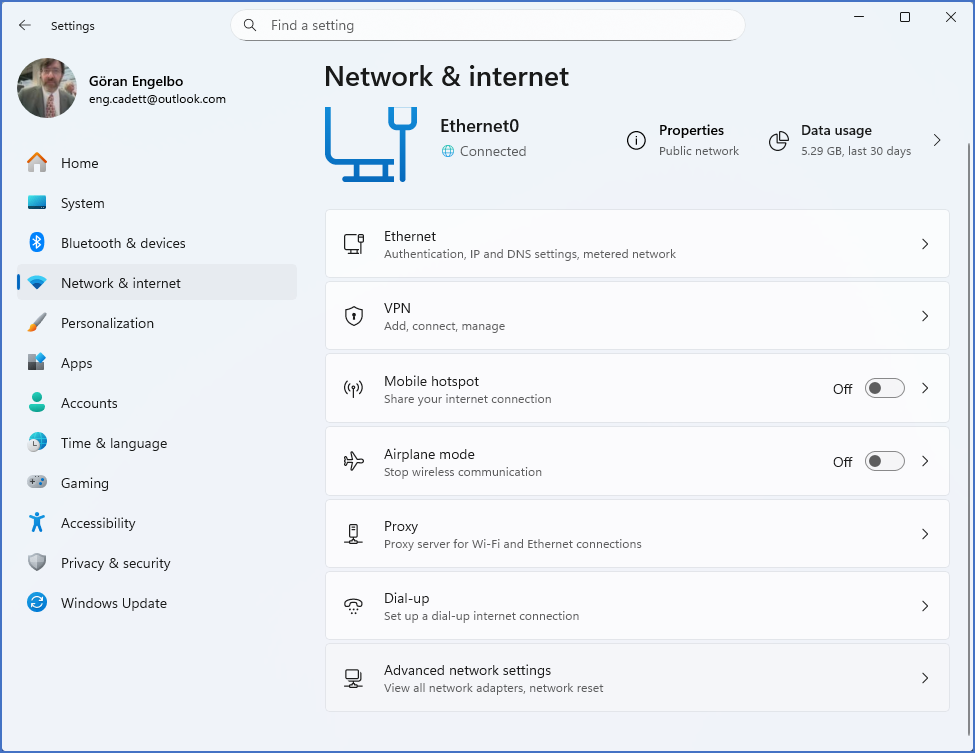
Figure 2397: Under "Network & internet", please select "Advanced network settings".
Select Internet options, as shown in the figure below.
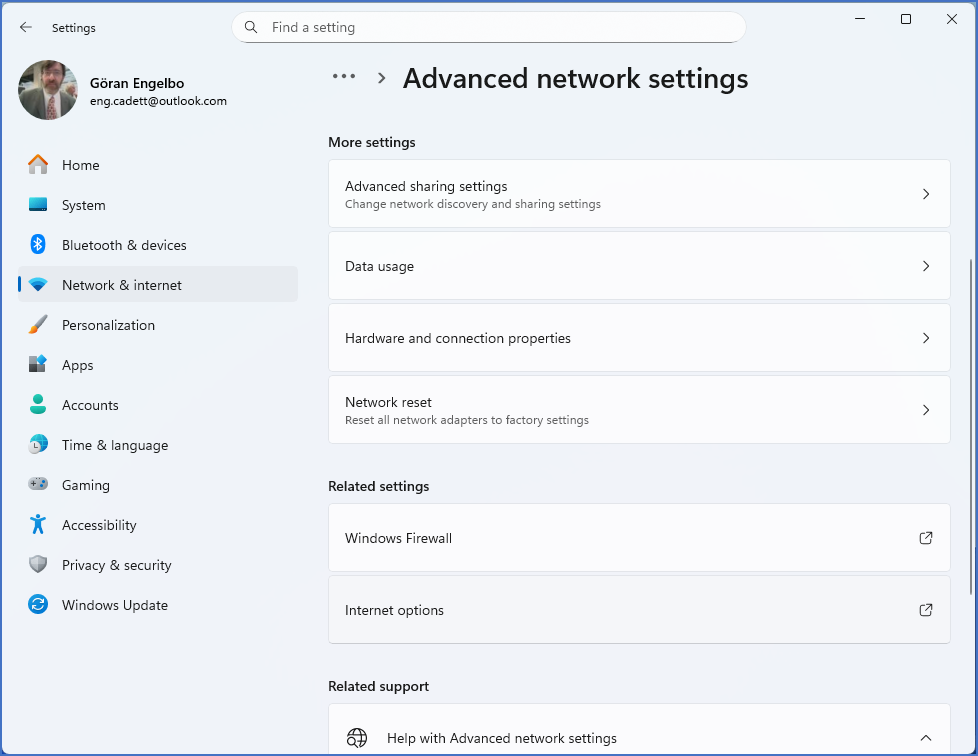
Figure 2398: Under "Advanced network settings", please select "Internet options".
After that, in the Internet Properties dialogue box, please activate the Security tab, as shown in the figure below.
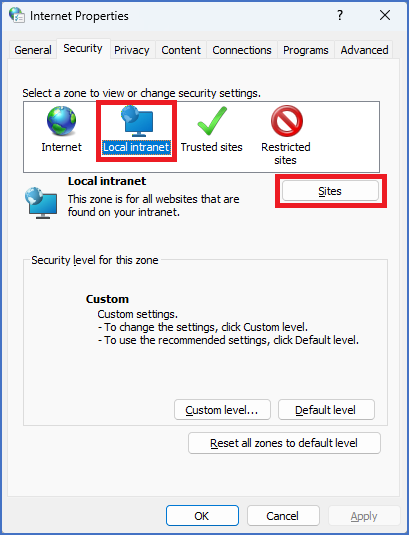
Figure 2399: Activate the "Security" tab, select "Local intranet", and then click the "Sites" button.
Select Local intranet and then click the Sites button, as shown in the figure above.
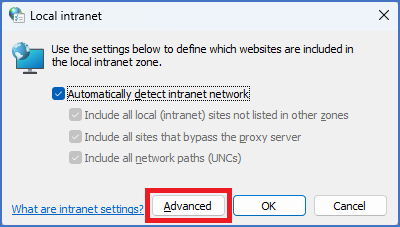
Figure 2400: In the "Local intranet" dialogue box, please click the "Advanced" button.
In the Local intranet dialogue box, click the Advanced button, as shown in the figure above.
In the upper field of the dialogue box that is displayed, please type the name of the drive that cadett ELSA is using. In our example here, that is X:, like shown in the figure below.
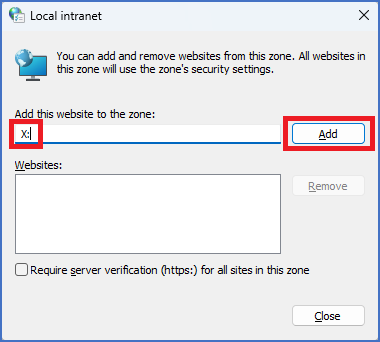
Figure 2401: The drive that is mapped for cadett ELSA is typed and then added.
Click the Add button.
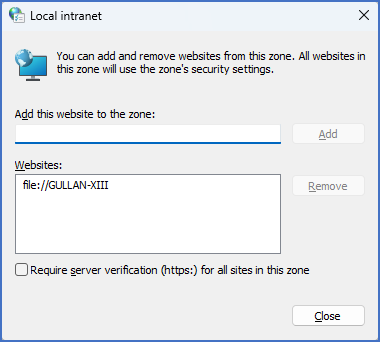
Figure 2402: The cadett ELSA Server is now trusted.
The drive letter that you specified is automatically translated to a valid server name, like in the example shown above in the figure above.
Simply click the Close button and the cadett ELSA server will be handled as a trusted zone avoiding irritating warnings when starting the software.
Please then continue with the next step, which is described in the topic that is listed below.
•Verify that the workstation is working properly