|
<< Click to Display Table of Contents >> Throw out other users by force |
  
|
|
<< Click to Display Table of Contents >> Throw out other users by force |
|
If you experience a message similar to the one shown in the figure below during the installation, you can follow the steps listed below the figure to resolve the problem.

Figure 2362: An error message like this is displayed if renaming the existing directory fails.
Check that you are not yourself "the guilty part". Close all applications that are running on the server, like Windows File Explorers, Command Prompts, PDF viewers, and anything else that you might have on the screen.
If you cannot find any other users that may block the installation in a similar way, you may have to use force to throw everybody out. That can be done in the following way.
1.Open the Windows File Explorer. Navigate to the physical directory that corresponds to the mapped drive that you are using. In our example, that would be C:\CADETT (which corresponds to X:).
2.Right-click and select Properties.
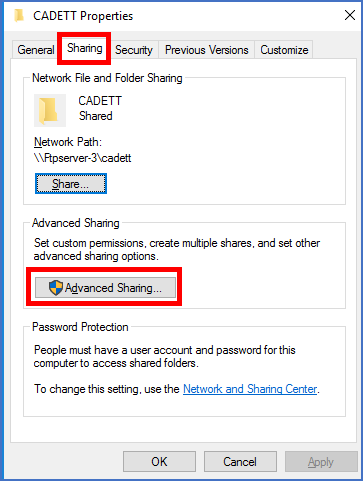
Figure 2363: In the "Sharing" tab, please click "Advanced sharing...".
3.Select the Sharing tab, as shown in the figure above.
4.Click Advanced Sharing..., which is also shown in the figure above.
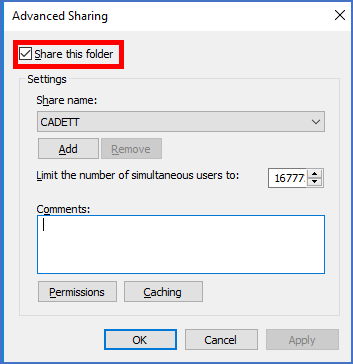
Figure 2364: You end up in the "Advanced Sharing" dialogue shown here.
5.Uncheck Share this folder as shown in the figure above.
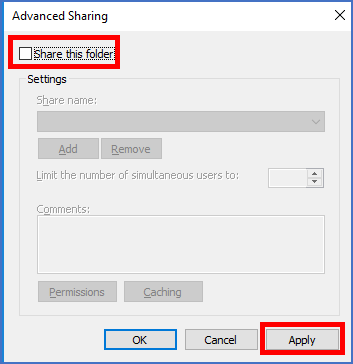
Figure 2365: Uncheck "Share this folder" and click "Apply".
6.Click Apply, as shown in the figure above.
7.A message will inform you about other users that currently access the share. It might look something like the figure below.
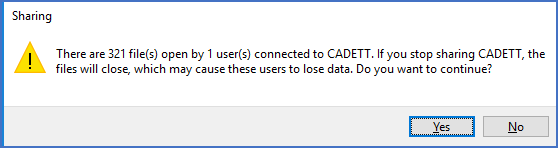
Figure 2366: A message similar to this one informs you about how many files and users that will be affected by the action that you are about to take.
8.If you click Yes, all other users will be thrown out, which may cause loss of data for them.
9.Immediately check Share this folder again, and then click Permissions, as shown in the figure below.
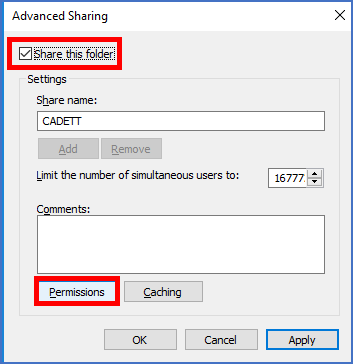
Figure 2367: Check "Share this folder" again, and then click "Permissions".
10.Select Everyone, and then check Allow for Full control, Change, and Read, as shown in the figure below.
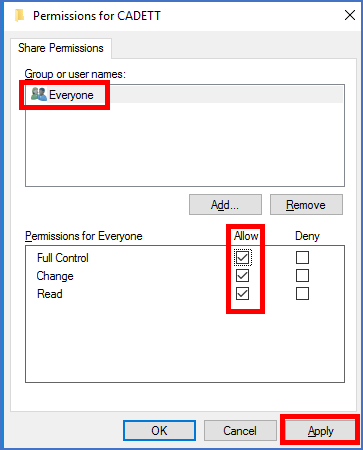
Figure 2368: Select "Everyone" and make sure that you allow "Full control", "Change", and "Read".
11.Click Apply, then OK, and continue to exit all dialogues.
This procedure will almost always solve the problem,