|
<< Click to Display Table of Contents >> Start the installation |
  
|
|
<< Click to Display Table of Contents >> Start the installation |
|
To be able to run the installation, you need administrator privileges, either directly or through elevation, in the ordinary Microsoft Windows fashion.
To start the installation procedure, please double-click the installation file.
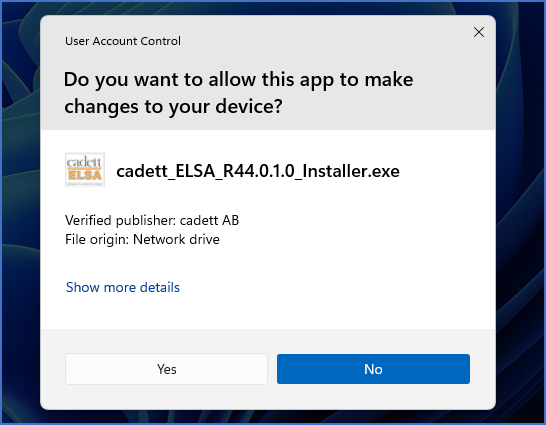
Figure 2316: The User Account Control Elevation dialogue.
If UAC (User Account Control) is activated, which is the normal case, the first thing that will happen is an elevation. “Elevation” means that the user is elevated to an administrator with the accompanying privileges.
The behaviour in this situation will vary a lot depending on the environment, like user rights, settings, and additional security software. In many cases, providing administrator account credentials will be necessary, but additional measures may also be necessary to take. When applicable, please take advice from your IT department.
Please confirm the elevation in any way that is needed in your particular case.
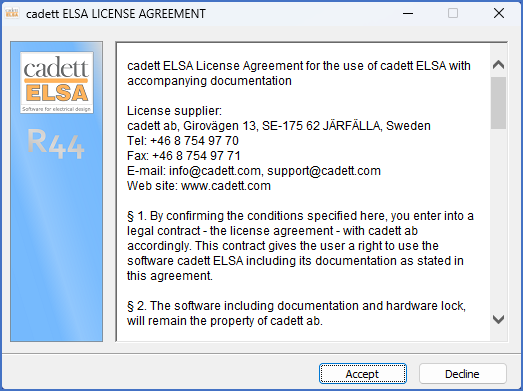
Figure 2317: The License Agreement is displayed for your confirmation.
Next, the License Agreement will be presented, as shown in the figure above. Please make sure to read all paragraphs carefully and to check all details with your lawyers (!), before you click the Accept button, to sign the agreement.
Figure 2318: A directory (folder) must be specified to place the installation files in.
The installation files will be extracted to a directory (folder) of your own choice.
The default directory is C:\cadett ELSA. In almost all cases that is the best choice. If it is ok with you, you can simply click the OK button. If you for some reason prefer another directory name, you can either type the name of it, or select an existing directory using the Browse... button to the right.
When you are satisfied with the selected directory, please click the Install button.
If the directory that you have specified does not yet exist, it will be created automatically.
The installation files will then be extracted to the directory that you have specified.
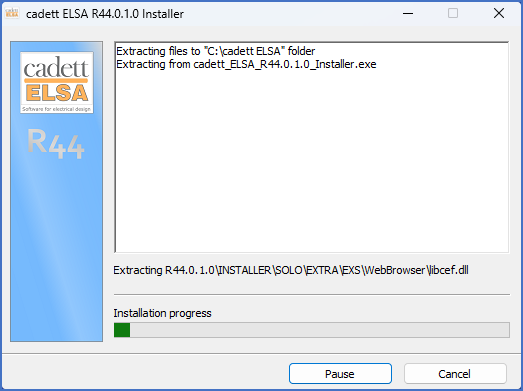
Figure 2319: The files are extracted into the directory of your choice.
A subdirectory for the specific version and revision of cadett ELSA that you are currently installing will be created and the installation files will be placed there.
Figure 2320: The installation program starts.
When the file extraction process is finished, the dialogue box shown in the figure above, will be displayed. That is the cadett ELSA Installation dialogue, which you use to start the actual installation.
Technical note
If, for some reason, you will need to restart the installation, you do not need to run through the unpacking again. You can manually start the installation from the unpacked files. That is done by double-clicking the SETUP.EXE that is found here:
C:\<unpack folder>\<cadett ELSA version/revision>\INSTALLER\setup.exe
Example:
C:\cadett ELSA\R44.0.1.0\INSTALLER\setup.exe
When the cadett ELSA Installation dialogue appears, click Next!
You can then continue with the next step, which is described in the topic that is listed below.