|
<< Click to Display Table of Contents >> Modify sub-circuits |
  
|
|
<< Click to Display Table of Contents >> Modify sub-circuits |
|
Basically the principle is identical with ordinary symbols which, are modified the following way:
1.Insert the symbol that should be modified, normally using the Symbol Insert Tool.
2.Select Symbol Generator: Edit.
3.Make the desired modifications.
4.Select Symbol Generator: Save.
5.Click the Update button in the Symbol Insert Tool.
The same procedure is used for sub-circuits, with one tiny difference:
Step 1 above must be made in a slightly different way. The reason is that when you insert a sub-circuit using the Symbol Insert Tool, you are not really inserting the sub-circuit but making a copy of the content of it. The sub-circuit is not inserted as an entity but as
separate symbols and lines. Therefore, information like the name of the sub-circuit, the Description, the Resource category, and not least importantly, the scope of the sub-circuit (which objects belong to it), is lost.
To avoid that annoying problem, you can use a so-called "raw insert" of the sub-circuit, which means that it is inserted as a block instead. After that you can follow the remaining steps of the description above without any other differences.
A raw insert is made by right-clicking the sub-circuit in the Symbol Insert Tool, and selecting the Raw insert command in the context menu, as shown in the figure below.
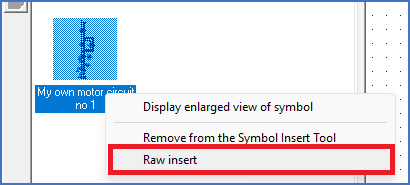
Figure 1248: The "Raw insert" command must be used when inserting a sub-circuit for editing.