|
<< Click to Display Table of Contents >> Configuring Windows Server 2019 firewall |
  
|
|
<< Click to Display Table of Contents >> Configuring Windows Server 2019 firewall |
|
Please note that the description provided here should be regarded as an example only. The procedure may differ substantially depending on operating system versions, configurations and third party software.
Begin by starting the Windows Settings, for example using the gearwheel in the Windows menu as shown in the figure below.
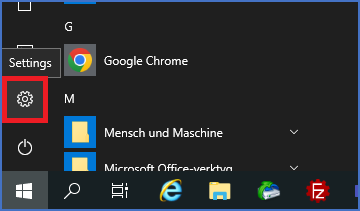
Figure 2570: One way of starting the "Windows Settings" is shown here.
The Windows Settings dialogue is displayed as shown in the figure below.
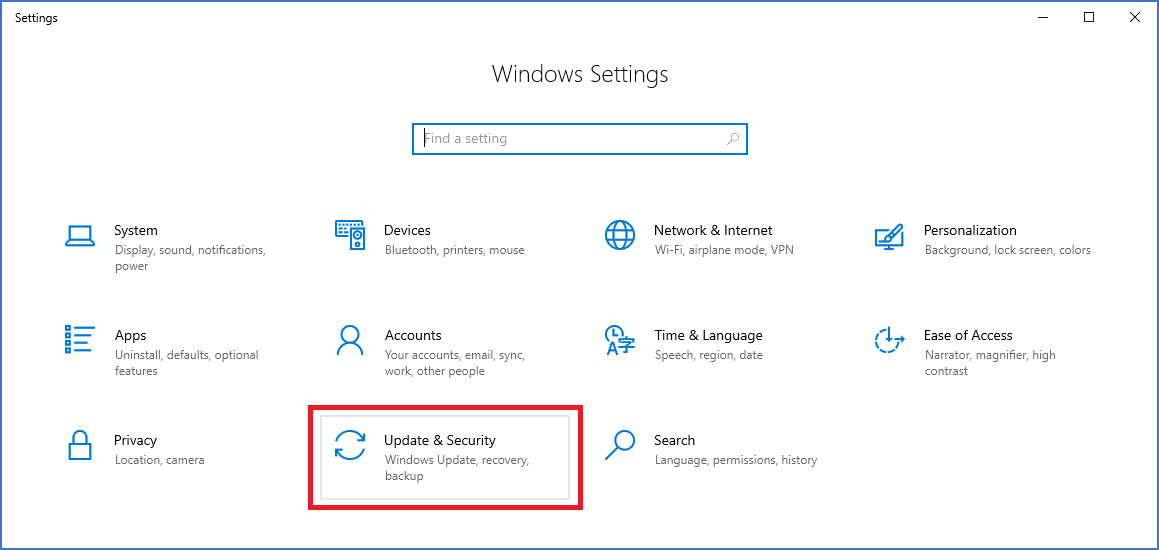
Figure 2571: Start "Update & Security".
When you have entered the Windows Settings, you select Update & Security, as shown in the figure above.
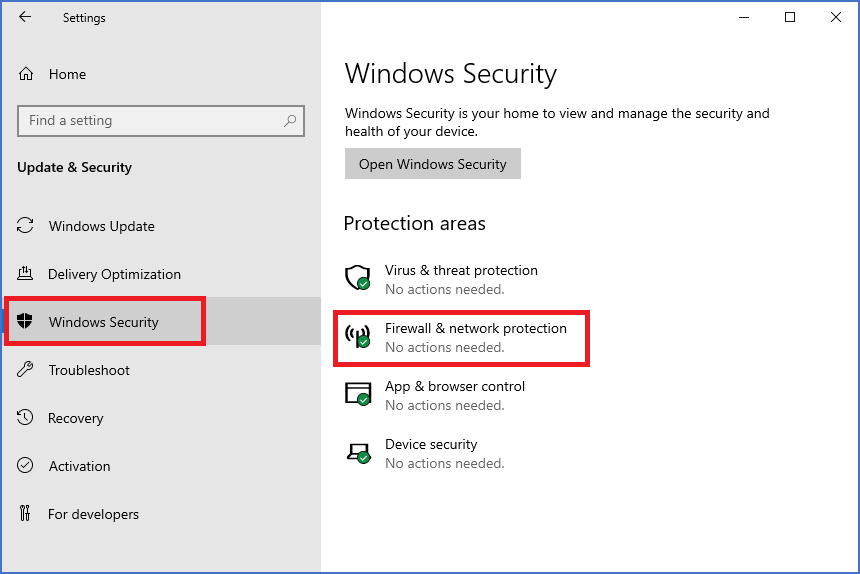
Figure 2572: In the "Windows Security" tab, select "Firewall & network protection".
Select the Windows Security tab and then Firewall & network protection as shown in the figure above.
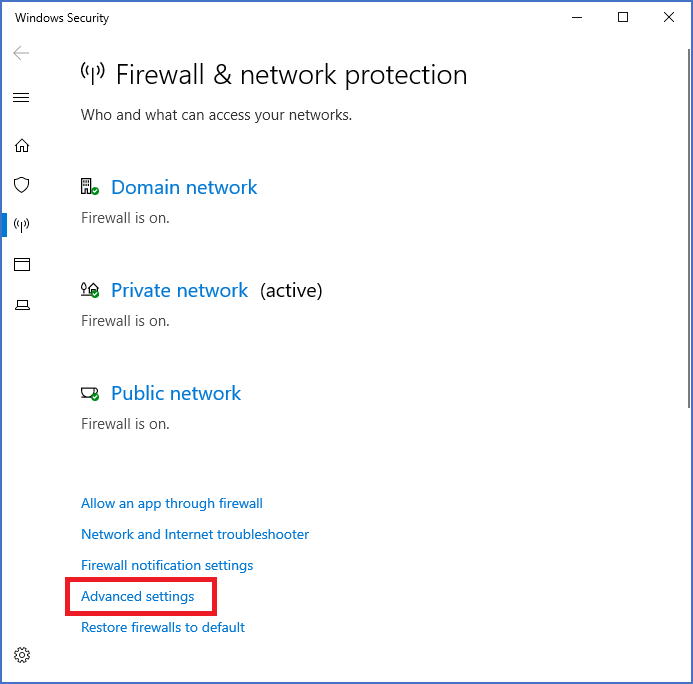
Figure 2573: Select "Advanced settings".
Enter Advanced settings as shown in the figure above.

Figure 2574: Enter "Inbound Rules".
Enter the Inbound Rules as shown in the figure above.

Figure 2575: Start creating a "New Rule".
Start creating a New Rule as shown in the figure above.

Figure 2576: Select "Program".
Select Program as shown in the figure above. Then click Next >.

Figure 2577: Use the "Browse..." button to select the "Spider.exe".
Use the Browse… button to navigate to and select the Spider.exe, which is located in the cadett ELSA main directory. The figure above shows what it looks like when the selection is ready.
Please note that you must select Spider.exe in its physical location, not the substituted one. In other words, selecting Spider.exe in X:\ELSA in the example we are discussing will not work. You must select it in the corresponding physical directory, which in our example is C:\CADETT\ELSA.
Click the Next > button.

Figure 2578: Select "Allow the connection".
Select Allow the connection as shown in the figure above. Then click the Next > button.

Figure 2579: Specify when the created rule should apply.
Specify when the rule that is created should apply as shown in the figure above.
Depending on particular circumstances in your network, you may be able to use a more conservative setting than the one suggested here, which is to make the rule apply for all available options.
Click the Next > button.

Figure 2580: The rule is given a suitable name.
Give the created rule a suitable and informative name like the one shown in the figure above. The suggested name is “cadett ELSA Spider database server”.
Click the Finish button to finalize the creation of the rule.
The new rule will become active immediately resulting in the Spider communication suddenly starting to work. Error messages indicating it was not will disappear and the Catalogue will be available for use, among other things.