|
<< Click to Display Table of Contents >> Automatic separate driver installation |
  
|
|
<< Click to Display Table of Contents >> Automatic separate driver installation |
|
As described above, cadett ELSA’s installation program will automatically install suitable hardware lock drivers on the same computer where the software is installed, regardless of whether it is a local installation, a workstation in a network or a server installation.
If you plan to place a network hardware lock on a different server than the one where cadett ELSA is installed, you however will have to perform a separate driver installation, which fortunately is easy to do.
Simply copy the standard cadett ELSA installation file to the computer on which you intend to install the hardware lock. Then start the installation by double-clicking the file. Continue in the same ways as during an ordinary network installation, described in the topic named Start the installation for a network installation.
When you reach the Type of installation selection, the dialogue shown in the figure below is displayed.
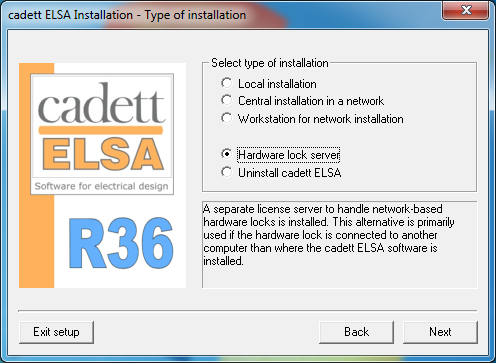
Figure 2465: Selection of "Hardware lock server" installation
Simply specify that you want to install a Hardware lock server.
The appropriate driver is then installed.